

Varying Print and GIF Designs Automatically
Legacy tutorial (Remote Pro 3.15): These tutorials walk you through varying print and GIF designs during an event.
On this page
- Random print designs
- What is a background/overlay filename suffix?
- Tips
- Pick a winner
- Multiple prizes
- Happy Hour overlay for a fixed installation
- Captions, logos and QR codes
- Switching backgrounds for different times of day and night
- Automate special backgrounds and overlays for significant dates
- Last chance offers
- Slideshow and burst GIFs
- GIF overlay naming
- Troubleshooting
- Summary
Legacy tutorial. This was written for DSLR Remote Pro 3.15, so some menus and screens look different in the current version. For current settings see Print Layouts.
Need help doing this in the current version of Remote Pro? Contact support and we'll guide you through it.
These tutorials walk you through varying print and GIF designs during an event. You will also learn how to include date and time specific vouchers and designs to fixed installations and trade show booths.
Breeze gives you power to#
- surprise guests with varied and personalised designs,
- build custom promotions into fixed installations in advance
- use custom designs and unique vouchers at regular and one-off occasions such as Happy Hour and New Years Eve. Pre-program end off event specials
This is the first of two tutorials which explain how to set up custom Breeze Booth (Windows + DSLR) print and GIF designs which change either randomly or in predetermined ways.
- Part 1 shows how to create randomly selected layouts, prize notifications, and automatically change the overlay and/or print at specific times and dates. Part 1 uses print layouts as examples.
- Part 2 will show how to use the same approach with GIFs.
Whether you are using prints, slideshow or burst (aka boomerang) GIFs you need to create the overlays and backgrounds; and tell the program when to use them.
Random print designs#
Spice up events with random designs on your prints and GIFs.
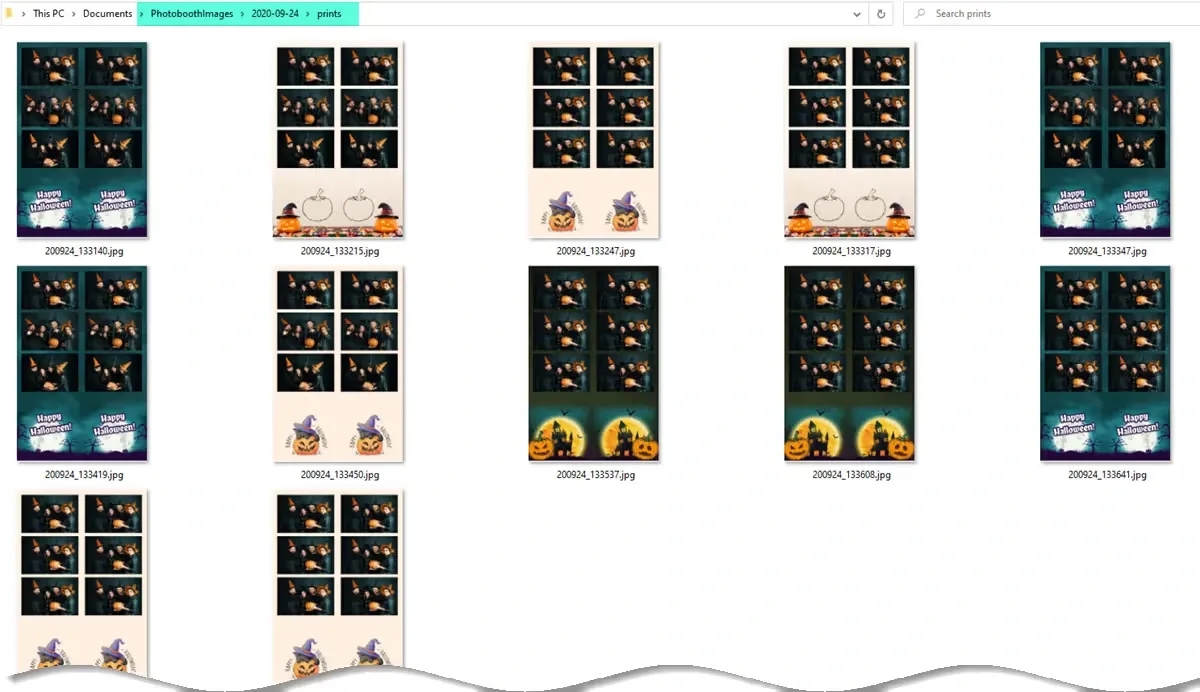
First tell DSLR Remote Pro to look for your special backgrounds and overlays instead of the regular versions (background.jpg and overlay.png):
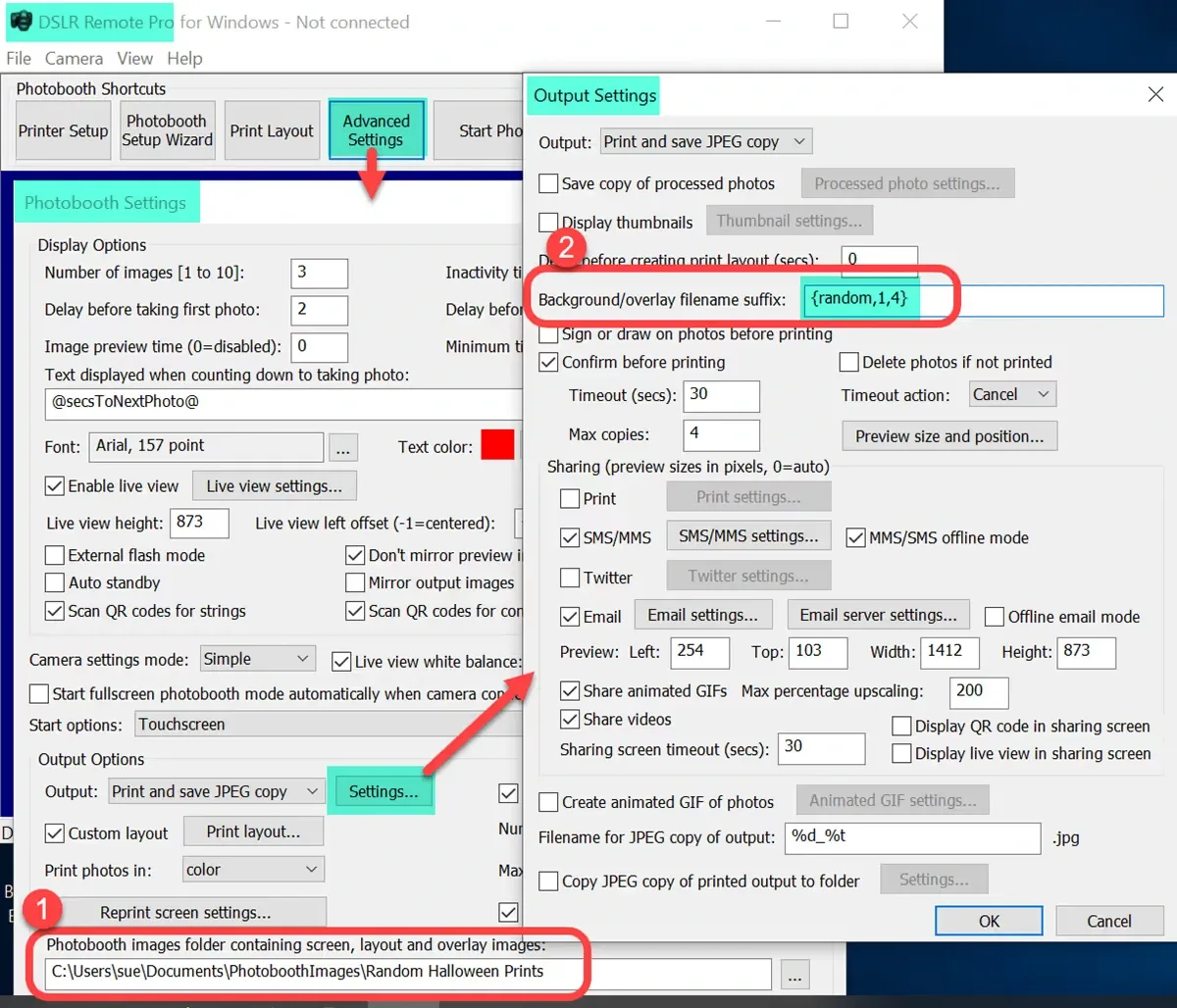
What is a background/overlay filename suffix?#
Extra background image names for prints all start with background_ and end with the filetype .jpg
The suffix part of the name follows background_ and explains what your backgrounds and overlays are called.
In this example I want to switch randomly between four print layouts.
To achieve this the suffix is a Breeze token {random,1,4}. The names of each background image must fit the same pattern ie background_ + one of the random numbers between 1 and 4 + .jpg
The suffixes are 1, 2, 3 and 4, so the full filenames are
- background_1.jpg
- background_2.jpg
- background_3.jpg
- background_4.jpg
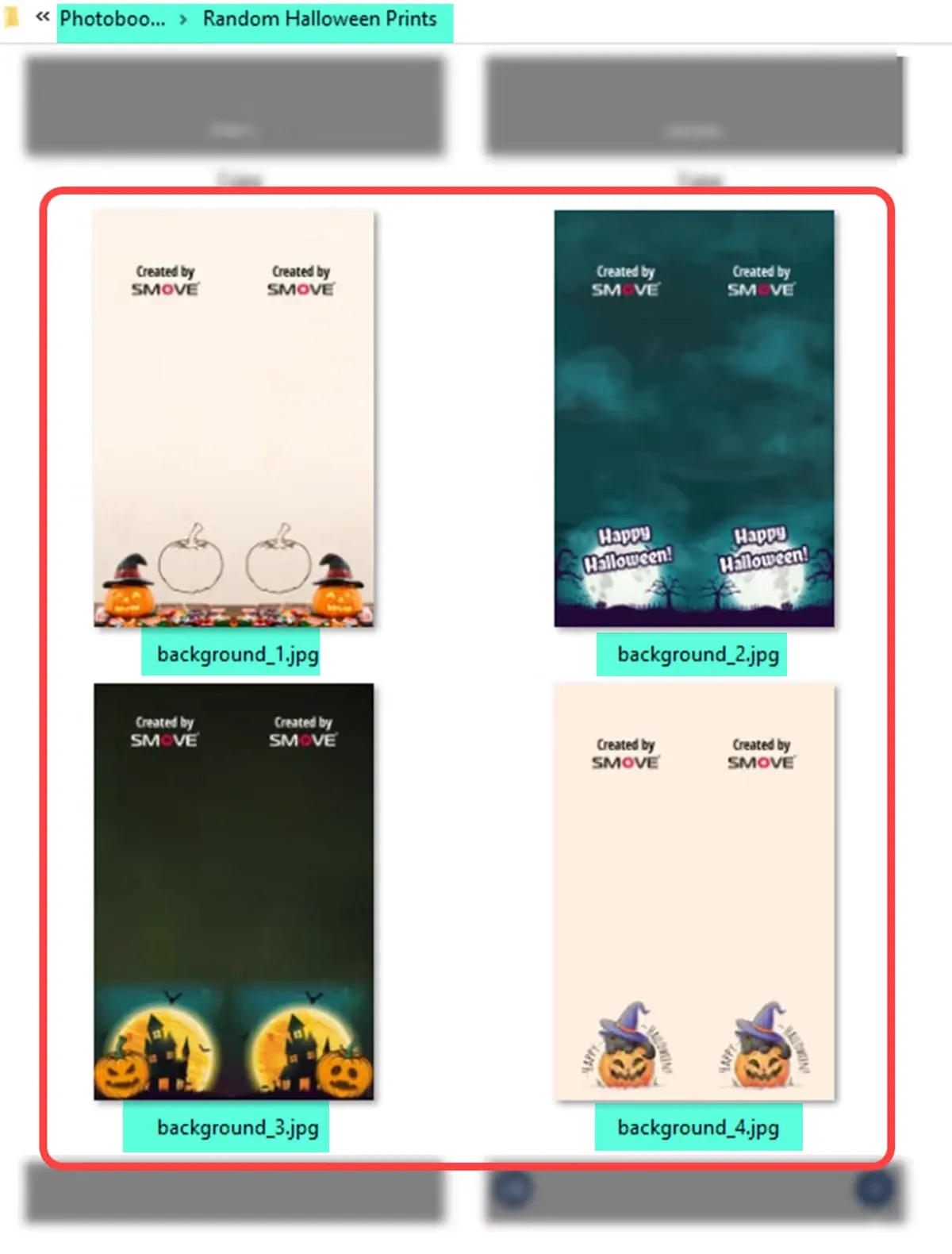
Guests prints could be on any of these four backgrounds:
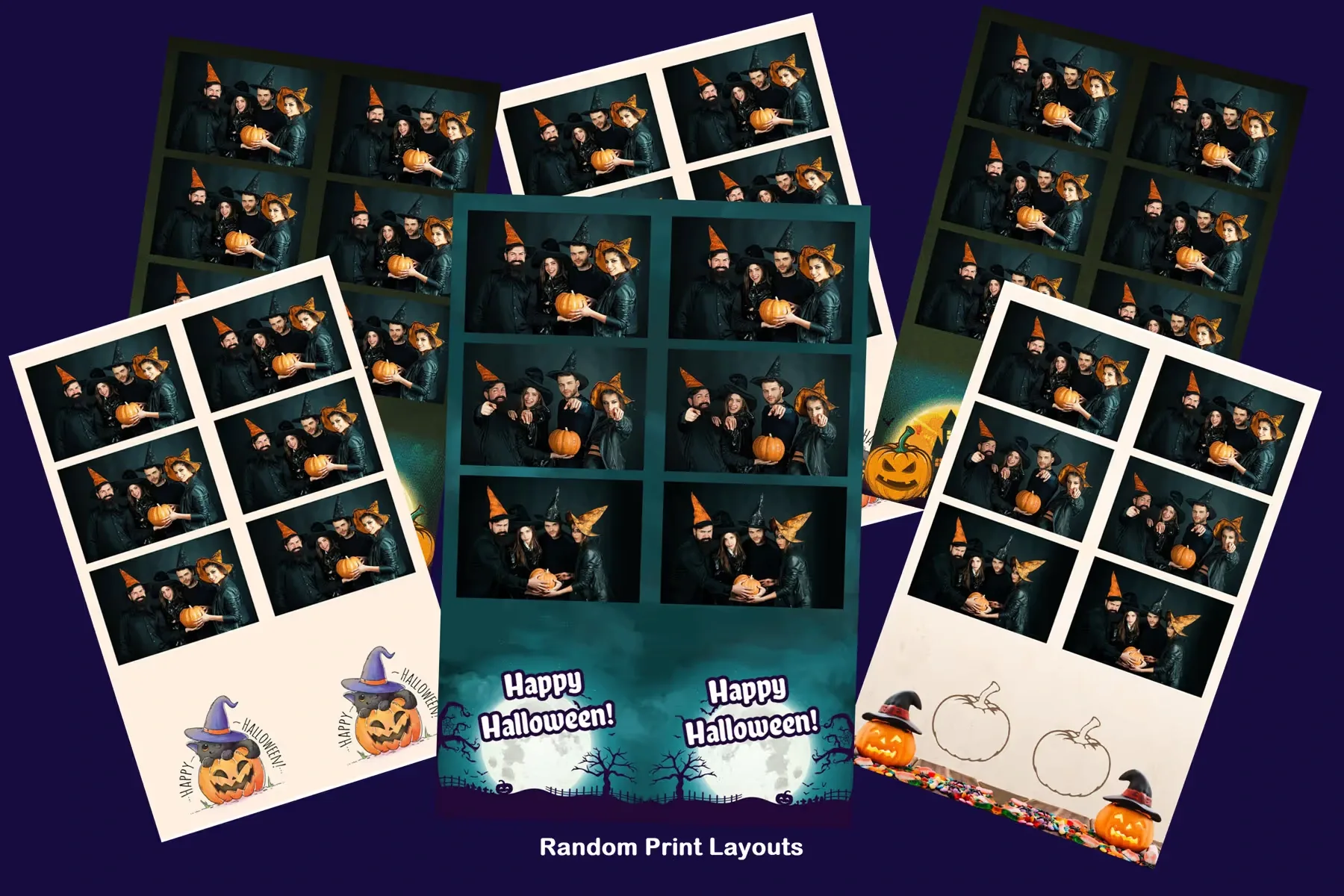
Surprise guests by printing on randomly chosen layouts (Breeze DSLR Remote Pro 3.15.3)
Tips#
- {random,1,4} is a DSLR Remote Pro token which instructs the program to choose a random number from 1 to 4. For 10 different print designs use {random,1,10} etc
- Tokens are a powerful and flexible Breeze tool and surprisingly easy to use. Learn more about tokens
- Print overlays are named in the same way. In this example, random overlays would be named overlay_1.png, overlay_2.png etc.
- Image placement: When you use dynamic print suffixes, images are in the same position on each print design. To randomly change the number of images or their position on the print use random profiles.
Random overlays and backgrounds can also be used to pick winners.
Pick a winner#
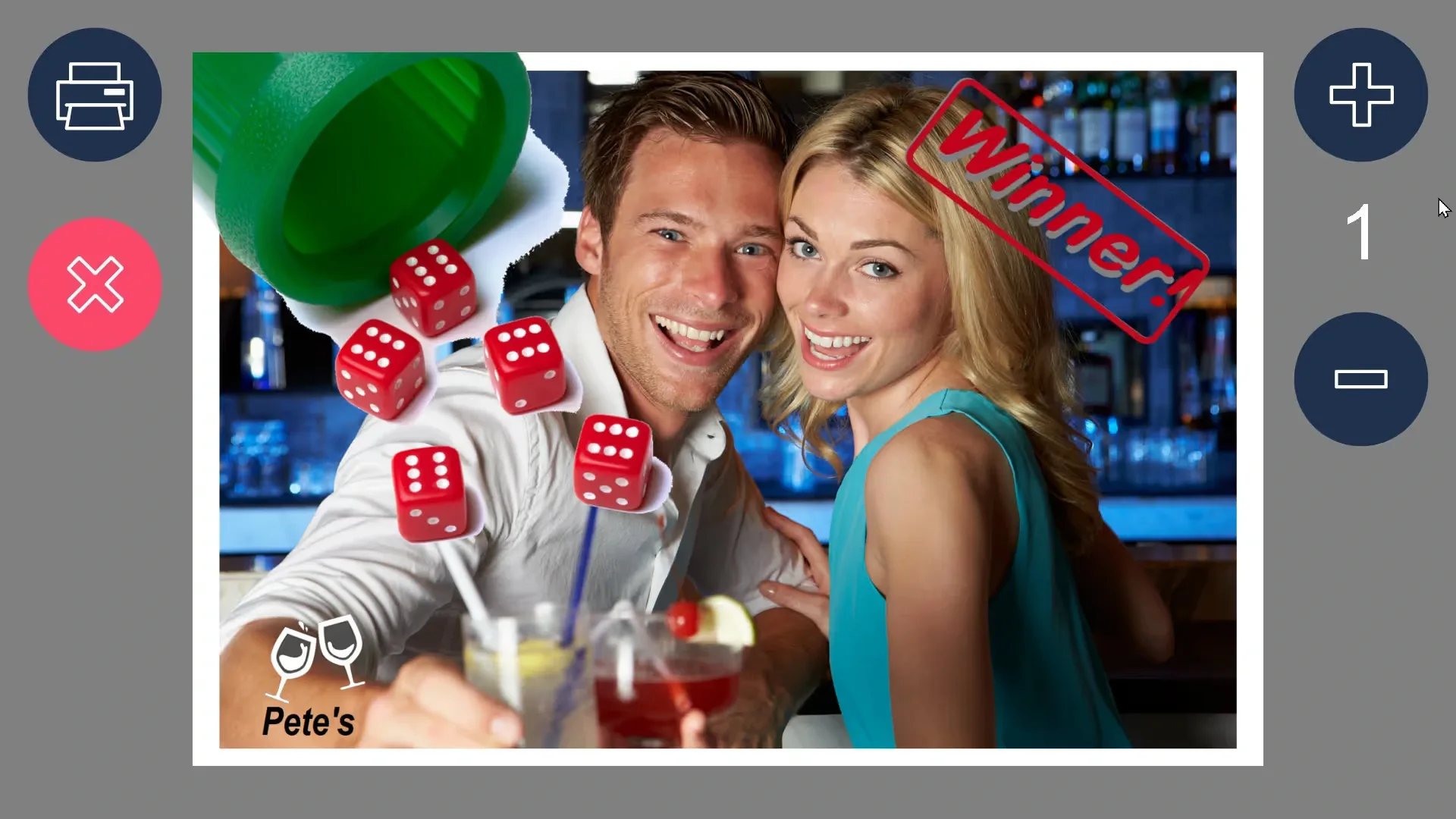
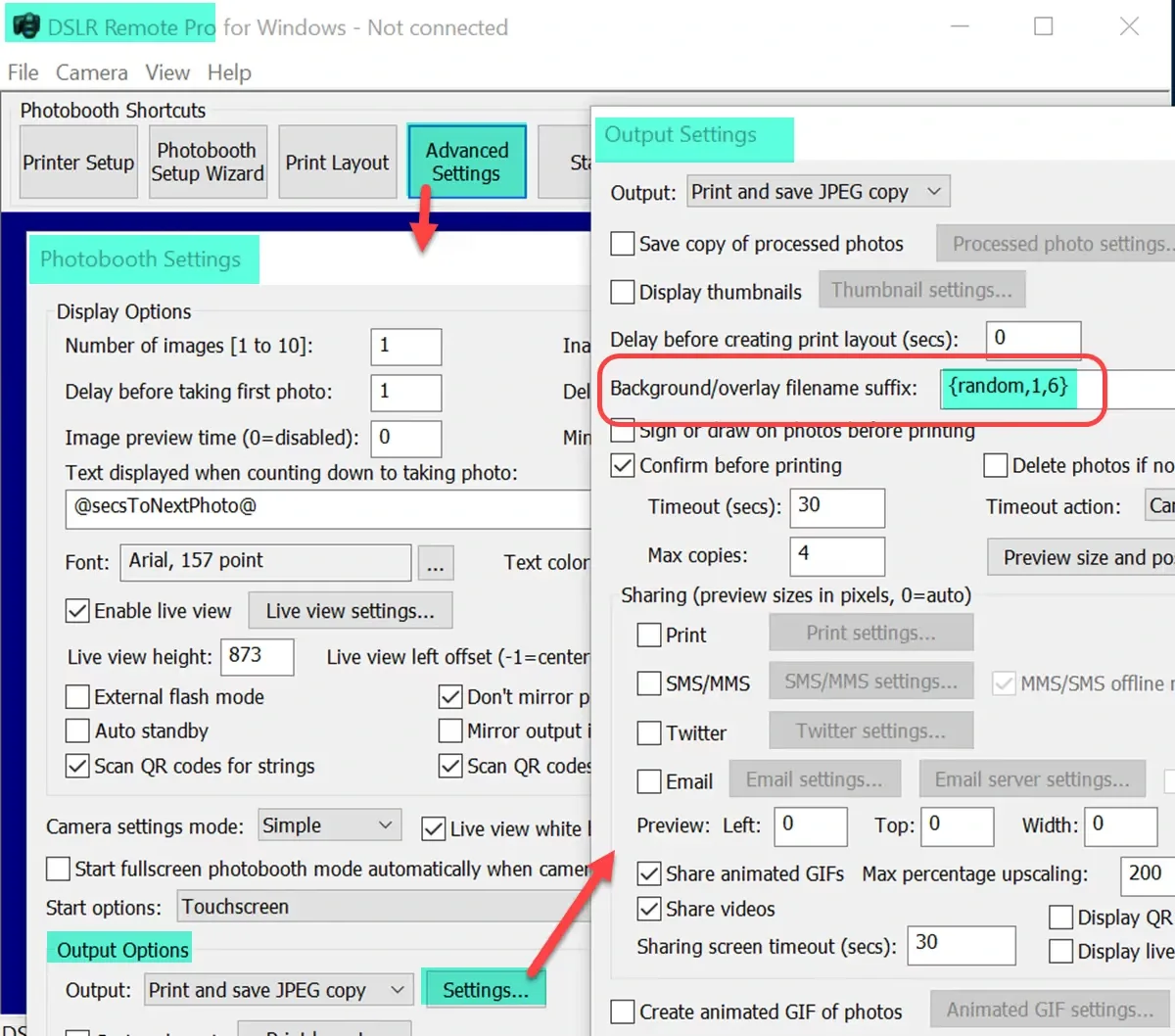
For this event I have changed the random token to {random,1,6} to randomly pick a winner 1 in 6 times*
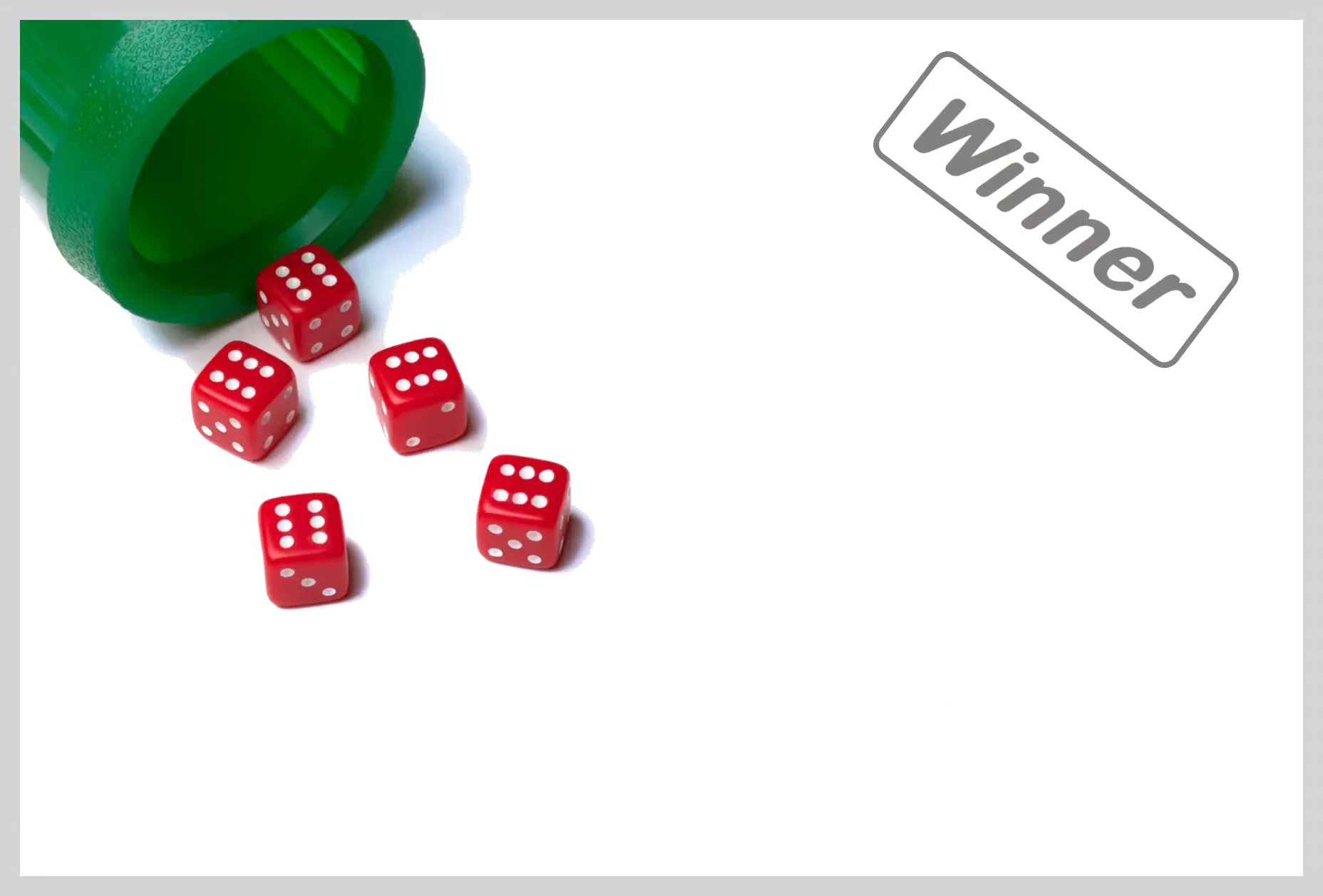
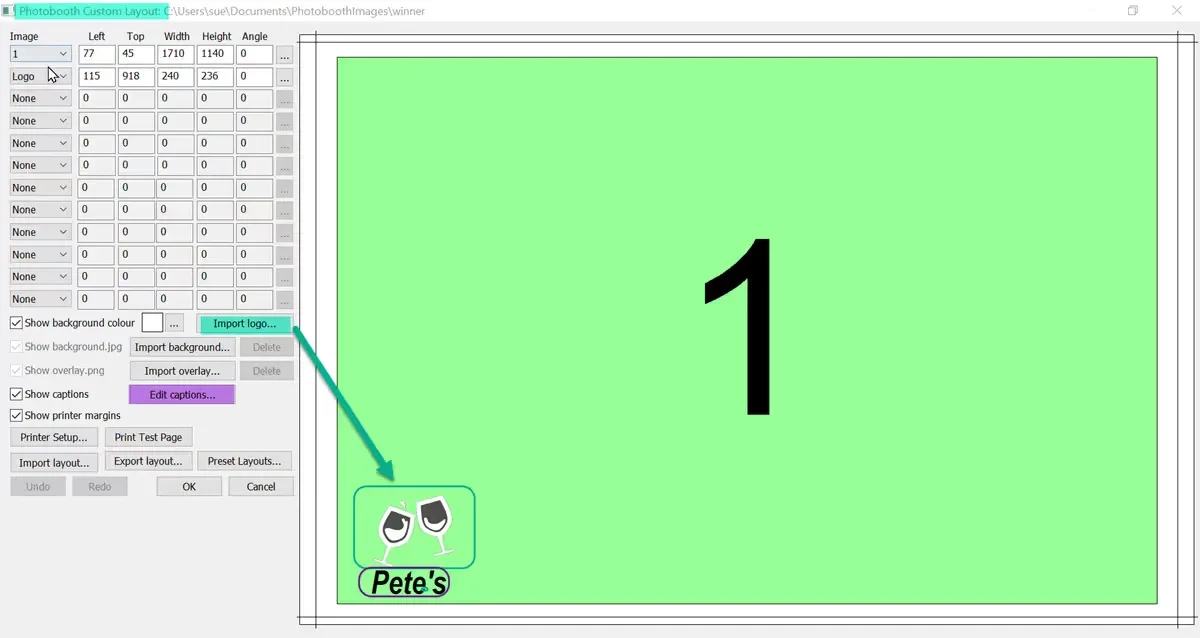
I only need 1 special overlay for the winning print overlay_1.png. The other prints all have the same design which is set up using the Print Layout Editor.
Multiple prizes#
You can have several prizes occurring at different intervals. For example,
For 1/100 star prizes, 3/100 runner up prizes and 5/100 lesser prizes#
- Change the Background/Overlay suffix to {random,1,100}
- Call your star overlay overlay_1.png
- Add 3 identical runner up overlays overlay_2.png, overlay_3.png and overlay_4.png to the PhotoboothImages folder
- add 5 identical lesser prize overlays overlay_5.png, overlay_6.png, … overlay_9.png to the PhotoboothImages folder
Everyone’s a Winner!#
- For ‘Everyone’s a Winner’ scenarios, use overlay.png for the consolation prize which everyone gets if they don’t win a better prize.
The next example uses a different suffix to add a special overlay at a fixed time each day.
Happy Hour overlay for a fixed installation#
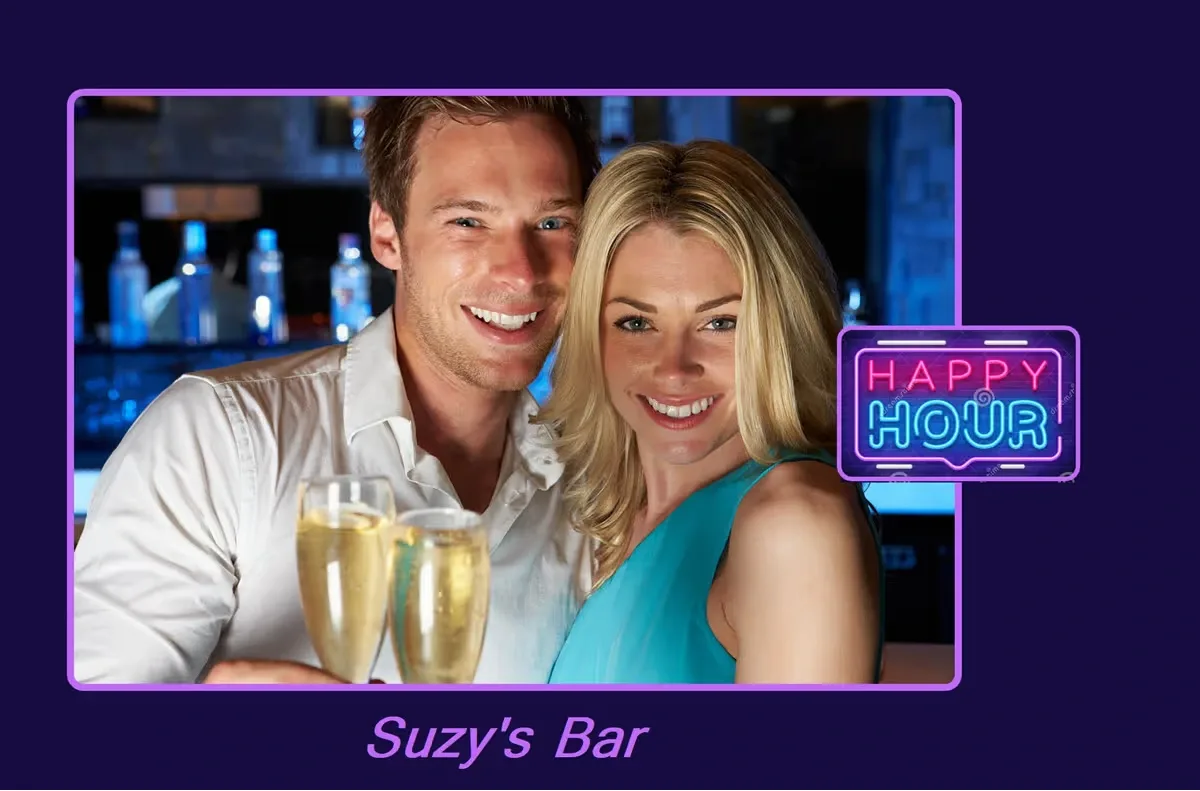
Happy Hour in Suzy’s Bar is between 17:00 and 18:00 or 5-6pm. I want to replace the regular print overlay with a special version during Happy Hour, which is between 17:00 and 18:00 or 5-6pm.
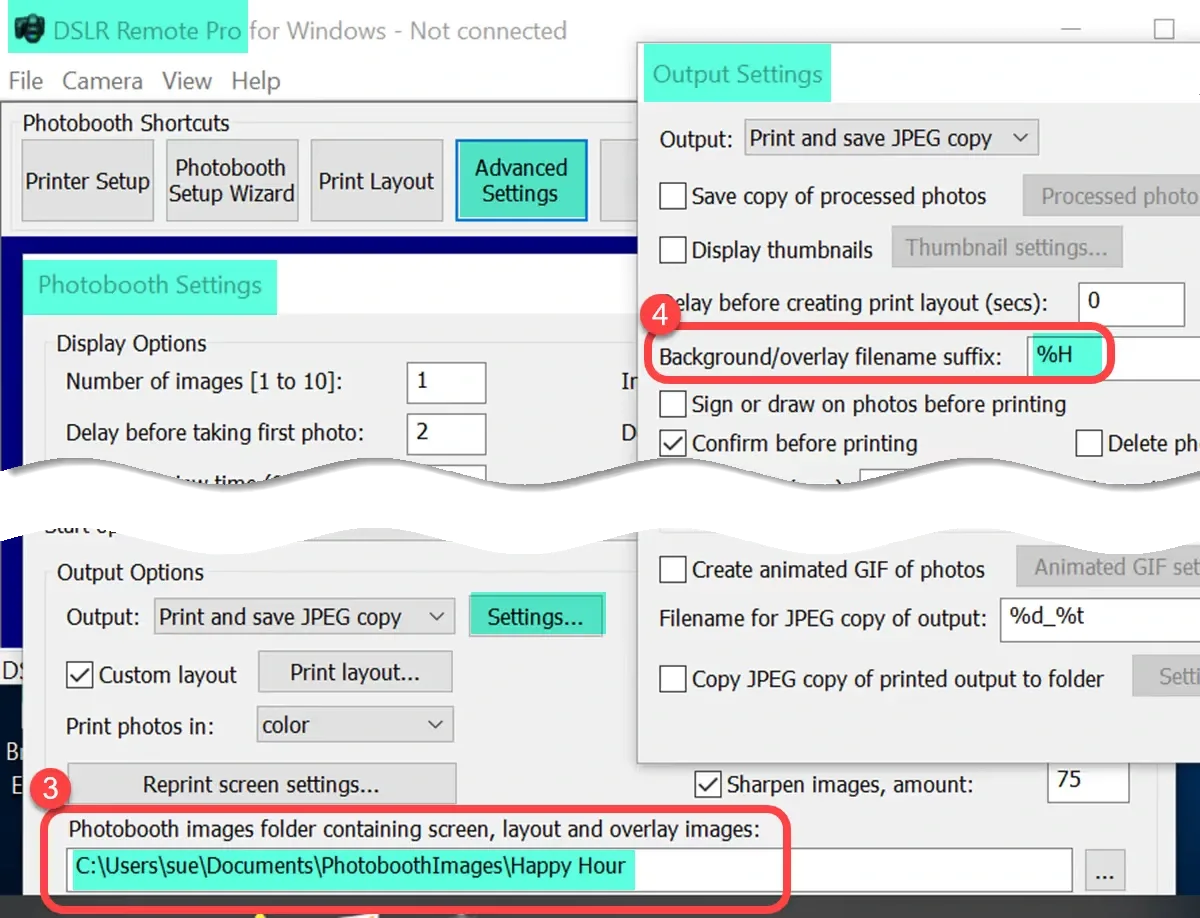
I have called the event Happy Hour (3) and used the time based token %H (4) instead of the random token earlier.
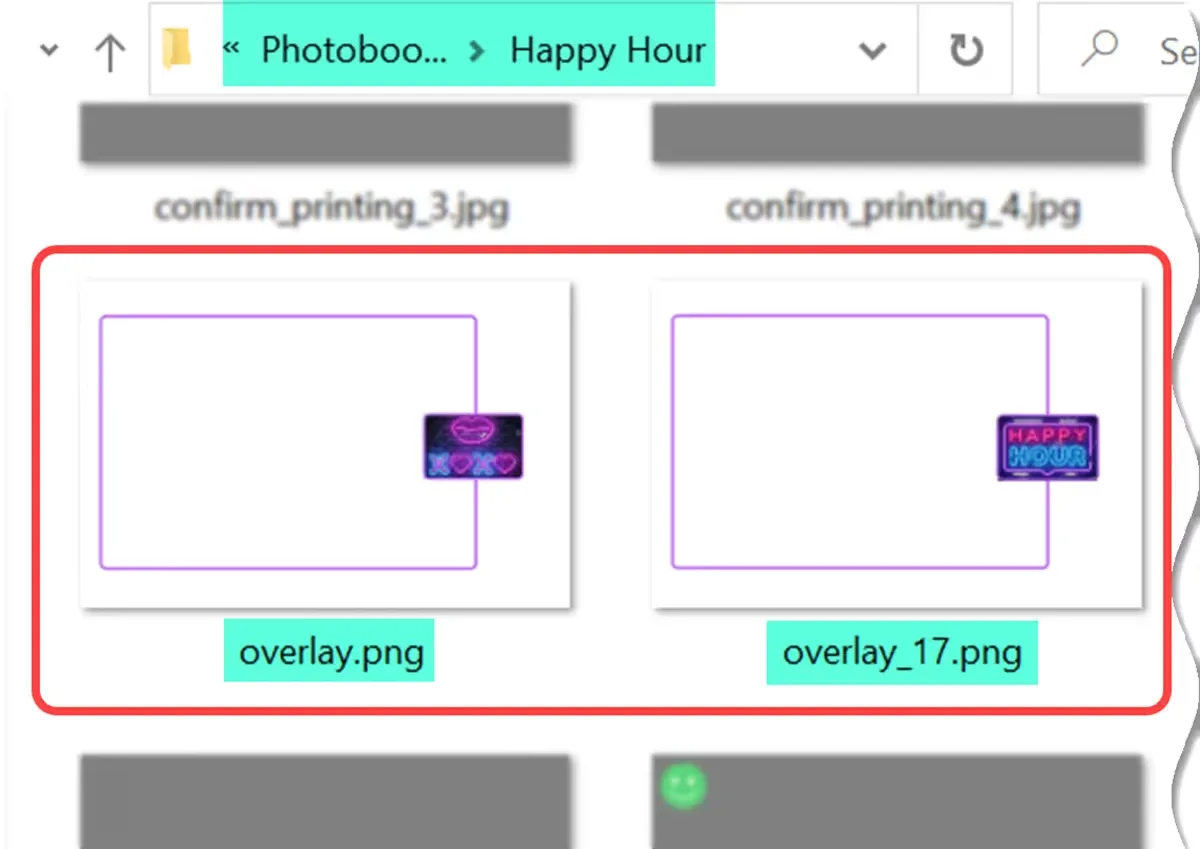
I need two overlays in the PhotoboothImages folder. overlay_17.png is used on prints during Happy Hour, and overlay.png at all other times.
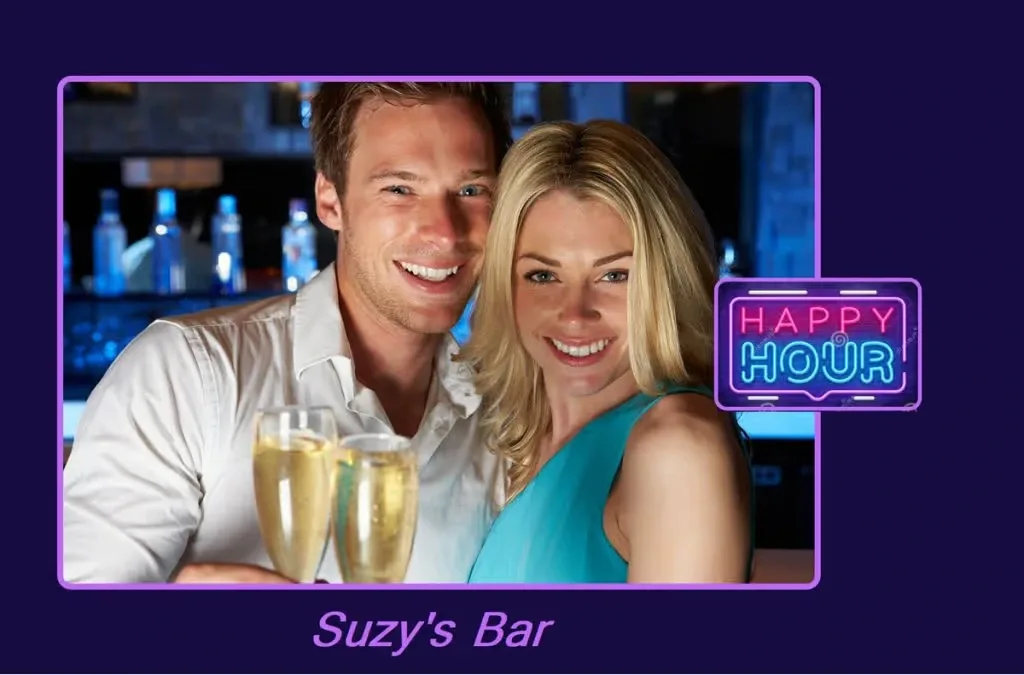
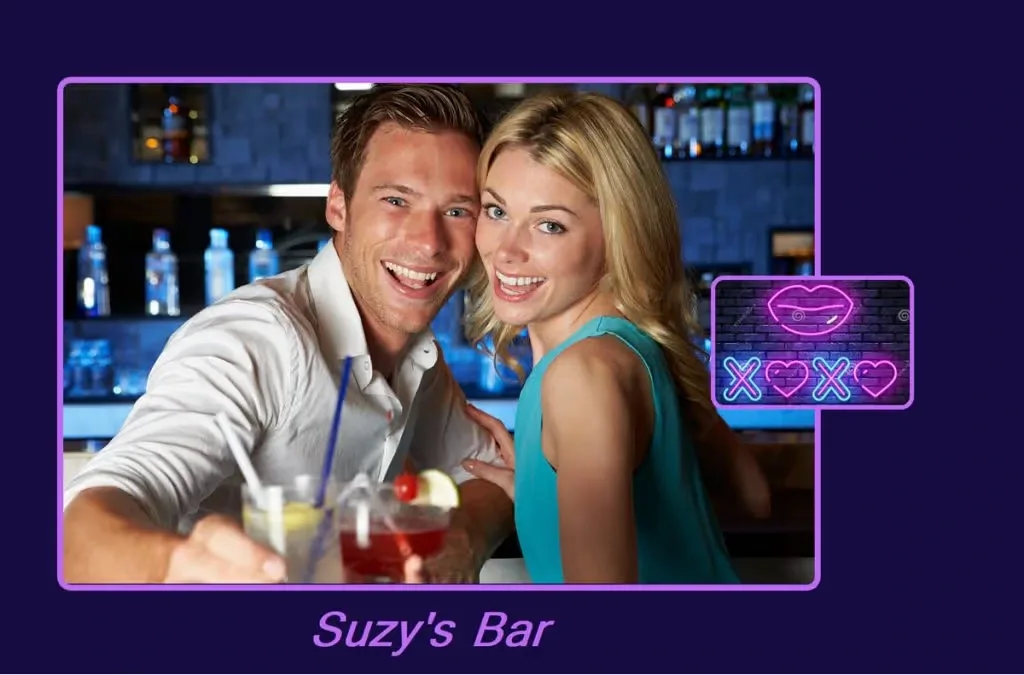
Outside Happy Hour, prints use the regular overlay
Captions, logos and QR codes#
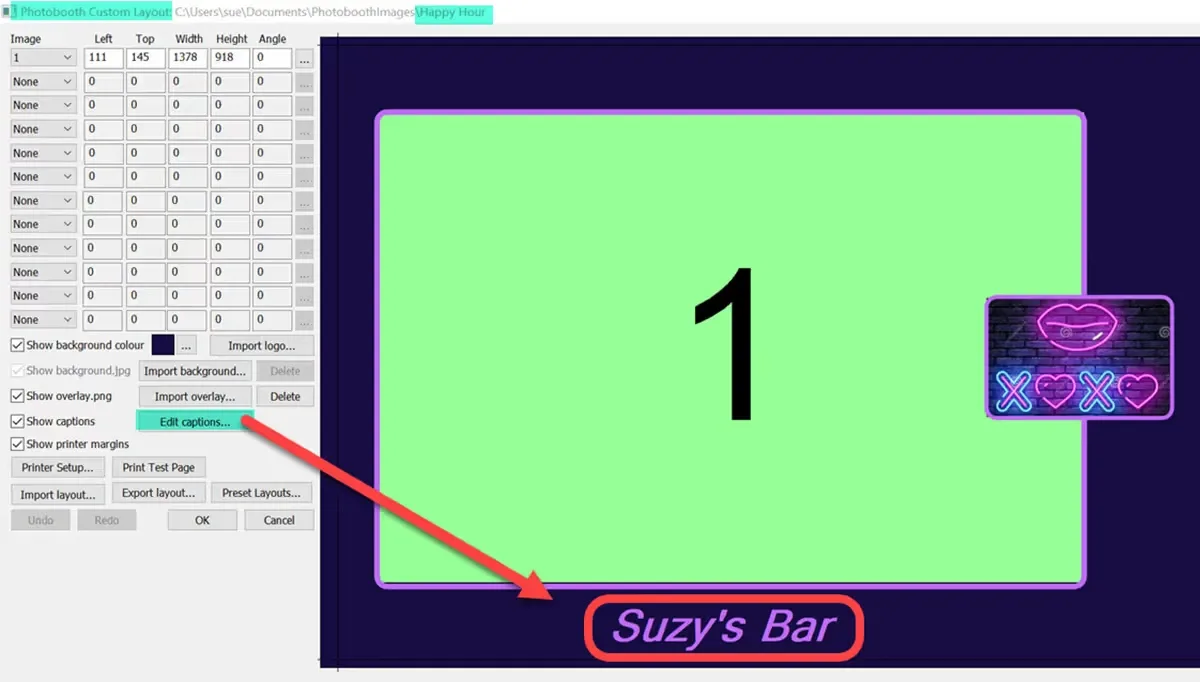
You may have noticed that both prints are captioned Suzy’s Bar.
Captions, logos and QR codes are added in the usual way in the Print Layout Editor, and included in both prints.
Switching backgrounds for different times of day and night#
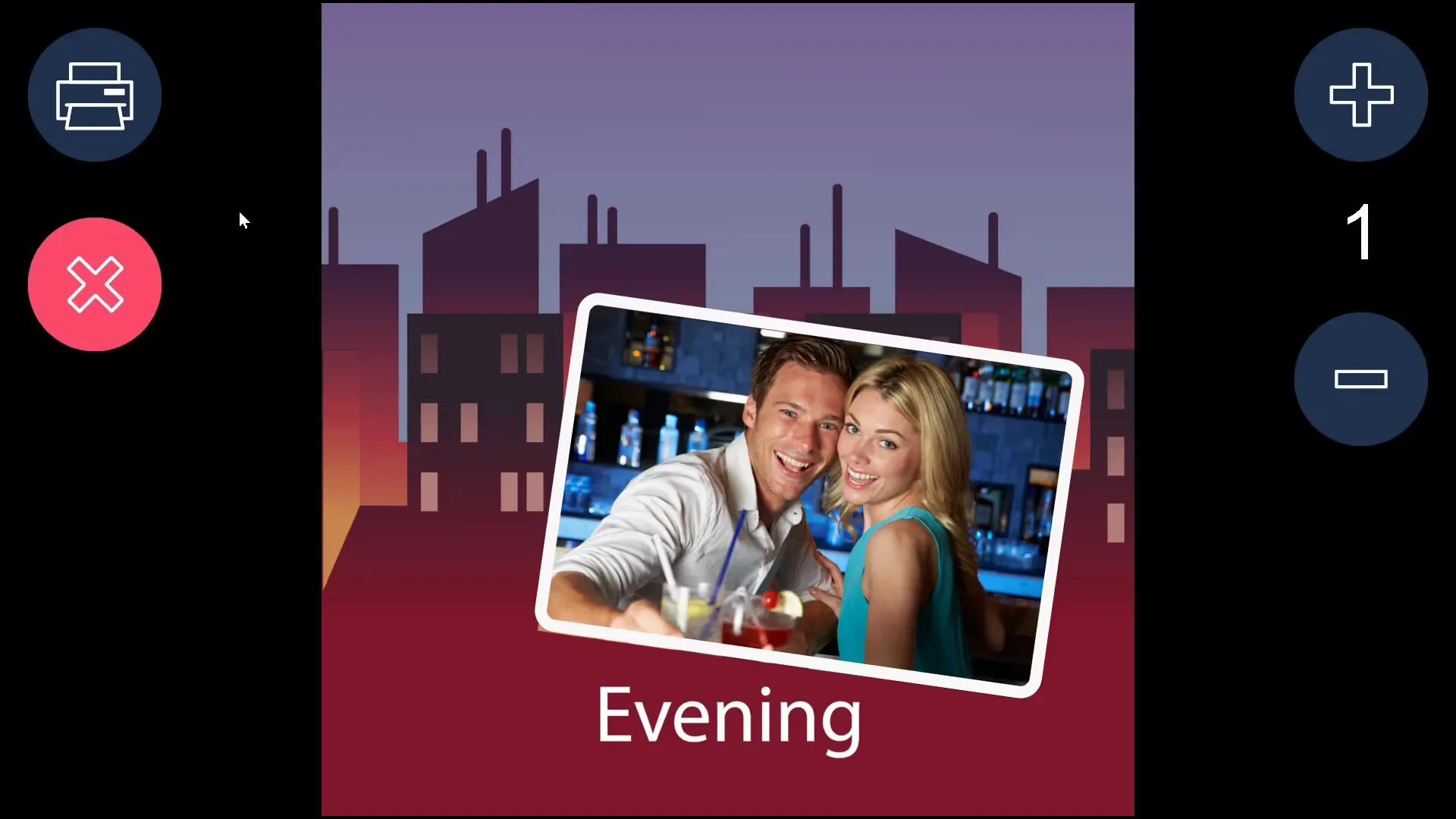
The same %H token can also be used with a collection of different backgrounds and overlays at differnent hours of the day and night as here
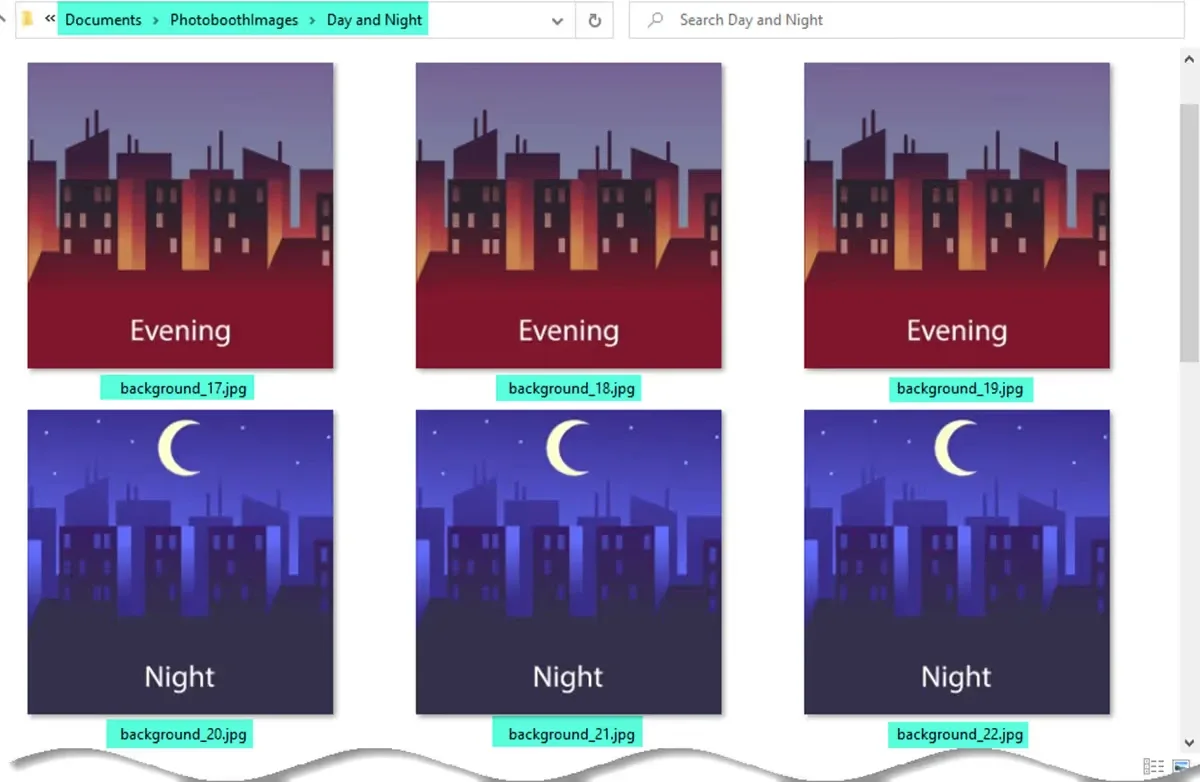
This event also uses the %H token and has 24 backgrounds for each hour of the day and night
Automate special backgrounds and overlays for significant dates#
To use set up overlays and/or backgrounds in advance for special dates such as Valentines’ Day, Hallowe’en and New Year’s Eve you can combine two tokens %B%D.
%B will be replaced by the full English name of the month eg February
%D will be replaced by the day of the month eg 14
Insert your special and overlays into the PhotoboothImages folder with the correct names, and they will replace the regular background /overlay on these key dates. The format for the %B%D tokens is background_Monthdd.jpg.
Use background_February14.jpg for Valentines Day, background_October31.jpg for Hallowee’en etc .
The %m token uses numbers to show months (eg 02 instead of February). If you prefer, use suffix %m%D with overlay_0214.png etc
There is no need to create backgrounds/overlays for every day of the year, just for the days you want a special print.
Last chance offers#
Use the same technique to print special offer vouchers on the final day of a tradeshow or wedding fair.
Slideshow and burst GIFs#
You can use suffixes in the same way to vary GIF overlays and backgrounds. Part 2 will take you through this in detail:
You will learn how to randomly switch between GIF designs, use special designs for prizes and vouchers, etc.
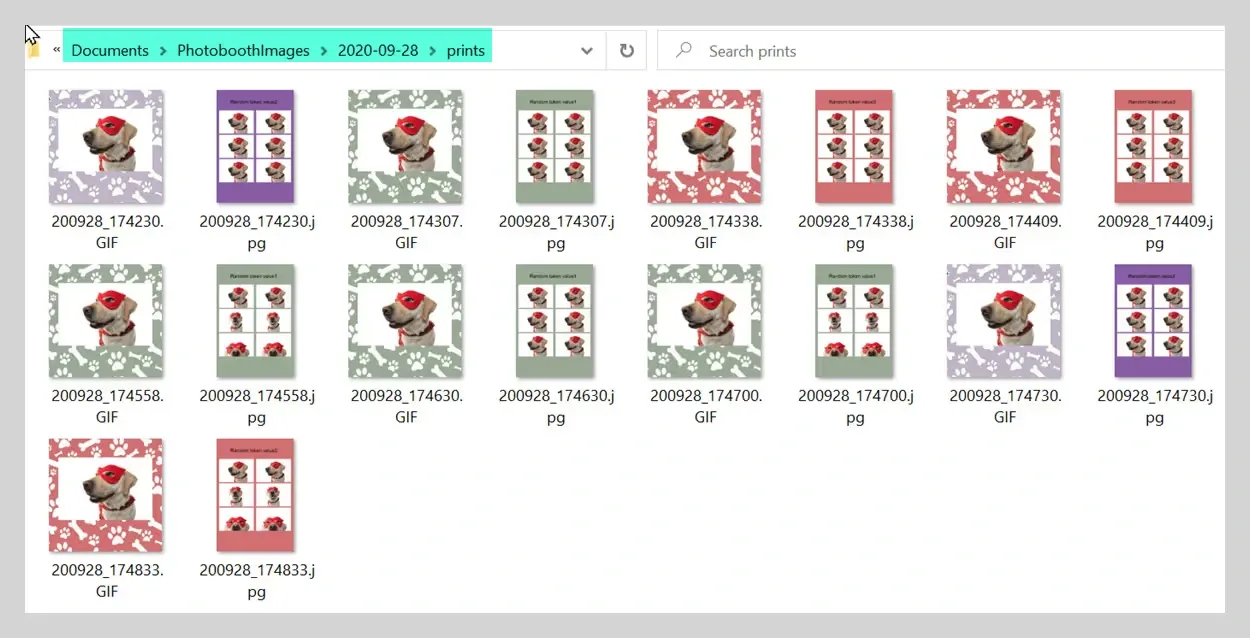
This shot of the PhotoboothImages folder shows the print and GIF backgrounds used to create these slideshow GIFs:
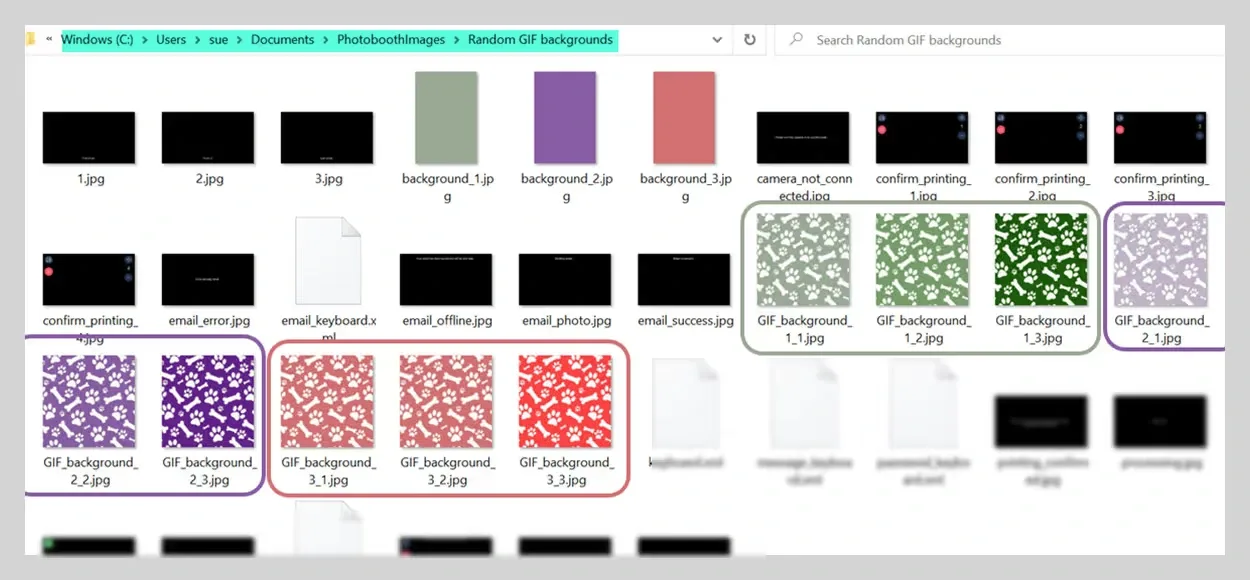
GIF overlay naming#
- Matching overlays for the slideshow GIFs above would be named GIF_overlay_1.1.png, GIF_overlay_1.2png etc
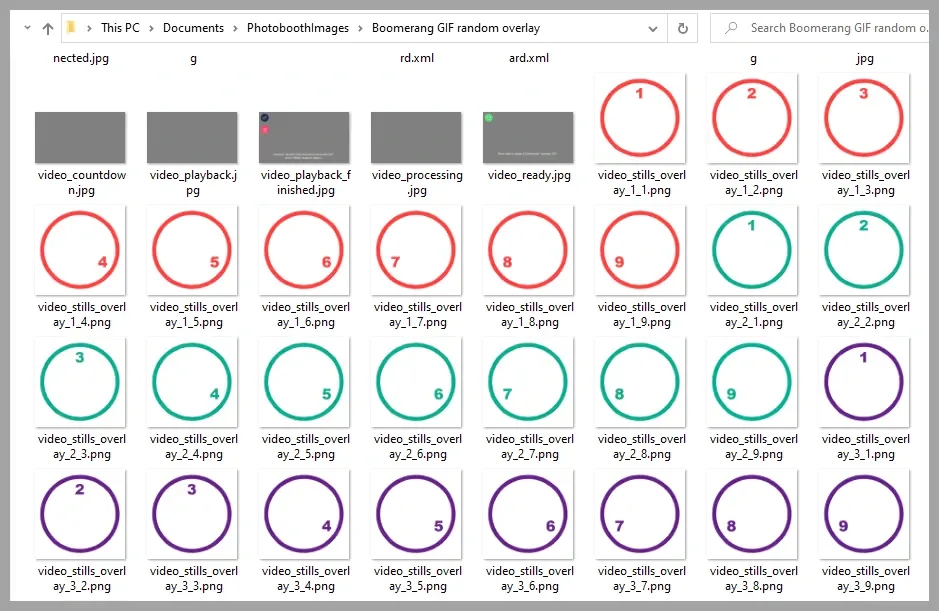
- Burst (aka boomerang) GIF overlays all start with video_stills_overlay
Troubleshooting#
- Check that the camera is set to the correct date and time. The tokens used in this tutorial use the camera’s date and time.
- Naming your overlays and backgrounds correctly is vital. If your overlays and backgrounds don’t appear when you expect them to, check
-
- you are using underscores _ not hyphens –
- there are no extra or missing spaces in your filenames
- During testing try adding the suffix token to the print caption
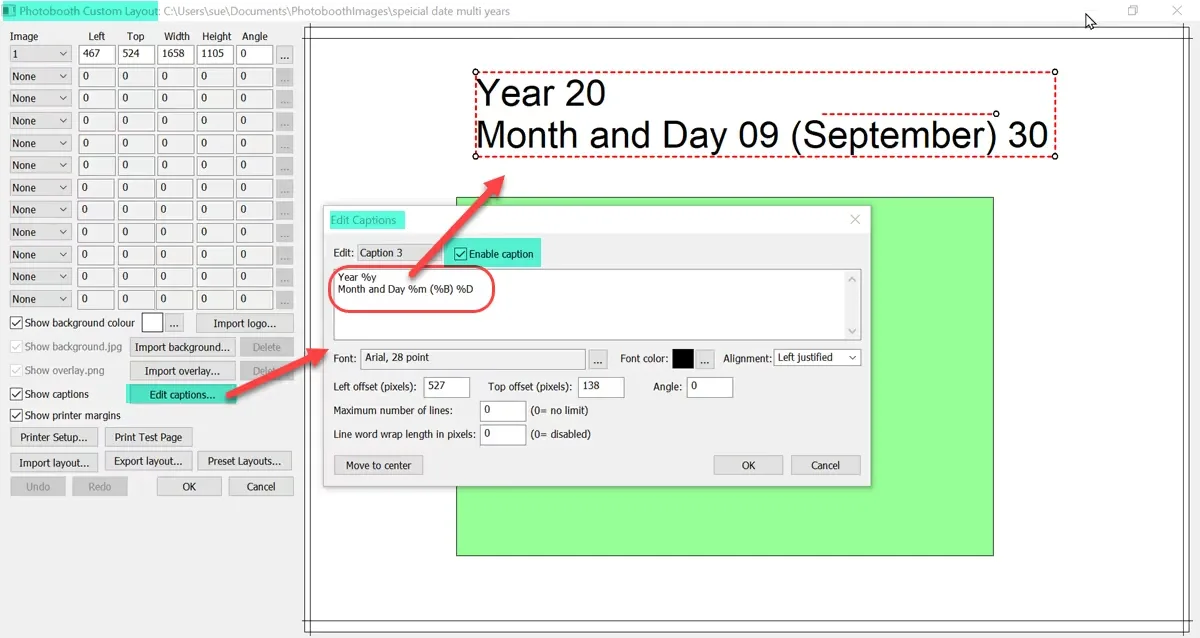
Learn more about the Print Layout Editor
Summary#
Combining Breeze tokens with suffixes gives you an imensely flexible and powerful tool to enhance the experience you offer.
This tutorial has given you a taste of what you can achieve using suffixes with your prints. Explore this further in the online manual
Part 2 will cover using suffixes to vary your GIF designs.
Was this page helpful?
Thanks, that helps us improve the guides.