

Custom POST Processing
On this page
Custom POST Processing#
Photos can be processed by a web-based POST request or a local script (such as a Photoshop droplet or AutoHotKey script) before being added to the print layout and slideshow GIFs. This allows custom processing on your own servers or PC.
Enabling post-processing#
In Output Settings, select Postprocess photos and click Settings....
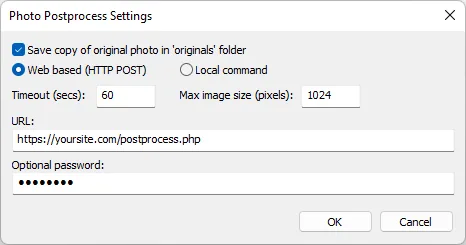
Select Save copy of original photo in 'originals' folder to retain the unmodified photo for "before and after" comparisons.
The image sent to post-processing includes any filters or crops already applied.
Web-based post-processing#
Use this option for cloud services such as Breeze FX or your own custom API.
- Timeout — maximum time to wait for a response. If the timeout is reached, the original unmodified photo is used.
- Max image size — resize the image before uploading if the service has size limits. Set to 0 to disable resizing.
- URL — the web service endpoint. The URL can contain tokens to vary per session.
- Password — optional API key or password.
The photo is sent as a multipart form HTTP POST. The response can be a JPEG or PNG image.
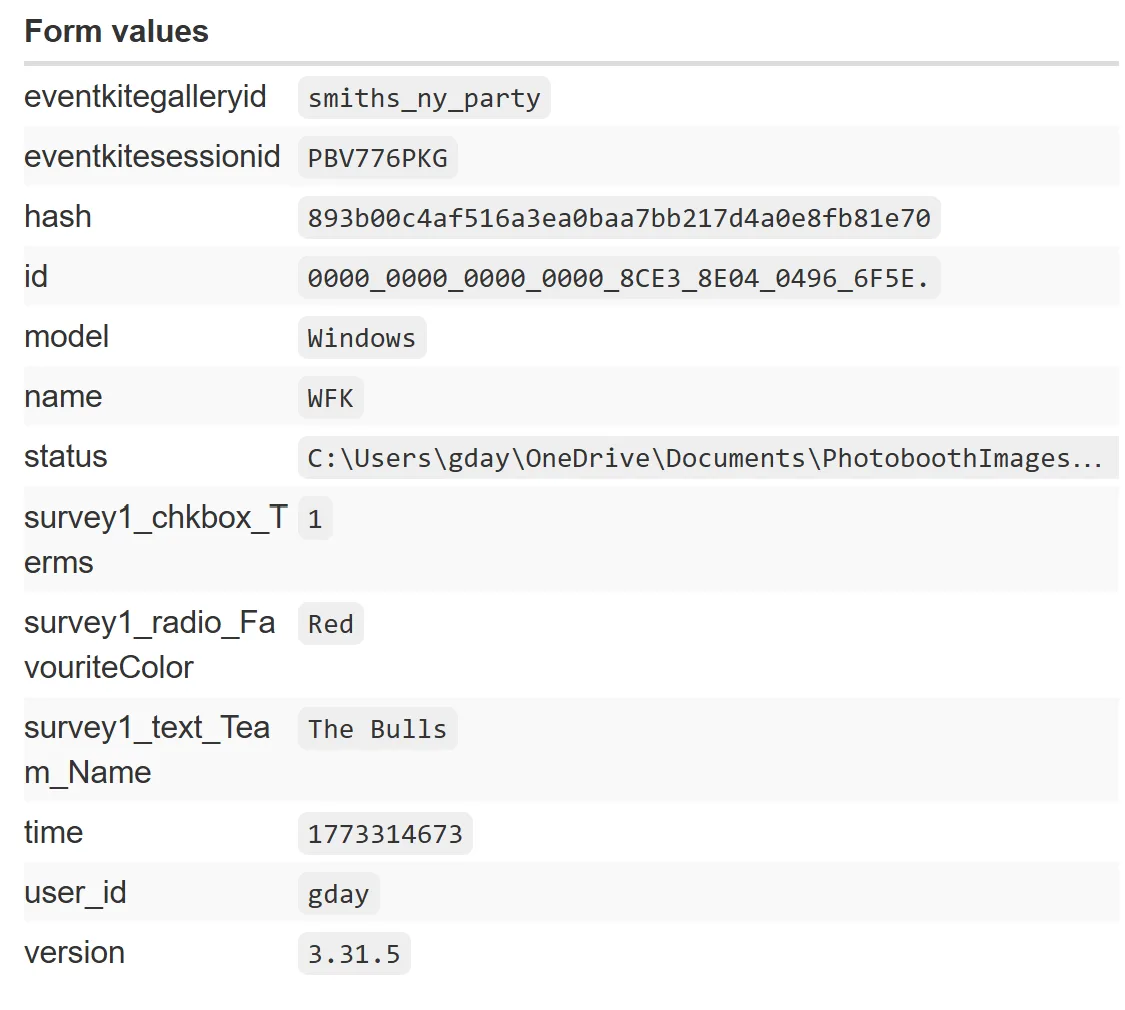
Use webhook.site to generate a test endpoint and inspect the POST data that Remote Pro sends.
Local post-processing#
Select Local command to run a local executable, Photoshop droplet, AutoHotKey script, or batch file.
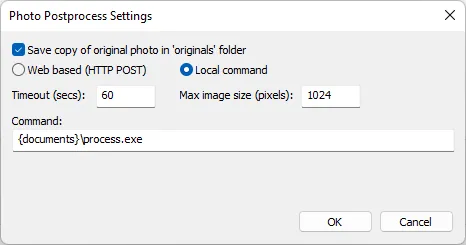
- Timeout — maximum time to wait for the command to complete.
- Max image size — optionally resize the image before running the command.
- Command — path to the executable or script. Supports
.exe,.ahk,.bat, and.cmdfiles. Can contain tokens.
The command receives a JPEG source image (or PNG when AI background removal with transparent background is active). It should save the result either as a JPEG overwriting the source file, or as a PNG with the same base filename.
Was this page helpful?
Thanks, that helps us improve the guides.