

Where photos are saved
On this page
File and Folder Naming#
Remote Pro allows you to control where captured photos and videos are saved, and how the files and folders are named.
These settings are found in: File > Preferences
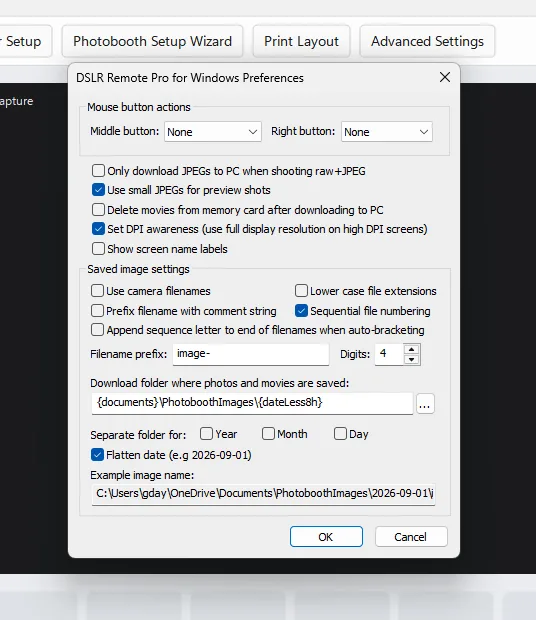
Download Folder#
The Download folder where photos and movies are saved setting controls where Remote Pro saves captured files.
You can enter a fixed folder path, or use tokens to create dynamic folders.
For example:
{documents}\PhotoboothImages\{dateLess8h}
This saves files inside the user's Documents folder, in a dated folder based on the {dateLess8h} token.
Tokens are supported in the download folder path, allowing folders to be created dynamically using values such as dates, event names or other runtime information.
Filename Prefix#
The Filename prefix is added to the start of each saved file.
For example, using:
image-
creates filenames such as:
image-0001.jpg
You can also use tokens in the filename prefix if you want filenames to include dynamic information such as event names, dates or session details.
Tokens are supported in filename prefixes, allowing saved files to include dynamic values from the current event or session.
Filename Digits#
The Digits setting controls the number of digits used in the sequential file number.
For example, with 4 digits, files are numbered as:
0001
0002
0003
Sequential File Numbering#
Enable Sequential file numbering to number files in sequence.
This keeps filenames predictable and avoids relying only on camera-generated filenames.
Use Camera Filenames#
Enable Use camera filenames if you want Remote Pro to keep the filenames generated by the camera.
Leave this disabled if you want Remote Pro to create filenames using your chosen prefix and numbering settings.
Separate Date Folders#
Remote Pro can automatically create separate folders based on:
- Year
- Month
- Day
This is useful if you want files organised into a folder structure by date.
Flatten Date#
Enable Flatten date to create a single dated folder name.
For example:
2026-09-01
This keeps the date folder as one folder instead of splitting it into separate year, month and day folders.
Example Image Name#
The Example image name field shows a preview of the full path and filename that Remote Pro will create using the current settings.
Use this to check your folder path, filename prefix, date structure and numbering before running the booth.
Check the example image name after changing file or folder settings to make sure files will be saved where you expect.
Was this page helpful?
Thanks, that helps us improve the guides.