

Remote Support
Let Breeze support connect to your booth PC with a 6-digit code, or connect to your own booths any time with your own Cobrowse.io account.
On this page
Remote Support#
Remote Pro includes Cobrowse.io for remote access, so someone can view and control the booth PC from somewhere else. You can use it in two ways:
- External support: Breeze support connects to your PC when you need help. You give them a 6-digit support code. There's nothing to sign up for.
- Internal support: your own team connects to your booths whenever you want, using your own Cobrowse.io account.
Turn On Remote Support#
- Open File > Preferences...
- Click Remote support...
- Tick Enable remote support. This starts the Cobrowse.io helper whenever Remote Pro runs.
- Choose who supports this PC (see below).
- Enter a Device name, so you can tell the booth apart from others, for example Booth 3 or Melbourne Kiosk.
- Click OK.
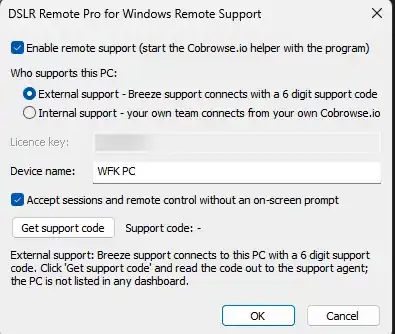
Accept sessions and remote control without an on-screen prompt: when ticked, a connection starts without anyone at the booth having to approve it. Leave it unticked if you want someone at the booth to accept each session.
External Support (Breeze Support)#
Use this when you're working with Breeze support.
- Select External support.
- Click Get support code.
- Read the 6-digit Support code to the support agent.
The agent can then connect to the PC. With external support, the PC isn't listed in any dashboard, so Breeze can only connect when you give them a current code.
Internal Support (Your Own Team)#
Use this to look after your own booths, for example to check a booth at an event or help staff on site, without waiting for a code.
Internal support needs your own Cobrowse.io account, which is a separate service from Breeze. You'll need the Co-browse on web and mobile apps plan (US$36 per agent per month, billed annually, at the time of writing). Cobrowse.io offers a free trial, so you can try it first. See Cobrowse.io pricing.
- Sign up at Cobrowse.io.
- Copy your licence key from Cobrowse.io dashboard › Settings.
- In Remote Pro, select Internal support.
- Paste your key into Licence key.
- Enter a Device name and click OK.
The PC then appears in your Cobrowse.io dashboard under its device name, and anyone on your team can connect to it at any time while Remote Pro is running.
Give each booth a clear device name. It's how you'll find the right PC in your Cobrowse.io dashboard.
If Accept sessions and remote control without an on-screen prompt is ticked, anyone with access to your Cobrowse.io account can take control of the booth without warning. Keep your Cobrowse.io login secure.
Was this page helpful?
Thanks, that helps us improve the guides.