

On this page
Embedding HTML and Websites#
Remote Pro can display interactive HTML inside a Web View Panel. This can be used to add custom surveys, forms, games, quizzes, live galleries, menus and other touchscreen experiences to a photo booth workflow.
HTML Widgets can:
- Read values from Remote Pro tokens
- Store new values as tokens
- Trigger Remote Pro touchscreen actions
How to Enable the Widgets#
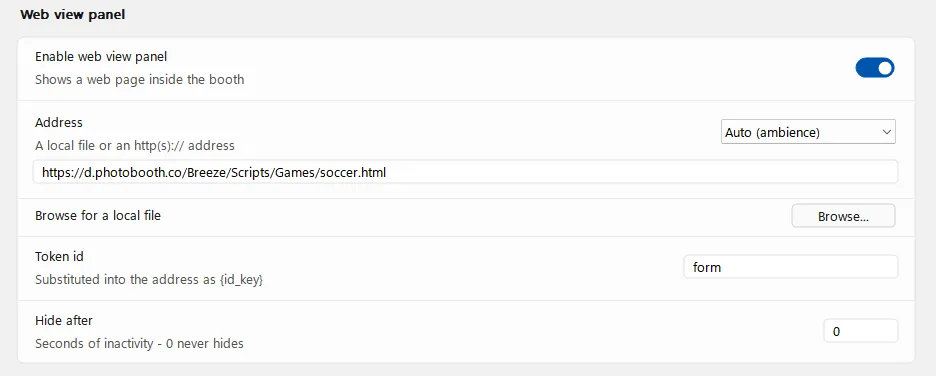
In Remote Pro, select File > Photo Booth Settings > Widgets. Enable the Widgets option.
Select the HTML Source#
Choose the source for the HTML Widget:
- For a website, enter the full URL.
- For a local HTML file, select Browse and choose the file from your computer.
Store local HTML files in the event assets folder alongside your screen designs and other event files. This keeps all required files together when moving or archiving the event.
Set the Token ID#
Enter a Token ID to create a prefix for data collected by the HTML page.
For example, using survey as the Token ID means a field named name can be referenced as: {survey_name}
Use these tokens in print layouts, overlays and other supported settings.
The field names and token output depend on how the HTML form has been configured.
Choose the Display Screen#
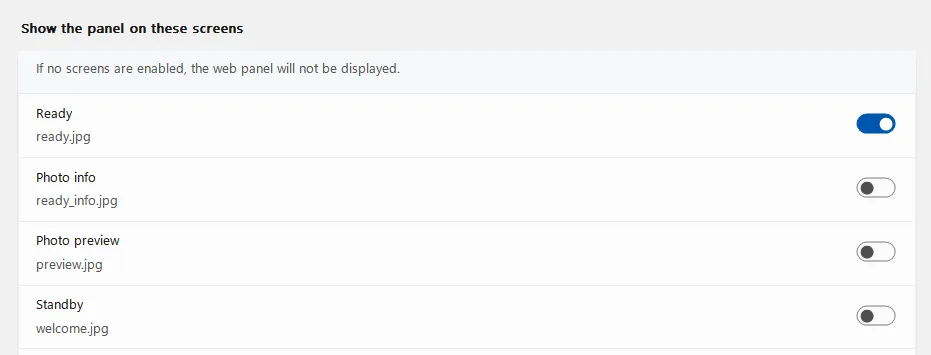
Select the Photo Booth screen where the Widget should appear. For example, enable Ready Screen to display the HTML page before the user starts the photo sequence.
Position the Widget#
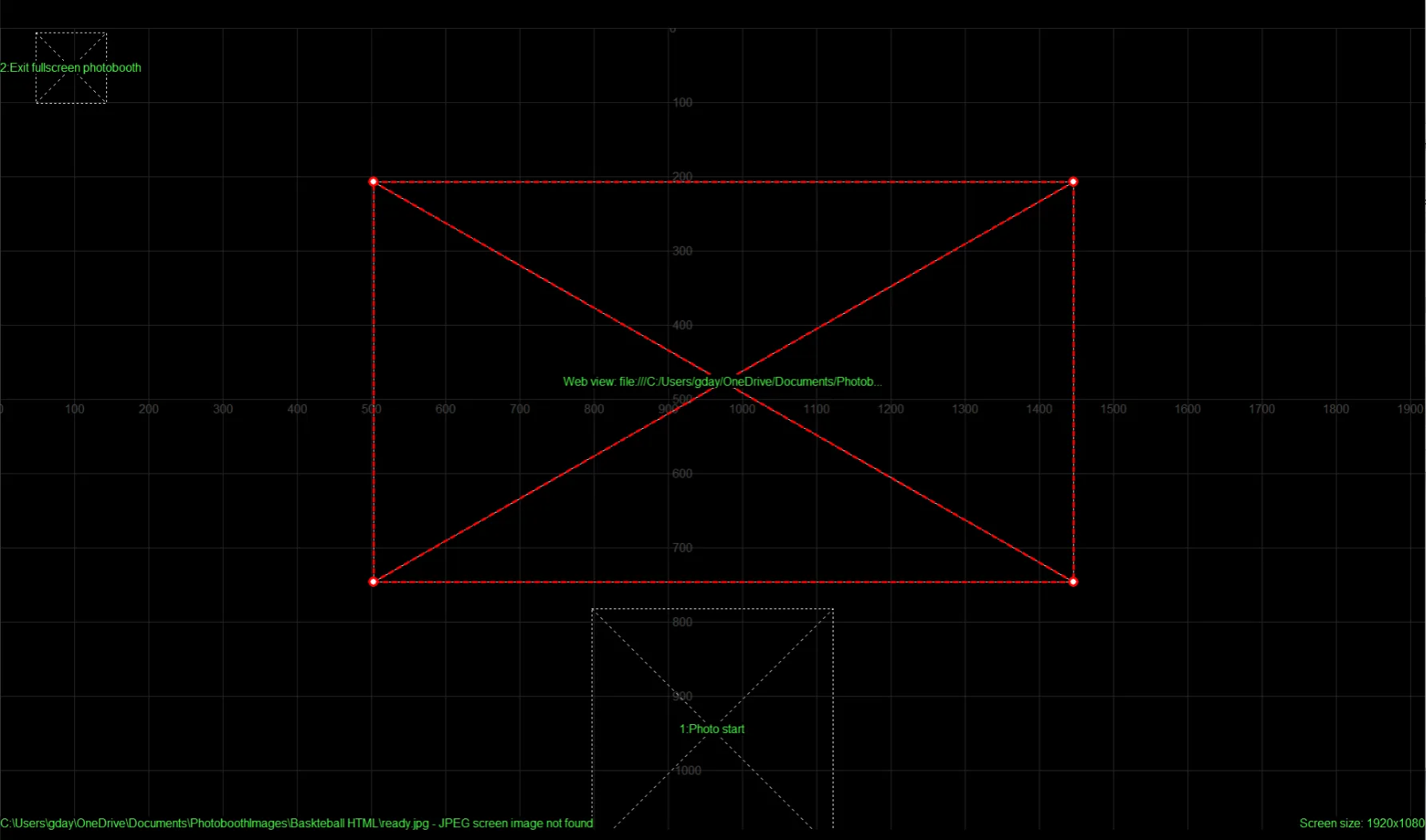
Use the touch screen editor to position the HTML. Open Interface > Touchscreen Settings and select the screen containing the Widget. Resize and position the WebPanel as required. For a full-screen survey or form, drag it to cover the full touchscreen area.
Save and Test#
Save the Photo Booth settings and run the event.
Complete the HTML form and confirm that:
- The page displays correctly.
- Form controls work as expected.
- The WebPanel background has the intended transparency.
- Collected values appear correctly when their tokens are used in a print layout.
Test the complete workflow before the event, including form submission, photo capture and printed output.
Okay, so let's have a look at how to add an HTML file into the web panel view in remote pro. So we're going to come into file and then down to photo booth settings and then across to web panel and we want to make sure we have enabled web panel here. And then if we have the HTML file or if we're embedding a website, we would just go ahead and put the full URL in right here. But if we're working with a local HTML file, we can select it off our computer. Now, it would make sense that you put this in your assets folder along with all your other screen designs and settings. So, I'm going to go ahead and open up the folder that we're working in. And I have this HTML file on the desktop here called mood. I'm just going to drag this in here. And I'll come back into remote pro. And I'm going to browse for that file.
And that is in this folder here. And I'll go ahead and select that. Then we need to set the token ID. So the token ID is if we are using any data collected in the HTML file on print layouts etc. So I'm going to prefix all the tokens with the word survey. So for example if we're collecting a user's first name then we would use the token survey name on the print layout. Then we just need to go ahead and select what screen we want this to display on. So I want this on the ready screen. So that's enabled already. And then we can come back to interface touchscreen settings. And then we can go into the touchscreen area. And you can see that it's now added this here. And we could resize that if we don't need it to fill the whole screen. But in this case, we want pretty much to go full screen. So I'll drag that out. We'll save that.
I'll save everything as normal. Okay. And so then when we run this through, we will get the survey come up. Now this survey is on a transparent background which is quite nice, so we can see the live view underneath it. And we'll go ahead and just run this through. So we got radio buttons. We can have dropdown lists. Put my name in. Oops. And we got a check box there as well. We'll say take photo.
Okay. So, in this case, I'll just put the first name on it, but we could go ahead and add all the other tokens on there to customize that output or to affect overlays as we normally would. So, that is the basics of how to add an HTML file into the web panel view.
Was this page helpful?
Thanks, that helps us improve the guides.