

Editing Images and Editor Setup
Editing Images and Editor Setup#
Right-click on an image and select Edit Image (or press F3) to open it in an image editor. For this to work, you must first configure the editor by selecting Setup Image Editor from the File menu.
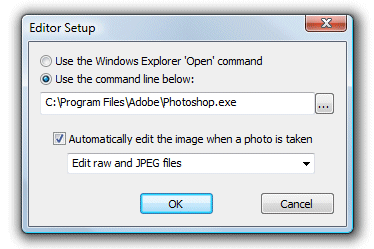
Editor Setup Options#
- Select Use the Windows Explorer 'Open' command to use the same editor or viewer as when you double-click an image in Windows Explorer.
- Select the other option and enter a command line to specify a different editor.
- Select Automatically edit image when a photo is taken to load images into the editor automatically. Take care not to load too many images at once, as Windows may run low on memory.
Use the dropdown list to specify whether to automatically edit raw and JPEG files, raw files only, or JPEG files only.
Notes:
# Only images saved to disk can be edited. Preview images cannot be edited.
# Most image editors cannot open Canon raw files directly and will display an error if you try.
Using Tokens in the Command Line#
The command line can use tokens to make the command conditional or dynamic. If the command line is an empty string, the editor command is ignored.
Example 1: Only running a Photoshop droplet when the photo booth folder name contains "droplet"
The command to run a Photoshop droplet is: droplet.ahk {photoboothimage}
The {photoboothDir} token returns the path of the photo booth images folder. The {contains,str1,str2} token tests whether the folder path contains a string. The {if,test,str1,str2} token returns one value or another based on the test result.
Combined: {if,{contains,{photoboothDir},droplet},droplet.ahk {photoboothimage},}
- If the folder is
C:\event\droplet, the{contains}token returns 1 and the droplet command runs. - If the folder is
C:\event\normal, the{contains}token returns an empty string and the command is skipped.
Example 2: Only running AI background removal when the folder name contains "aibg"
Command: C:\Program Files (x86)\BreezeSys\Remote Pro\RemoveBackground.exe
Combined: {if,{contains,{photoboothDir},aibg},C:\Program Files (x86)\BreezeSys\Remote Pro\RemoveBackground.exe,}
Note: To use the droplet.ahk AutoHotKey script, install AutoHotKey v1.1 from autohotkey.com (free download).
Was this page helpful?
Thanks, that helps us improve the guides.