

Print Counter Alert
On this page
Print Counter Actions#
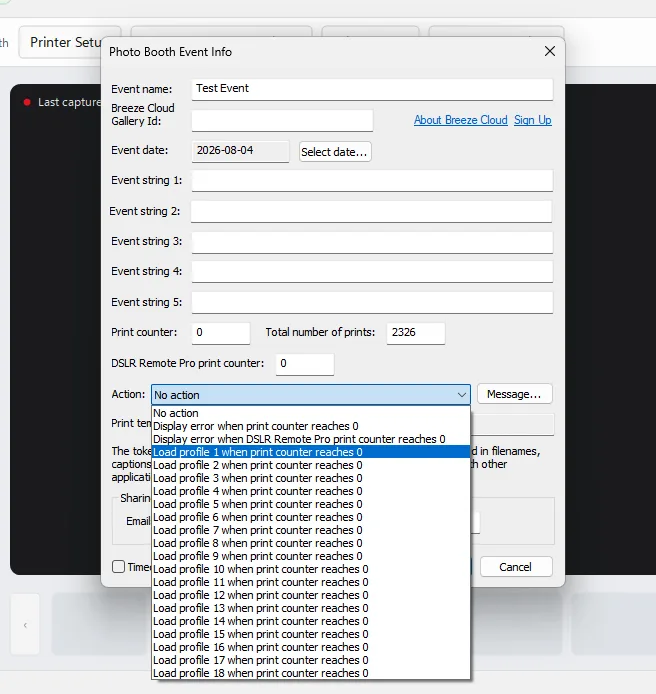
Remote Pro can perform actions when the print counter reaches zero. You can also add a touchscreen action to reset the print counter after changing paper.
This is useful for payment booths, unattended installations, or events where you want to control how many prints are available.
When Prints Run Out#
Remote Pro can automatically respond when the print counter reaches zero.
To configure this:
- Open File > Photobooth Event Info.
- Find the print counter action settings.
- Choose what should happen when the print counter reaches zero.
- Save your settings.
When the print counter reaches zero, Remote Pro can either:
- Display an error message.
- Load a specific profile.
Switch to a Non-Printing Profile#
To keep the booth running without printing, create a second profile with printing disabled.
Then configure Remote Pro to load that profile when the print counter reaches zero.
This allows the booth to continue operating as a digital-only experience once the available print quota has been used.
Switching profiles when the print counter reaches zero is useful when you want the booth to keep running, but prevent further printing.
Reset the Print Counter with a Touchscreen Action#
The print counter can also be reset using a touchscreen action. This is useful when staff replace the printer media and need to reset the available print count without opening the main settings.
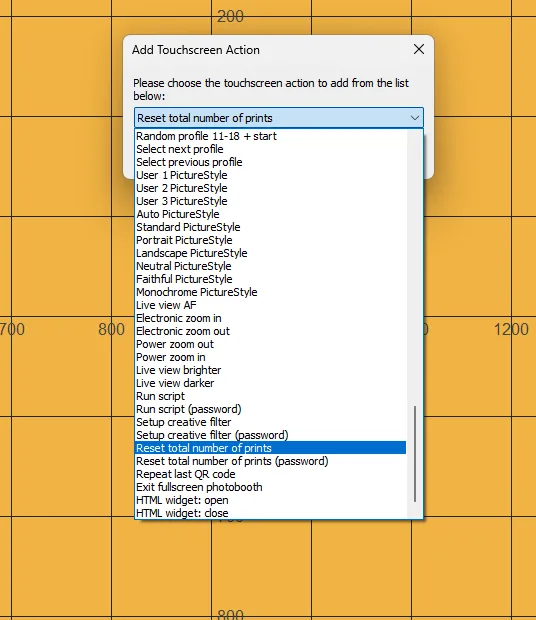
To add a reset action:
- Open File > Photobooth Settings.
- Select the Interface tab.
- Open Touchscreen Settings.
- Click Show/Edit Touchscreen Areas.
- Select the screen where you want to add the action, such as the ready screen.
- Right-click and choose Add Action.
- Select Reset Total Number of Prints.
- Position the touchscreen action where required.
- Save your settings.
The reset action is also available as a password protected touchscreen action.
Hidden Reset Button#
For unattended or staff-operated booths, the reset action is often added as a hidden touchscreen area. For example, you could place it in the top-left or top-right corner of the ready screen.
When staff replace the printer media, they can tap the hidden area to reset the print counter.
Use a password protected reset action if guests can access the screen and you do not want them to reset the print counter.
Was this page helpful?
Thanks, that helps us improve the guides.