

Payments
Take payments at your Remote Pro booth with Stripe, Nayax or cash, and choose the right option for your setup.
On this page
Taking Payments with Remote Pro#
Remote Pro can take payments directly at the photo booth, so you can run pay-per-use booths, unattended kiosks and fundraisers without an operator handling cash.
Payments can be used to start a session, unlock the booth, buy extra prints or reprints, and pay for email and SMS sharing.
Payment setup is covered in the Breeze Payments guide. The links below take you straight to the Remote Pro steps for each option.
Payment Options#
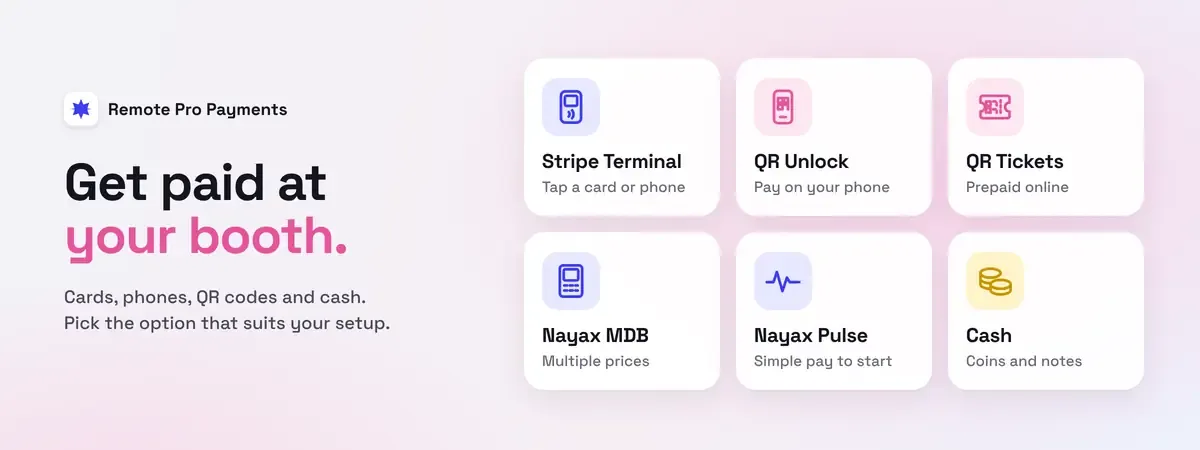
- Stripe Terminal (recommended). Guests tap a card, phone or watch on a Stripe reader, and Remote Pro sends the exact amount. Best for most setups. Costs 1 Breeze Credit per payment plus Stripe fees.
- QR Unlock. Guests scan a QR code on the booth screen and pay on their own phone. No card reader needed, but the booth needs internet. Costs 1 Breeze Credit per payment plus Stripe fees.
- QR Tickets. Guests pay online before the event, then scan their QR code at the booth. The booth doesn't need internet. Costs 1 Breeze Credit per payment plus Stripe fees.
- Nayax MDB. A two-way link through the Breeze MDB Utility, so the booth can set the price and respond to the result. Best for multiple prices, reprints and extras. Nayax fees only.
- Nayax Pulse. A successful payment triggers a keyboard shortcut in Remote Pro. Best for simple pay-to-start and headless booths. Nayax fees only.
- Casino Software. A third-party system for coins, notes and cashless payments, including prices that need more than one coin.
Not sure yet? QR Unlock and QR Tickets need no payment hardware, so they're an easy way to test paid sessions before buying a terminal.
Was this page helpful?
Thanks, that helps us improve the guides.