

Power Zoom
Power Zoom#
Remote Pro can remotely control the lens optical zoom in live view when using the Canon PZ-E1 power zoom adapter with a compatible lens and camera.
The Canon PZ-E1 is a separate accessory that clips onto the Canon EF-S 18-135mm 1:3.5-5.6 IS USM zoom lens and is powered by four AAA batteries. The PZ-E1 is only compatible with the Canon EF-S 18-135mm 1:3.5-5.6 IS USM lens.
Compatible Camera Models#
The PZ-E1 works on any camera that accepts EF-S lenses, but remote control of zoom when shooting tethered is only supported on:
- Canon EOS 90D
- Canon EOS 80D
- Canon EOS 77D
- Canon EOS 800D / Rebel T7i
- Canon EOS 250D / 200D Mark II / Rebel SL3
- Canon EOS 200D / Rebel SL2
Live View Operation#
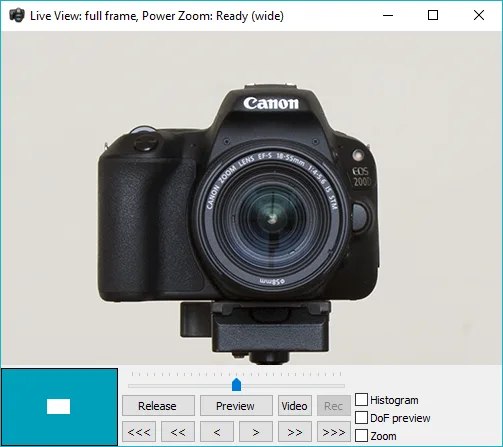
When a compatible camera and PZ-E1 are detected, a zoom control appears below the live view image and zoom status is shown in the window title bar.
Drag the zoom slider to the left to zoom out (wider focal length) or to the right to zoom in (telephoto). Move the slider a short distance from its mid position to zoom slowly, or further to increase speed.
Status messages in the title bar:
- Power Zoom: Ready (wide) — at widest setting (18mm), remote control active
- Power Zoom: Ready (tele) — at longest telephoto setting (135mm), remote control active
- Power Zoom: Ready — between widest and telephoto settings, remote control active
- Power Zoom: Driving >>> — zooming in
- Power Zoom: Driving <<< — zooming out
- Power Zoom: Manual zoom selected — MZ/PZ switch is set to MZ; move to PZ to enable remote control
- Power Zoom: Battery low or missing — AAA batteries are low or missing
- Power Zoom: Too hot — PZ-E1 needs to cool down before use
Photo Booth Operation#
The PZ-E1 can also be controlled via keyboard shortcuts or touchscreen actions in photo booth mode when the ready screen is displayed (stills or video) and live view is active.
Keyboard shortcuts:
- Ctrl+Alt+Cursor up — optical zoom in (PZ-E1)
- Ctrl+Alt+Cursor down — optical zoom out (PZ-E1)
- Ctrl+Alt+Cursor right — digital zoom in
- Ctrl+Alt+Cursor left — digital zoom out
Touchscreen actions:
- Power zoom in — optical zoom in (PZ-E1)
- Power zoom out — optical zoom out (PZ-E1)
- Electronic zoom in — digital zoom in
- Electronic zoom out — digital zoom out
Was this page helpful?
Thanks, that helps us improve the guides.