

DNP Direct Printing
Print straight to DNP and Citizen dye-sub printers over USB, skipping the Windows printer driver, with live media counts, its own print queue and printer alerts.
DNP Direct Printing#
Remote Pro can print straight to DNP and Citizen printers over USB, without going through the Windows printer driver. Setting it up works much like any other printer. The differences are that you choose the print size, finish and quality in Remote Pro, and you get live printer status, a print counter taken from the printer, its own print queue and printer alerts.
Select the Printer#
Open Printer Setup as usual (File > Printer Setup... or Print Layout > Printer Setup) and choose the printer whose name starts with DNP direct:.
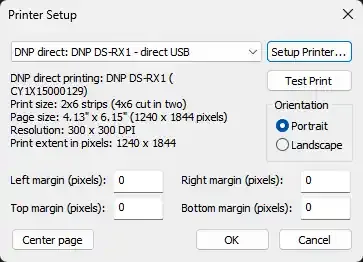
If the Windows driver is installed, the printer is also listed under its normal name. That still works, but the DNP direct: entry is the better choice.
Margins, orientation and Test Print work the same as for any printer.
Setup Printer#
Click Setup Printer... to open DNP Direct Printing Setup.
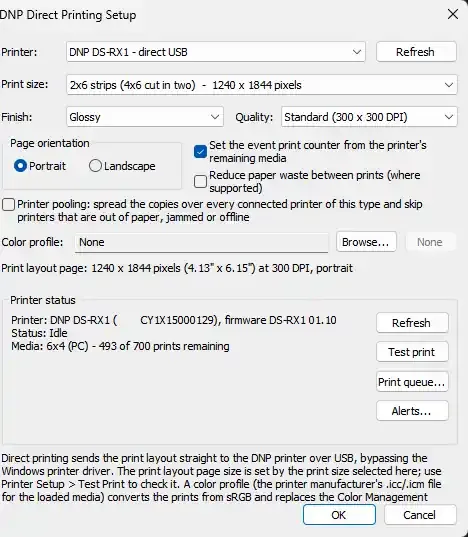
- Print size: lists the sizes your connected printer supports, including strips and two-up layouts. The print layout page is set to match.
- Finish: Glossy or Matte. Some printers, such as the DS620 and DS820, also offer Fine Matte and Luster.
- Quality: Standard (300 x 300 DPI), or High Quality (300 x 600 DPI), which is slower to print.
- Set the event print counter from the printer's remaining media: the print counter updates itself from the printer, including when you change paper.
- Reduce paper waste between prints: on printers that support it.
- Printer pooling: spreads prints across all connected printers of the same model and skips any that are out of paper, offline or showing an error. Useful for high-volume events.
- Color profile: load the manufacturer's .icc or .icm file for your media. It replaces the Color Management settings for direct printing.
Printer status shows the printer, firmware, media loaded and prints remaining. From here you can also run a test print, open the print queue or set up alerts.
DNP Print Queue#
Direct printing has its own queue in Remote Pro, so you manage jobs there instead of in Windows. Open it from File > DNP Print Queue... or Print queue... in the setup window to cancel, retry or pause jobs.
Printer Alerts#
Get a text, email or webhook when prints are running low or the printer stops. See Printer Alerts.
Was this page helpful?
Thanks, that helps us improve the guides.