

Automatic File Purge
On this page
File Purge#
The File Purge function can automatically delete older files from selected folders.
This is useful for meeting privacy requirements, permanent installs, unattended booths, payment booths, or any setup where Remote Pro runs for long periods and you need to stop the hard drive from filling up.
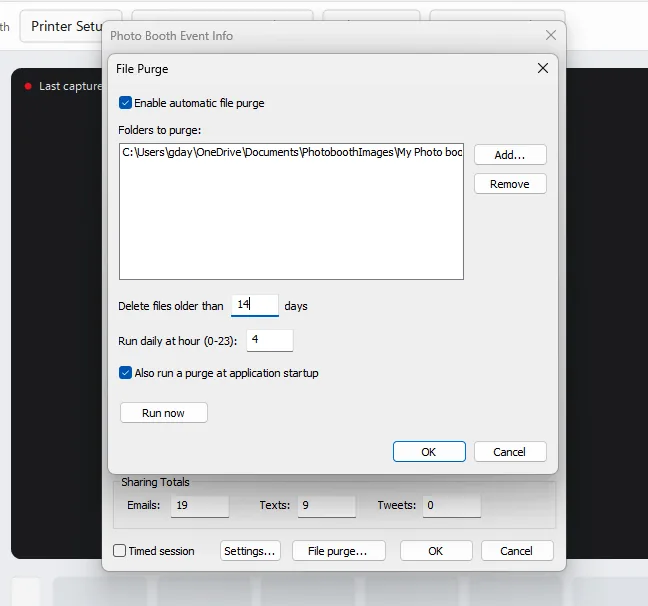
Open File Purge from File > Photo booth event info > File Purge
Enable Automatic File Purge#
To enable automatic file deletion:
- Turn on Automatic File Purge.
- Add the folders you want Remote Pro to purge.
- Set the number of days to keep files.
- Enter the hour of the day when the purge should run.
- Save your settings.
File Purge deletes files from inside the selected folders. Check the folder paths carefully before enabling this option.
Run File Purge#
File Purge can run in several ways:
- Daily – Runs automatically at the hour you specify.
- At startup – Runs when Remote Pro starts.
- Run Now – Runs immediately.
File Purge is best used for long-running systems where files are uploaded or printed automatically and do not need to be kept on the booth PC.
Was this page helpful?
Thanks, that helps us improve the guides.