

QR Code Processing
On this page
QR Code Processing#
QR Code Processing enables Remote Pro to parse QR codes regardless of their format by using Regular Expressions. Data from the QR code can be mapped to Breeze tokens and commands, making it possible to integrate with third-party systems that generate non-Breeze QR codes.
You do not need QR Code Processing if your QR codes are already in Breeze-compatible format (e.g. codes made in Breeze Cloud).
Setup#
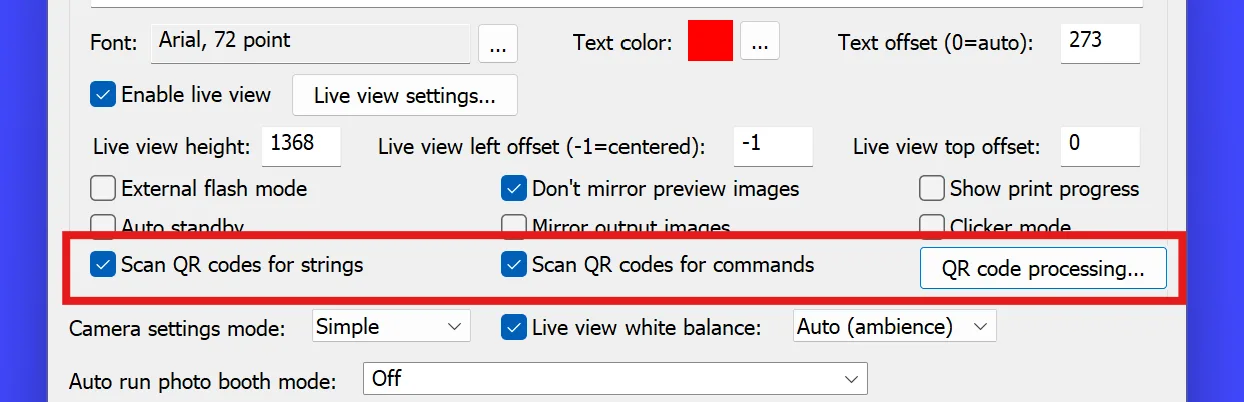
Enable Scan QR codes for strings and Scan QR codes for commands in Photobooth Settings, then click QR Code Processing...
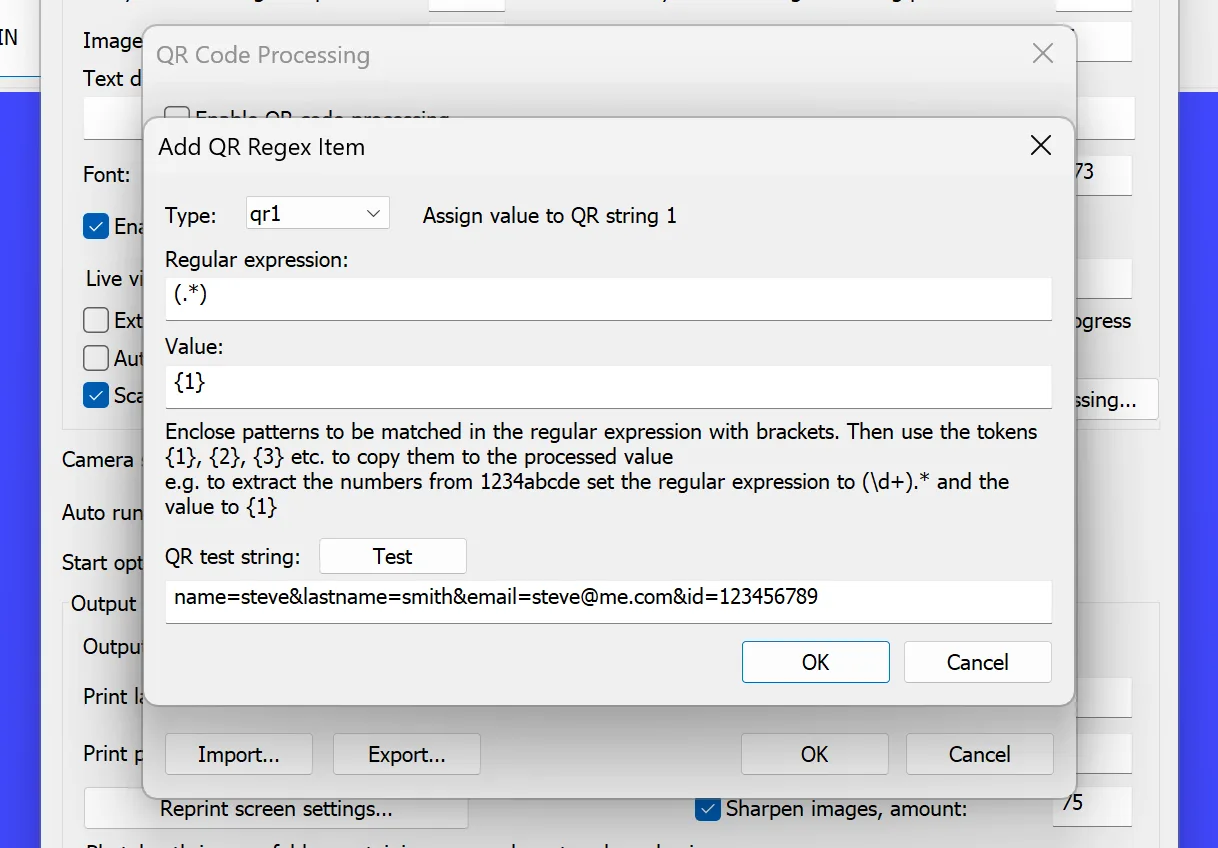
Click Add Entry, select a Type from the dropdown, enter a Regular Expression, and assign a Value. Test your regex by entering data in the QR Test String field and pressing Test.
Types#
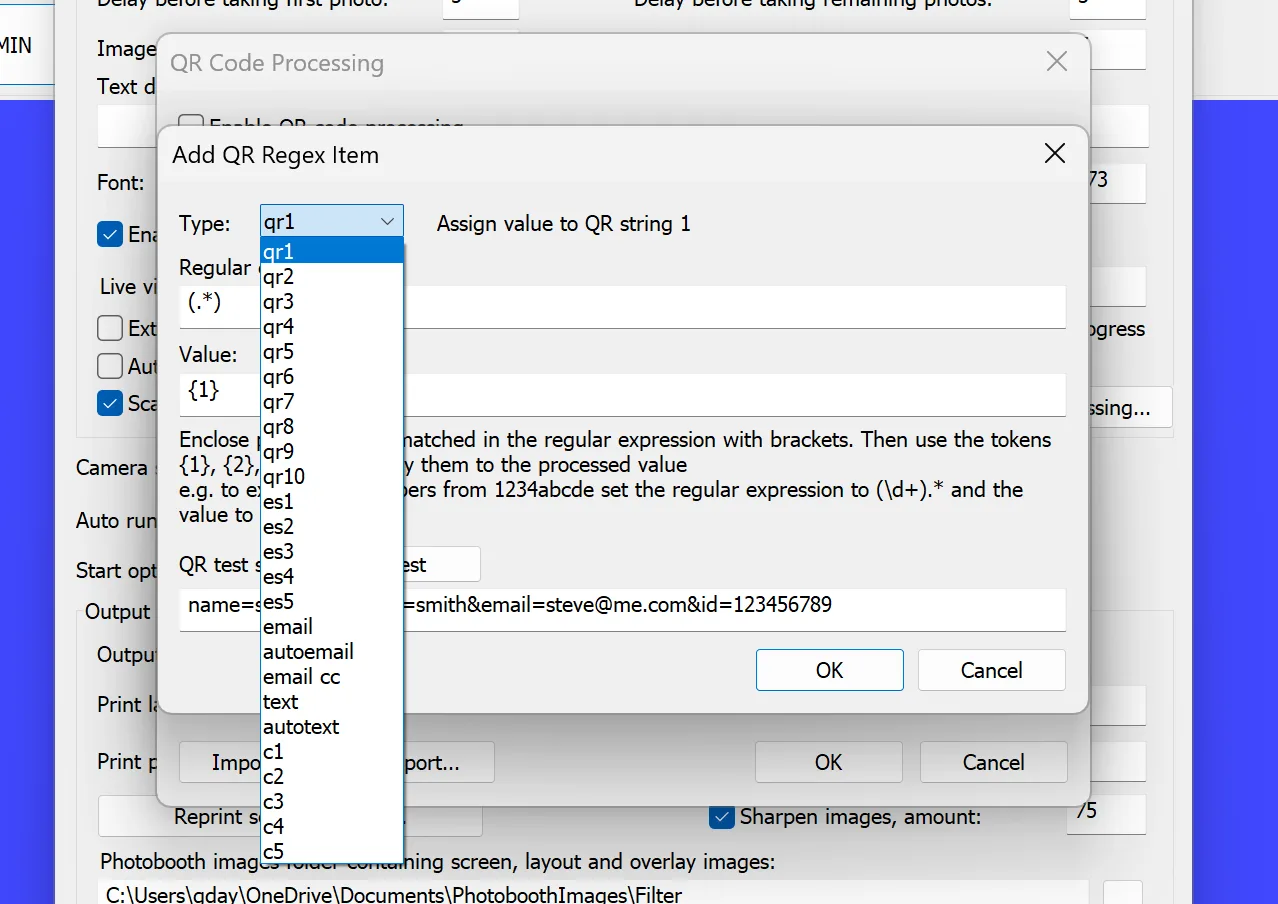
Extracted data is mapped to a Type, which determines what happens with it:
| Type | Description |
|---|---|
{qr1} – {qr30} |
Save data to a string token for use in print layouts, filenames, etc. |
es1 – es5 |
Save data to an Event String |
email, autoEmail, email cc |
Save email address and send emails |
text, autoText |
Save phone number and send SMS messages |
c1 – c5 |
Trigger a touchscreen action |
Regular Expressions#
The regular expression must match the whole QR string. To extract specific data, use capture groups.
Use the Regex GPT helper for assistance creating regular expressions.
Value#
The Value field stores extracted capture group data using {1}, {2} etc. for each capture group. For command types, the value sets the command to execute.
Testing#
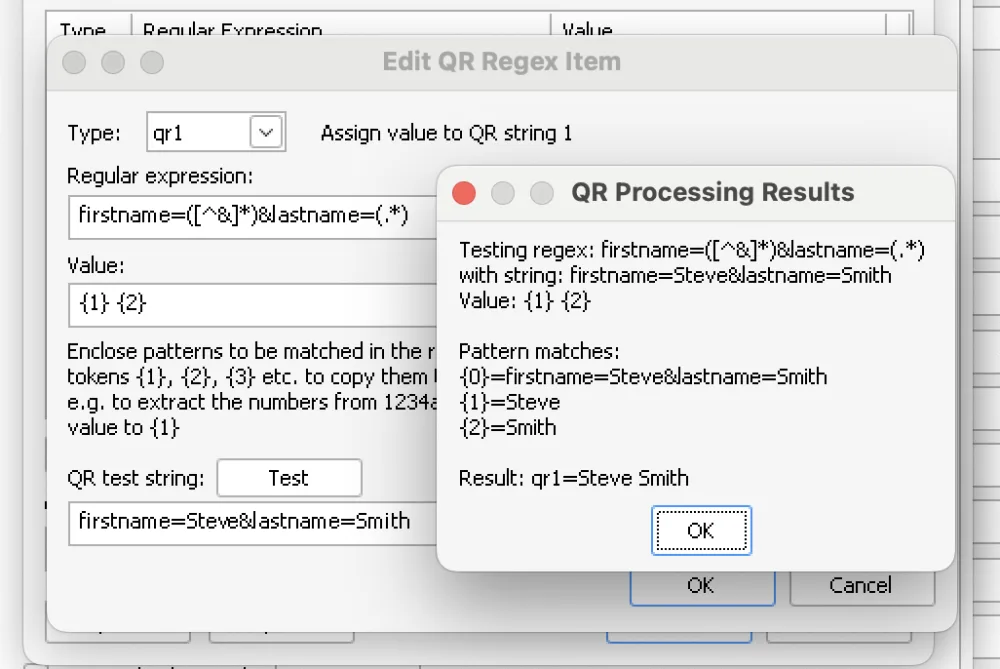
Enter test data in the QR Test String field and press Test to see pattern matches and mapped results.
Examples#
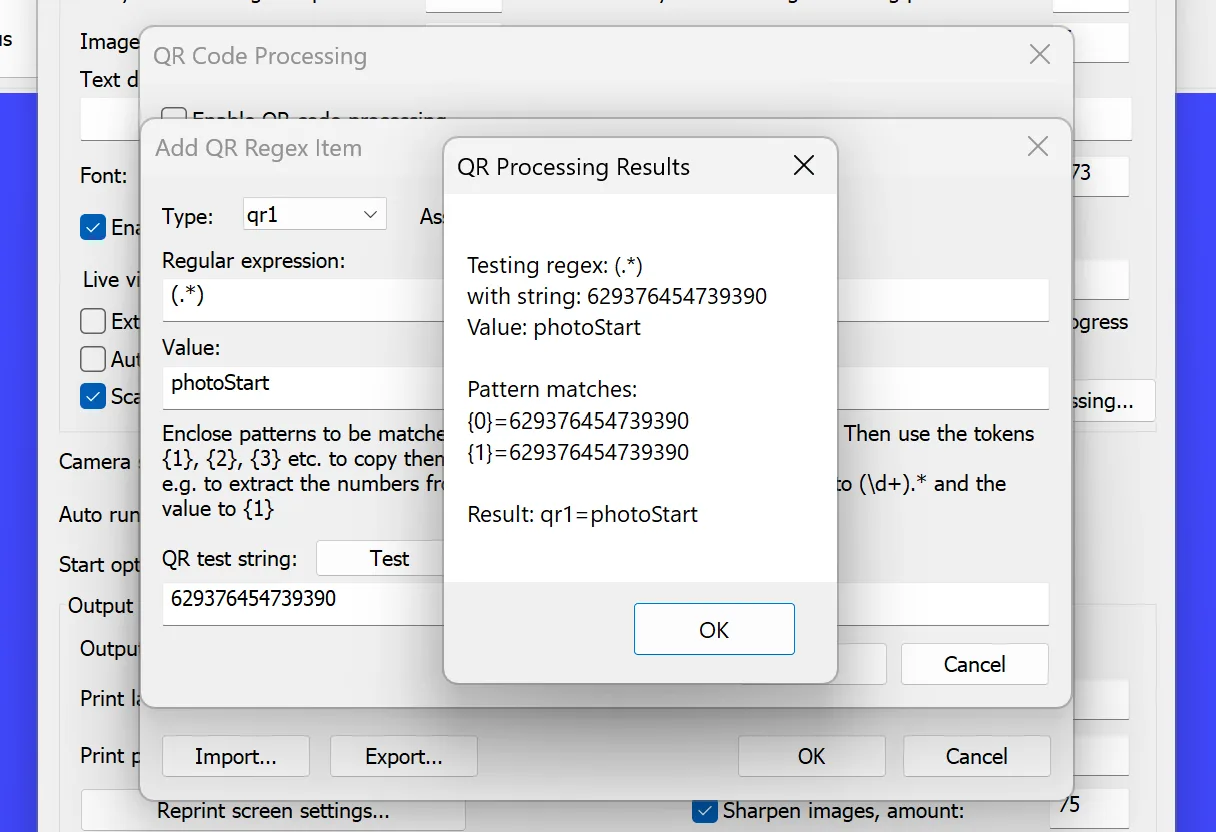
Example 1 — Trigger a Photo Session from Any QR Code#
Type: c1 | Regex: (.*) | Value: photoStart
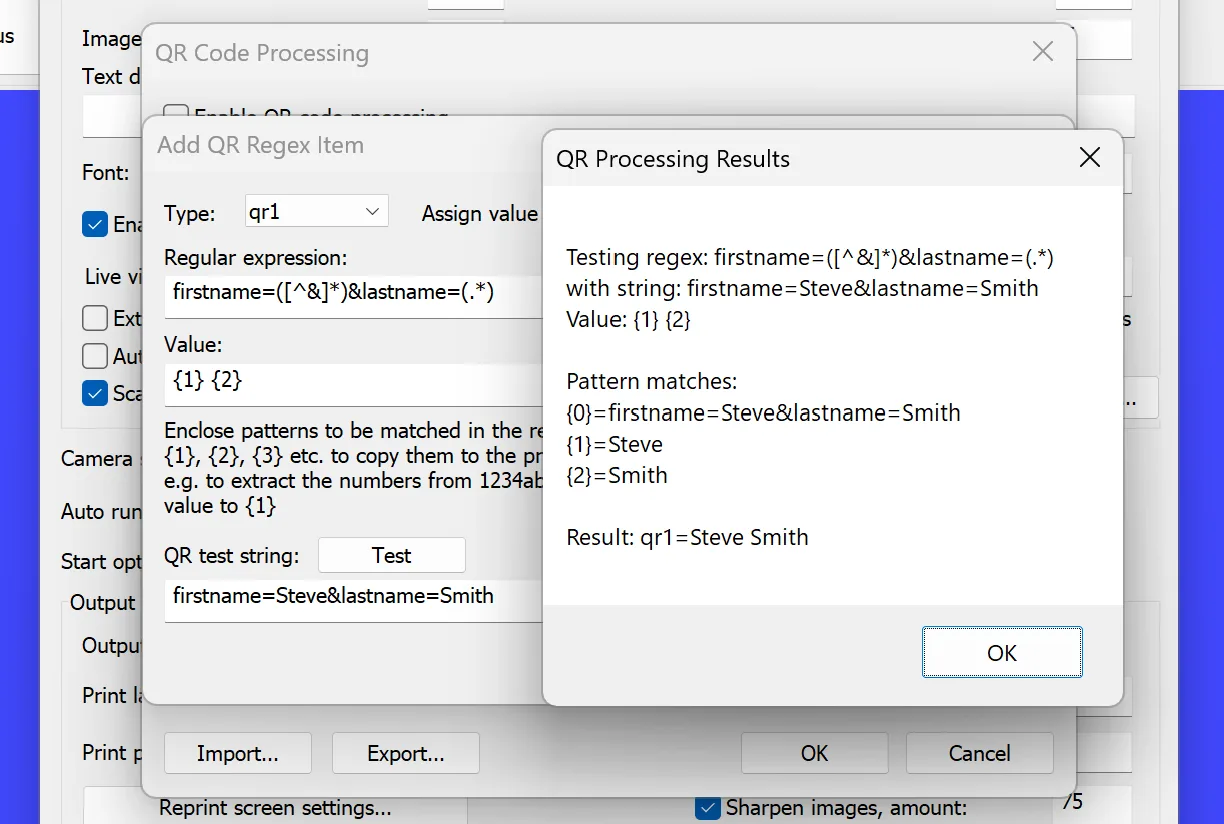
Example 2 — Extract First and Last Name#
Type: qr1 | Regex: firstname=([^&]*)&lastname=([^&]*)&email=([^&]*)&id=(.*) | Value: {1} {2}
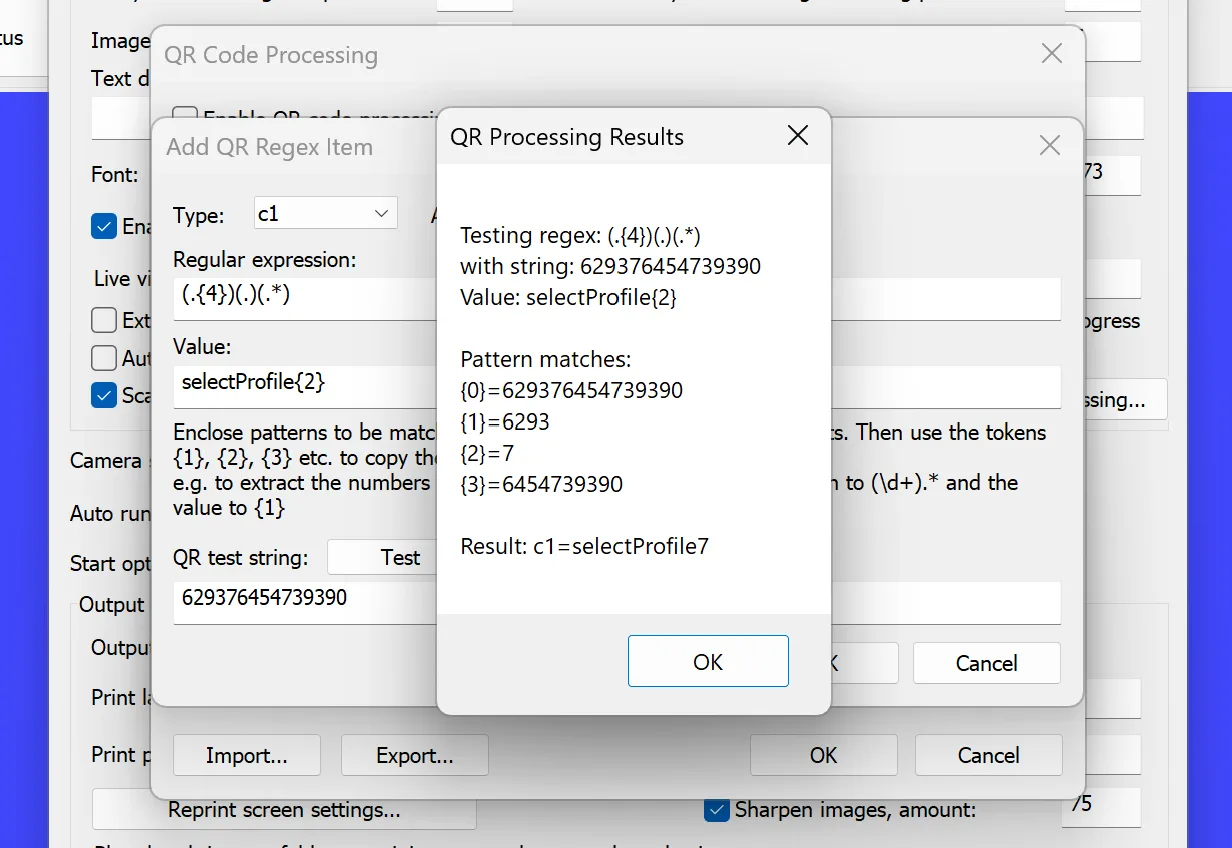
Example 3 — Switch Profile Based on 5th Character#
Type: c1 | Regex: (.{4})(.)(.*) | Value: Profile{2}
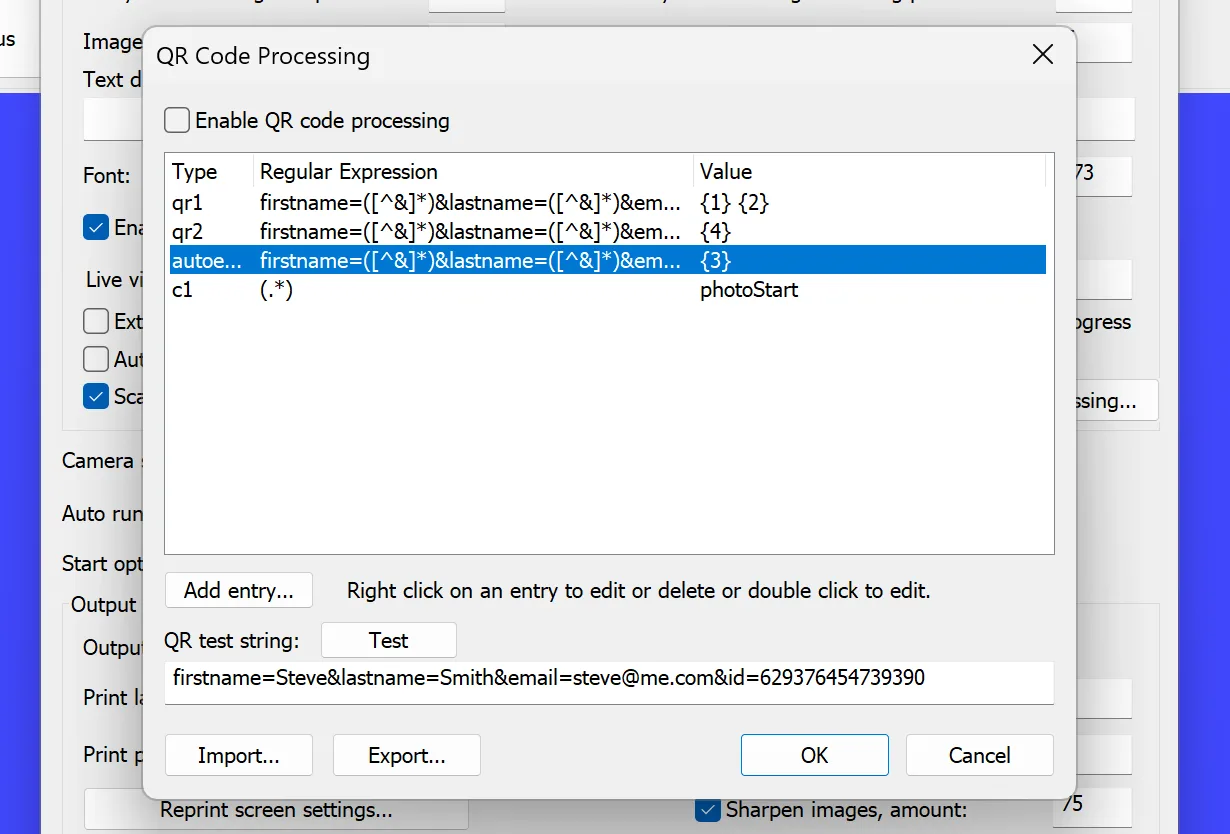
Example 4 — Multiple Entries: Trigger Session, Extract Name, Email, and ID#
Use four separate entries for the same QR code:
- c1 /
(.*)/photoStart— trigger photo session - qr1 /
firstname=([^&]*)&lastname=([^&]*)&email=([^&]*)&id=(.*)/{1} {2}— store full name - autoEmail / same regex /
{3}— auto-send email - qr2 / same regex /
{4}— store unique ID
Import and Export#
Use the Import and Export buttons to save and load your regex configurations as a file.
Was this page helpful?
Thanks, that helps us improve the guides.