

Main Window
On this page
Main Window#
The main window displays the primary camera controls alongside a large preview display and a histogram for assessing exposure. Camera settings can be changed using the controls on the left side of the main window. Additional settings are available from the menus.
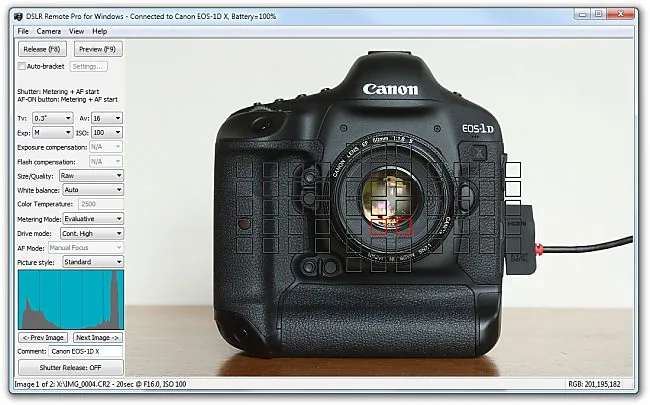
To simplify the display, hide the camera controls by clicking the View menu and deselecting Show camera controls.
Photo Booth Shortcut Buttons#
When Remote Pro for Windows is run for the first time, it displays photo booth shortcut buttons at the top of the main window.
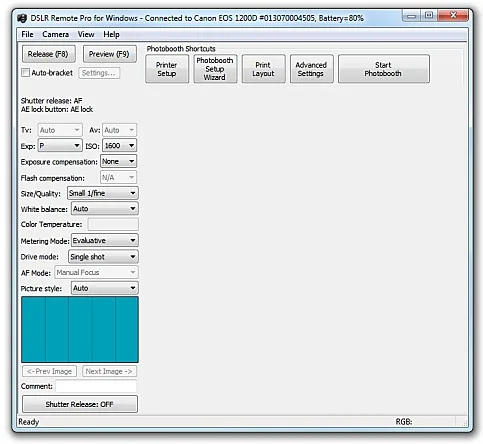
These are convenient shortcuts for running the software as a photo booth. Hide them by selecting Photo Booth Shortcuts in the View menu. Show them again by selecting the same option.
To enable or disable individual buttons and edit their text, select Photo Booth Shortcuts Settings... from the View menu.
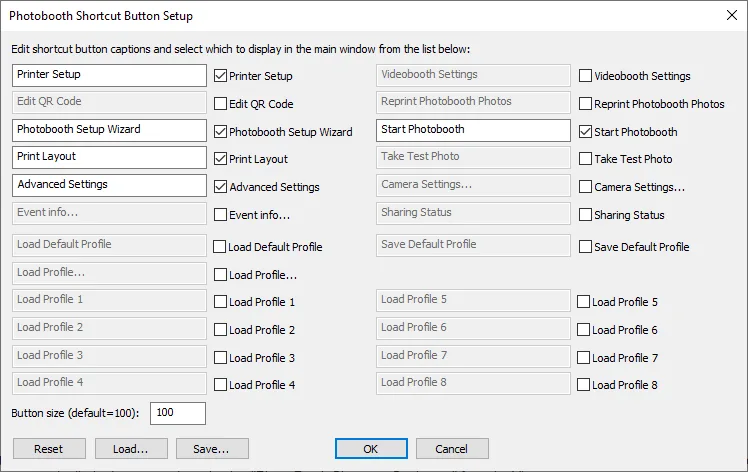
Click the checkboxes to enable or disable each shortcut. Edit the button text as required. Click Reset to restore default values. Save settings to file with Save... and load previously saved settings with Load....
Was this page helpful?
Thanks, that helps us improve the guides.