

Password Protect a Profile
Password Protected Profiles#
You can password protect an individual profile in Remote Pro. This is useful when a profile contains admin functions, reprint options, gallery reprint tools, or other actions that should not be available to guests or general operators.
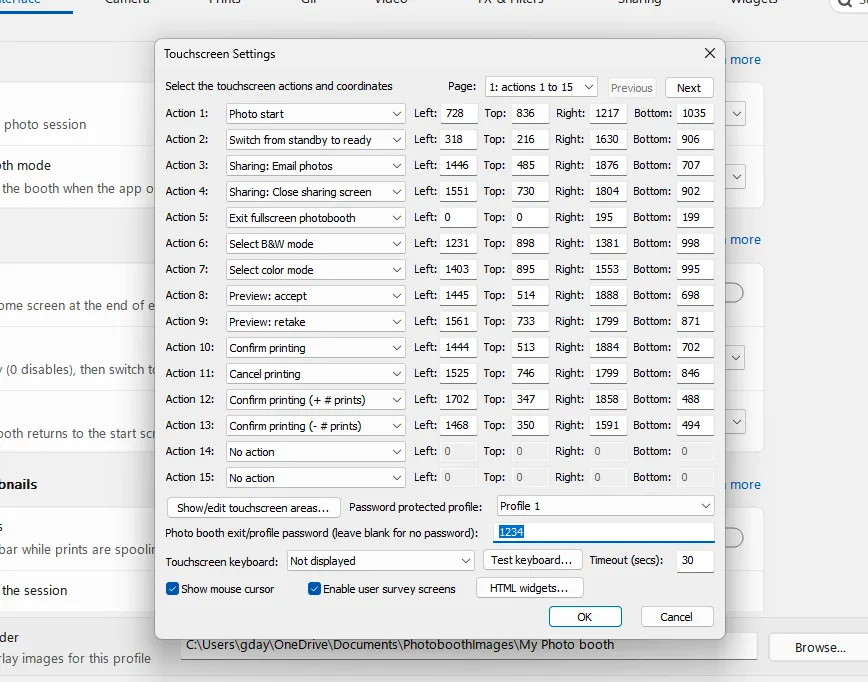
Protect a Profile#
To set a password protected profile:
- Open File > Photobooth Settings > Interface > Touchscreen Settings.
- Find the Password protected profile option.
- Select the profile you want to protect from the drop-down list.
- Enter a password in the password field.
- Save your settings.
The protected profile uses the same password as the exit password. If you do not want to use a password, leave the password field blank.
Opening a Protected Profile#
When a protected profile is selected, Remote Pro displays the password keyboard.
The profile will only open after the correct password is entered.
Password protected profiles are useful for restricting access to profiles that contain admin tools, reprint options, or free-session controls in payment booth setups.
Common Uses#
Password protected profiles are commonly used for:
- Admin profiles
- Reprint profiles
- Gallery reprint profiles
- Operator-only tools
- Payment booth override profiles
- Free-session access in paid booth workflows
Use password protected profiles when you want operators to access extra tools without exposing those options to guests.
Was this page helpful?
Thanks, that helps us improve the guides.