

On this page
QR Codes and Contactless#
QR codes can be displayed on prints and in the sharing screen to give guests a quick way to visit a website or online gallery. QR codes can also send commands to the photo booth along with data such as email addresses, enabling fully contactless operation. Remote Pro can read QR codes from the camera's live view or via the Webcam QR Code Scanner utility.
Contactless Quickstart#
- Select a suitable camera — for best results use a Canon camera with dual pixel AF (e.g. EOS M50, EOS 200D/SL2, EOS 250D/SL3, EOS 77D, EOS 800D/T7i). Alternatively use a webcam with the Webcam QR Code Scanner utility.
- Set up the event — define touchscreen actions for Select photobooth+start and Select video booth+start. Enable Scan QR codes for commands in Photobooth Settings. Set up email sharing and email server settings.
- Run the booth — guests visit contactlessbooth.com, enter their email address, choose a session type, and hold their phone in front of the camera. The booth starts the countdown, takes photos, and emails them automatically.
Displaying QR Codes#
Dynamically generated QR codes can be displayed on prints and in the sharing screen. The QR code text can include tokens such as the photo filename or UID.
- Add a QR code in the Print Layout Editor
- Enable Display QR code in Output Settings to show a QR code in the sharing screen
- Edit QR code text via File -> Edit QR code...
Scanning QR Codes#
Enable scanning in Photobooth Settings: Scan QR codes for strings and/or Scan QR codes for commands.
QR codes should be formatted as URLs with percent-encoded parameters.
Scanning Strings#
Parameters s1 to s30 map to tokens {qr1} to {qr30}. Example:
https://example.com?s1=John&s2=Doe
Use {urlencode,str} to percent-encode user input for inclusion in QR codes.
QR tokens are cleared after each shooting session.
Scanning Commands#
Parameters c1 to c5 trigger touchscreen actions. Example:
https://example.com?c1=selectProfile1&c2=selectPhotobooth%2bstart
The command must match a defined touchscreen action. Matching ignores case, spaces, and punctuation.
Scanning Email Addresses#
email— send email when QR code is scanned in the sharing screenautoemail— automatically send email when the sharing screen is displayedcc— add a CC email address
Scanning Phone Numbers#
text— send text when scanned in the sharing screenautotext— automatically send text when sharing screen is displayed
Scanning Event Name and Strings#
en— event namees1toes5— event strings 1 to 5
QR Code Processing#
QR Code Processing allows scanning of third-party QR codes using regular expressions to extract data and map it to tokens or commands. See QR Code Processing for details.
You do not need QR Code Processing if your QR codes are already in Breeze-compatible format (e.g. codes made in Breeze Cloud).
Webcam QR Code Scanner#
The Webcam QR Code Scanner utility allows a webcam to scan QR codes and display a live feed to help guests position their phone.
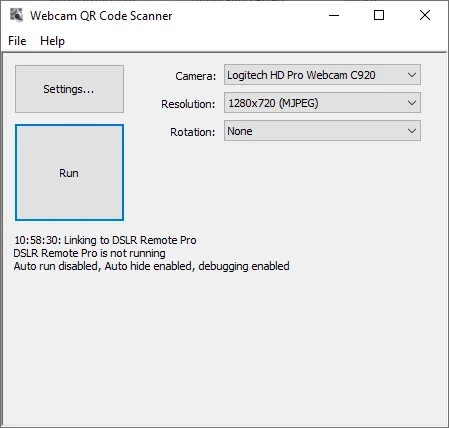
Select the webcam from the Camera dropdown and set the resolution and rotation. Click Settings... to configure the live view window size and position.
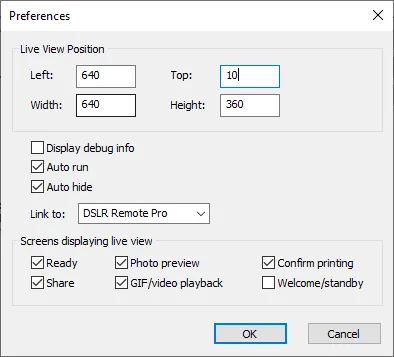
- Auto run — starts the live view window automatically when the booth enters full screen mode
- Auto hide — shows the live view window only on specified screens
- Link to — set to Remote Pro to use with a Remote Pro photo booth
Sending Commands from Other Apps#
The Webcam QR Code Scanner passes scanned URLs to Remote Pro via a WM_COPYDATA message with dwData set to 200. Other apps can use the same technique. The command string must be in URL form and must correspond to a defined touchscreen action.
See Controlling the Photo Booth for more information.
All right, guys. Back with another video. Today, we're going to be going over basic QR control, using Breeze Cloud and the online form builder to generate QR codes that can control Breeze Booth and Remote Pro. All right, so we're here in cloud. I've already created an event, so we're going to jump into it and we're going to go to the cloud survey option. So, let's edit it. All right. For the type, we're going to pick standard QR. And now, we need to select a command. These are a few examples, but the best way to get the idea of what you want to do is to open the touchscreen editor to see what we want to do.
So, once we're on the ready screen, we're going to want to start the countdown when we hold up the QR. So, we're just going to put in stillsStart. Make sure that the spelling and the capitals are correct. So, let's go back. All right. So, we're going to add the command. All right. When you go to set your command, you'll see there's S1 through 9 and C1 through 9. S is for strings of data. C is for command. So, since this will be a command, we're going to hit C1 and value. You see it's there already. stillsStart. All right. So, we can go down from here. You can customize the form however you'd like. We've gone over other videos on customizing the galleries and micro sites. A lot of it's the same. So, you can enable a logo.
Choose yours. I still have one somewhere here. Yep. All right. If you want to add a background image or anything, change your text settings, your title, your description, and your footer. But we want to come down. So, we have the return button. You can turn on and off if you want the guest to be able to go back and fill out the form again. And the submit button. And then lastly, we'll come down to the builder here and enable that. Now, we're going to add an element. So, we're going to make this one mandatory. You see all the different options you have for building out these forms. For this, we're going to do a basic input.
So, for the first question that's going to appear on the form, let's say you want to set it to the guest name. Name would be data, not a command. So, we're going to pick S1 and label it name. Select the type. This is just going to be a basic text box. You can add some other checkers in here if you want to check for NSFW or set a limit or you can even validate it if you're doing other QR code processing, but we'll start with that for now. Let's save it. All right. So, once you have it saved, you'll see the QR generator URL up top here. Let's copy that. I'm going to open it in a new window just so we can see it, but I'm also going to go to this on my phone.
So, I'm going to enter my name, hit submit, and you'll see that we get back a QR code. So, let's jump over to Breeze again. This is Breeze Booth running on Mac OS now. Just going to update the event. Just going to jump in quick here and add, depending if you're using Breeze Booth or Remote Pro, you do need to enable QR code processing in each software. Take a look at the two screenshots on the screen right now. And you can see where to turn them on for each software depending on what you're using.
All right. So, you see here we are. I'm going to hold the QR code up to the camera. And there you go. Starts the countdown. Three, two, one. All right. And once that's done, you'll see we have our slideshow GIF here. Guests can scan the QR, text it to themselves, and then when they're done, they can finish the session. So, that's a super super simple basic way to run it. Let's go back into the builder and let's add some more stuff. We'll scroll all the way down. Next, let's add an email address. So, let's add an element. We'll make this mandatory also. Again, this is going to be an input. And since we used S1 for the name, this will be S2 because it's another string of data, not a command. And we'll name this email. And input type. You can select email from the input type. And what that will do is add this option called auto email. Let's turn this on.
Save it. You'll see the form update. Here we have name and now email. I'll come back over here to refresh it. We have it there. So the way auto email works is it needs to see the email command from the sharing screen as a touchscreen action. Even if it's not a physical button in the graphic, it needs to see the code. So, let's head over to the share slideshow screen here and let's add an action. Stills share email. So, this can be literally anywhere. It can be as small as you want. The action just needs to be present on the screen like that. All right. So after we add the stills share to the email screen there, make sure we have a sending email screen set as well. So we'll see the check mark when it sends. We'll save that and let's go to the sharing screen and let's actually close the sharing screen after it sends the email or text.
So we'll hit okay there. Save that. And let's update the event again. All right. So, we have our QR code that we filled out. We'll hold it up, start the timer. All right. So, while that finishes, it'll take a second to process, and then we should see the check mark showing that it was sent, and then it goes back to the ready screen because we set it to close after sharing. All right, let's add one more level of control. Let's go back into our editor and open up the touchscreen actions. And let's say we want them to be able to choose a different filter that you've created. We just did a previous video on filters and creating them in Photoshop and adding them to different screens and prints and stuff. So, let's add them here. And the same thing applies as when doing the auto email.
So, let's do filter three style. And again, these just need to be hidden on the screen. They don't have to be actual buttons in the graphics, filter four, and we'll do filter five. And now, just remember how these are spelled here because we're going to add these into the commands in the event builder. So, as long as they're on the screen as an action, the command will transfer over. So, let's save that. All right. So, after the filters are added to your touch screen, let's come down to the builder and let's add a new element. So, this is going to be mandatory again, except this time it's going to be a dropdown and for the string or command. All right. So since we sent your stillsStart to C1, the app reads the commands in the order of numbers. So we have to change this to a different number in order for the filter selection to go through first. So we'll change this to C2. And now we'll make the drop down here C1. So, when you scan the QR at the booth, it'll go through C1 first, which will tell it to select which filter style the guest chose, and then C2 will be stillsStart, which is when the countdown begins. So, let's label this. Choose your filter, and let's add the options. So, the value is going to be the data that is physically passed along to the app. So, this is where you would put in the touchscreen name or whatever command you're setting. So we'll do a filter three style and we'll name it grunge. This is what the guest will see in the dropdown. So option two will be filter four and we'll name that bright and option three will be filter five and the name will be orange. And these are the filters that we created in a previous video. You can go back and see those there. So we'll save it. Okay, we'll just refresh this here. So, we have it there. All right, I'm going to go to my phone quickly and fill this out again. Okay, and we're going to come back over to Breeze. Here we are. All right, let's hold it up. And there you go. There's the orange filter applied based on what we selected in the form. And there's our check mark showing that the email automatically sent. And just know that if you do select a filter like that, it will apply that filter to the next session. Although when the next guest does their form and they scan it, it will change the filter based on each one as they go through. All right, so that was a brief look at using the QR generator to control the photo booths. You can change backgrounds. You can change overlays. Almost everything that can be controlled from the booth can be controlled in the QR codes depending on how you set the commands and strings of data. This stuff can be passed on to surveys in the booth. It can be used in emails and text messages to add the guest's name or details that they've shared in their form that they filled out. So try out the cloud surveys for yourself. Let us know what you think. As always, like and subscribe. Let us know if you have any questions. Thanks, guys.
Was this page helpful?
Thanks, that helps us improve the guides.