

Auto Run the Photo Booth
On this page
Auto-Run Photo Booth Mode#
Auto-run photo booth mode allows Remote Pro to launch straight into photo booth mode when the app starts.
This is useful for permanent installs, unattended booths, kiosks and other setups where operators or guests should not access the main Remote Pro interface.
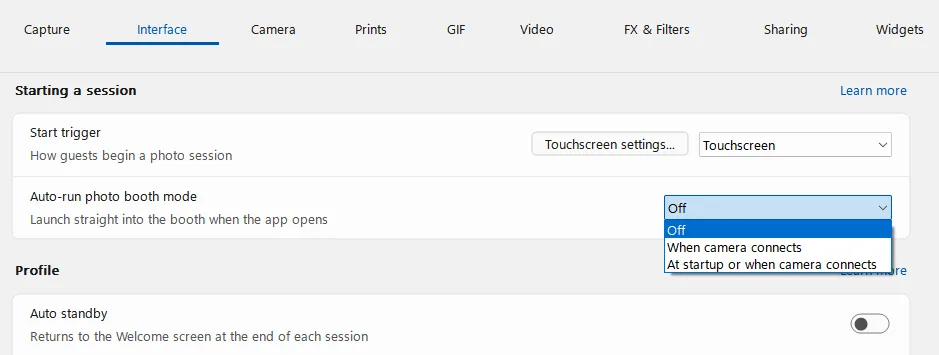
Where to Find Auto-Run#
Auto-run photo booth mode is found in:
File > Photobooth Settings > Interface
The setting is located in the Starting a session section.
Auto-Run Options#
The available options are:
- Off – Remote Pro opens normally.
- When camera connects – Photo booth mode starts when the camera is connected.
- At startup or when camera connects – Photo booth mode starts as soon as Remote Pro opens, even if the camera is not connected.
Using Auto-Run Without a Camera#
For unattended installations, At startup or when camera connects is often the best option.
This allows Remote Pro to launch directly into photo booth mode even if the camera is temporarily unavailable, disconnected or affected by a power issue.
You can use a camera_not_connected.jpg screen to show a clear message when the booth or camera is offline.
Auto-run photo booth mode is ideal for permanent installations because Remote Pro can restart directly into the booth experience without staff needing to access the back end.
Was this page helpful?
Thanks, that helps us improve the guides.