

Other Filters
On this page
Other Filters#
The photo booth creative filters apply special effects to photos and to the live view display in real time. The default set of filters is provided by PhotoboothCreativeFilter.dll, located in the installation folder.
Installing a creative filter#
Copy PhotoboothCreativeFilter.dll from the installation folder into your photo booth images folder. The file can be renamed with any name ending in Filter.dll (e.g. glitch_filter.dll).
When you enter full screen photo booth mode the filter DLL is loaded automatically. Press Ctrl+Shift+C to open the filter settings dialog.
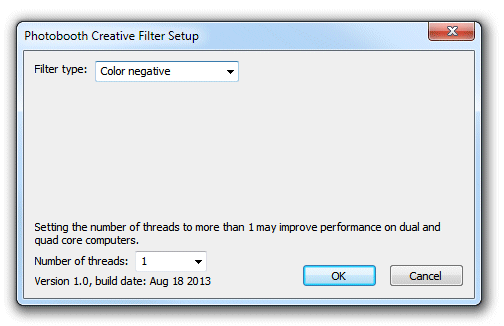
Processing filters in real time can increase CPU load and reduce live view frame rate. Set the Number of threads to more than 1 on a multi-core computer to share the load.
Available filters#
Color negative#
Inverts all colours (e.g. yellow appears blue, blue appears red).
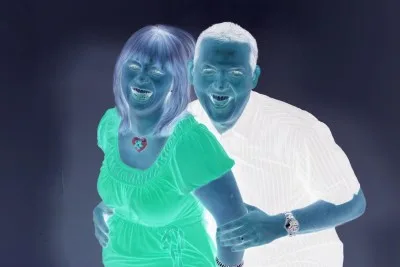
Monochrome negative#
Converts to greyscale then inverts (dark areas appear light, light areas appear dark).
Posterize#
Thresholding/posterisation effect with adjustable number of levels. Recommended strength: 10–100.
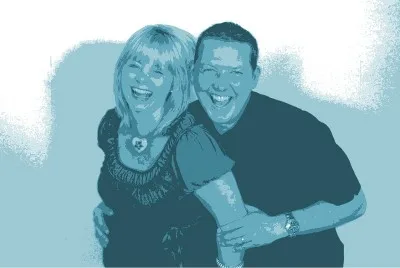
Monochrome posterize#
Converts to monochrome, posterises, then colourises with one or two colours. Controls: Strength, White highlights, Hue, Saturation, Top Hue, Top Saturation.
Saturation#
Boost (above 100) or reduce (below 100) colour saturation. Setting to 10 produces near-greyscale; setting to 200 produces vivid colours.
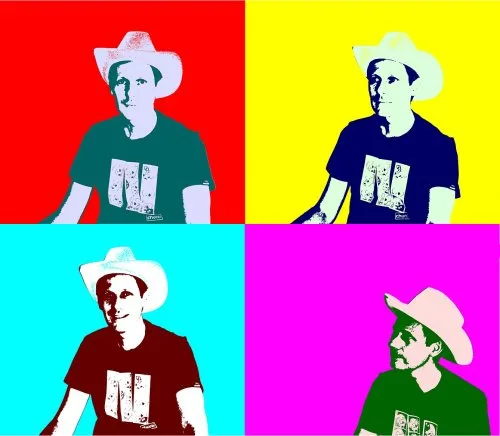
Pop Art#
Three-colour "pop art" effect reminiscent of Andy Warhol's style. Requires a green or blue background and continuous lighting. Set Threshold to ~140, Sensitivity to ~6, and adjust Background hue until the background replaces correctly.
Mirror filters#
Mirrors different parts of the photo:
- Mirror left/right
- Mirror top/bottom
- Mirror 2x2 mosaic
- Mirror swap top halves (landscape only)
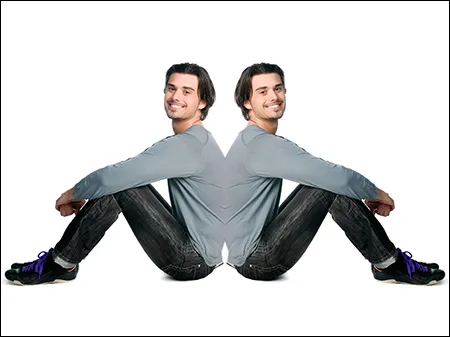
Mirror left/right and Mirror top/bottom behave differently when the camera is in portrait orientation — swap the two options if results appear incorrect.
User selection of filters via profiles#
Different filters can be offered as user choices by creating separate photo booth images folders (e.g. normal, over, under), each with its own settings file and filter DLL configured differently. Assign each folder to a profile and provide touchscreen actions to let users select.
Saving filtered photos#
Enable Save copy of processed photos in Output Settings to save a copy of each photo after the creative filter has been applied.
Was this page helpful?
Thanks, that helps us improve the guides.