

Reports
On this page
Reports#
Email and Texting Report#
The email and texting reporting tool creates a summary of emails and texts sent across one or more events. Select Reports -> Photo booth sharing report...
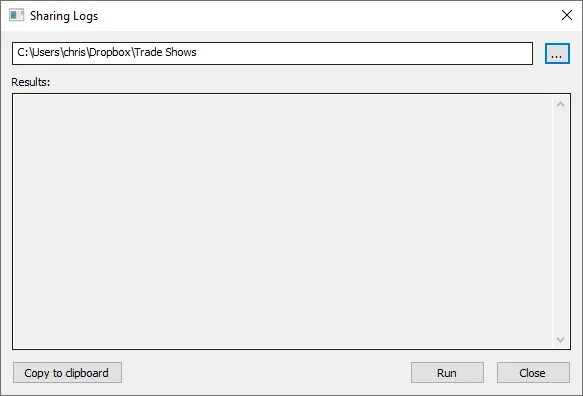
Enter the base folder where photos are saved and press Run to scan all subfolders for email and text XML files.
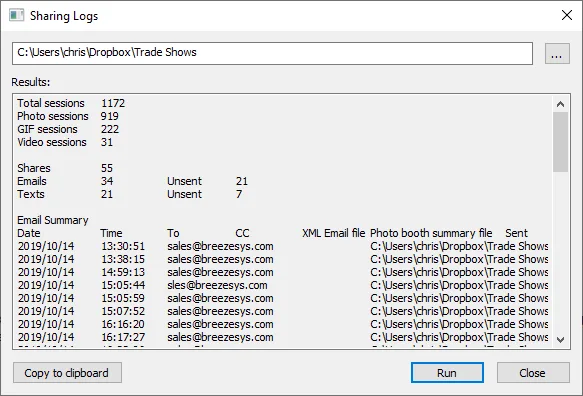
Results include:
- Total number of sessions, broken down by photos, GIFs, and video
- Number of email and text shares
- Two tab-delimited tables (email shares and text shares) suitable for pasting into a spreadsheet
Select a portion of the report with the mouse, or click Copy to clipboard to copy the full report.
Statistics Tool#
The statistics tool summarises session activity across all events. Select Reports -> Photo booth session stats report...
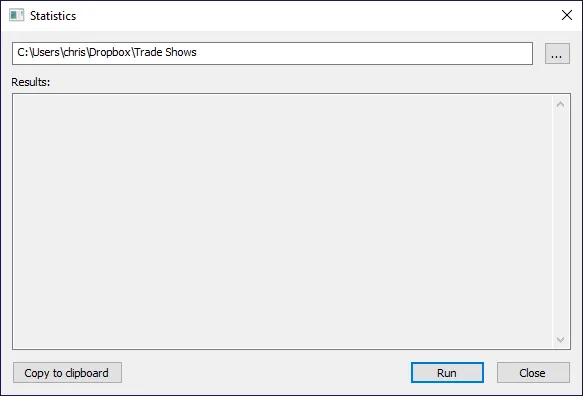
Enter the base folder and press Run.
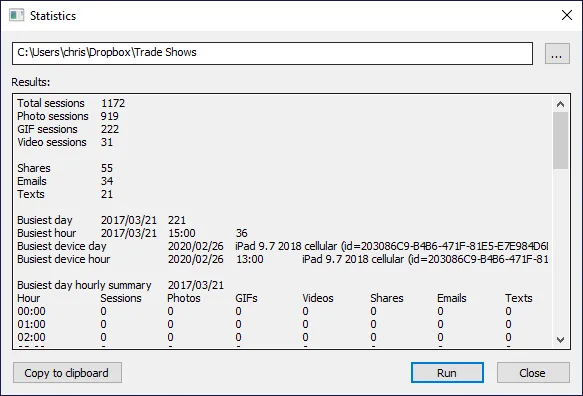
Results include:
- Total sessions by type (photos, GIFs, video)
- Total shares by email and text
- Busiest day and busiest hour (all devices and per device)
- Hour-by-hour breakdown of the busiest day
- Day-by-day summary for the last 30 days
Tables are tab-delimited and can be pasted into a spreadsheet for graphing or further analysis.
Survey Data Report#
The survey data tool generates a report of user survey responses. Select Reports -> Photo booth survey data report...
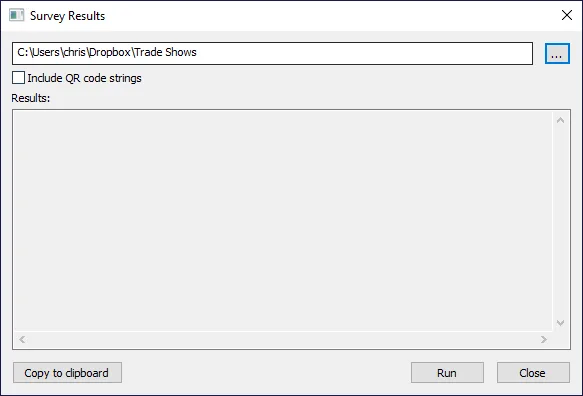
Enter the base folder. Select Include QR code strings to include data entered via QR codes (e.g. email addresses from contactless sessions). Press Run.
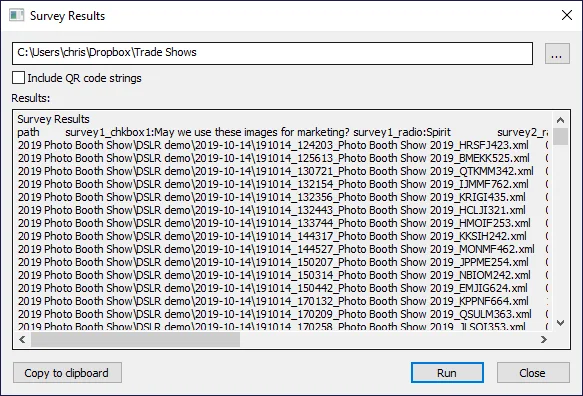
Results are a tab-delimited table with one row per session. The first row contains column headings in the form: survey screen number, response type (chkbox, text, or radio), and response identifier. Copy and paste into a spreadsheet for analysis.
Was this page helpful?
Thanks, that helps us improve the guides.