

Camera Settings
On this page
Camera Settings (Photo Booth)#
Overview#
The Camera settings mode dropdown in Photobooth Settings has three options: Simple, Bank 1, and Bank 2.
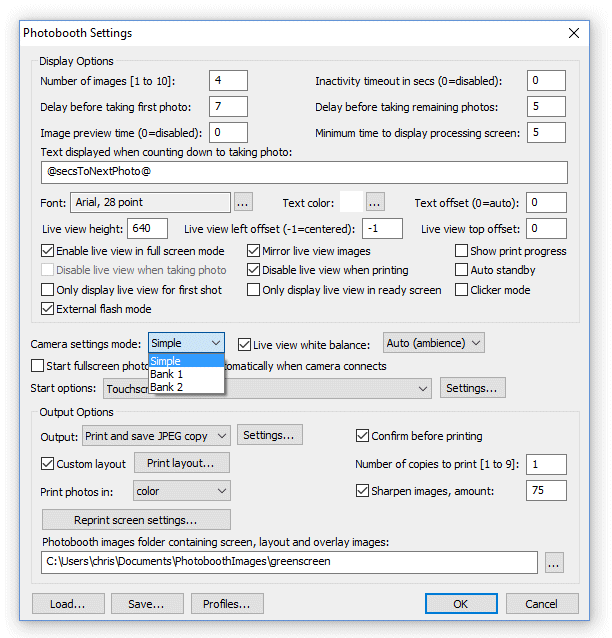
- Simple — uses current camera settings for shutter, aperture, ISO, and white balance. Best for photo-only booths. When External flash mode is selected, automatically sets shutter to bulb during live view and 1/125 sec when taking photos.
- Bank 1 / Bank 2 — provides independent settings for live view, photo capture, and video capture.
Bank settings#
Click Camera settings... to open the Camera Settings dialog when Bank 1 or Bank 2 is selected.
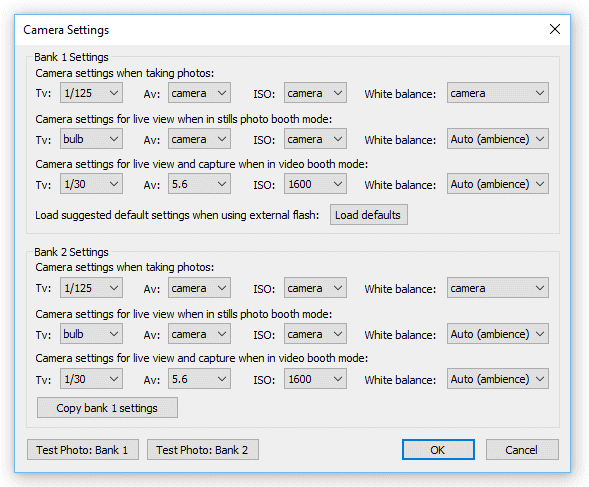
Each bank has three rows of settings:
| Row | Controls |
|---|---|
| Camera settings when taking photos | Shutter speed, aperture, ISO, white balance for capture |
| Camera settings for live view (stills mode) | Settings for the ready and countdown screens |
| Camera settings for live view and capture (video mode) | Settings during video capture |
Set any value to camera to use the current setting from the camera dial/menu.
Only the camera settings mode (Simple/Bank 1/Bank 2) is saved in profiles — not the individual values. This lets you change exposure at the venue without affecting the profile.
Recommended settings for flash#
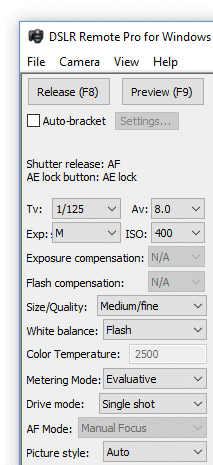
For all camera models when using flash:
- Exposure mode: M (manual)
- Shutter speed: 1/125 sec (use 1/100 sec for Canon EOS M50)
- Aperture: f/8
- ISO: 400
- White balance: Flash
Do not select a shutter speed faster than 1/100 sec when triggering external flash via the hotshoe on a Canon EOS M50. A firmware bug makes flash triggering unreliable above this speed.
Settings for video-only booths#
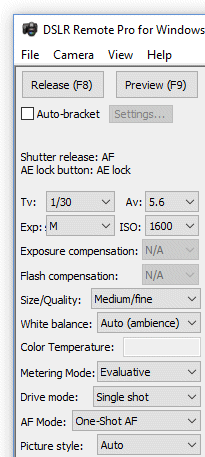
- Shutter speed: 1/30 sec
- Aperture: f/5.6
- ISO: 1600
- White balance: Auto (ambience) or Tungsten
Set Camera settings mode to Simple and disable Live view white balance in Photobooth Settings.
Basic Rebel series cameras use fully automatic exposure for video — manual settings have no effect in video mode on these models.
White balance#
- For flash capture: set camera white balance to Flash.
- For live view between shots: set live view white balance to Tungsten or Auto (ambience) to avoid the yellow cast from modeling lights.
- For video: use a consistent preset (e.g. Tungsten) rather than Auto for more consistent results.
Auto focus#
Cameras without Dual Pixel AF — disable auto focus by setting the lens AF/MF switch to MF. Focus manually using the live view display on the PC.
Cameras with Dual Pixel AF (e.g. EOS M50, EOS 80D, EOS 800D/Rebel T7i, EOS 6D Mark II) — enable Continuous AF with Face detect in the camera settings. The camera tracks faces in live view and focuses without delays when the photo is taken.
Camera types summary#
| Type | Examples | Notes |
|---|---|---|
| Basic Rebel | 1300D/T6, 2000D/T7, 4000D | Requires External flash mode with studio strobes; limited video |
| Enthusiast Rebel | 750D/T6i, 760D/T6s, 700D/T5i | Good video support; may need External flash mode |
| Rebel with Dual Pixel AF | 800D/T7i, 200D/SL2, 77D | Excellent continuous AF with face tracking |
| Mid/High end | 60D, 70D, 80D, 6D, 5D series | No External flash mode needed with correct live view settings |
| Mid/High end with Dual Pixel AF | 90D, 80D, 70D, 6D Mark II, 5D Mark IV | Excellent AF; best for video |
| Mirrorless | EOS M50, M6 Mark II, M200 | No External flash mode needed with Expo simulation off; slow-motion video on M50 |
Adjusting live view brightness in Bank mode#
Press cursor up in full screen photo booth mode to lighten the live view (slower shutter speed) or cursor down to darken it (faster shutter speed).
Shutter lag compensation#
Some basic Rebel cameras have a shutter lag over 0.5 sec when using live view and External flash mode. Compensate by setting the following Windows registry value to the lag in milliseconds:
HKEY_CURRENT_USER\Software\BreezeSystems\DSLRRemotePro\100\PhotoboothShutterLag
This can also be set using the Configure.exe utility in the installation folder.
Was this page helpful?
Thanks, that helps us improve the guides.