

Video tutorials
Getting Started4
 9:14
Getting Started
Remote Pro is designed to give you full control over a photo booth workflow, from camera connection and printing through to screen design…
 1:11:11
Setup Wizard
The Photobooth Setup Wizard is the fastest way to get started with Remote Pro.
 8:12
Event Template
After creating an event with the Photobooth Setup Wizard, you can customise the screens, print layout and settings, then reuse that event as a…
 18:03
Profiles
Profiles allow you to connect multiple sets of Remote Pro settings together.
Photo Booth Settings15
 10:18
Photo Booth Settings
The Photobooth Settings window is where you configure how DSLR Remote Pro runs a photo booth session.
 5:08
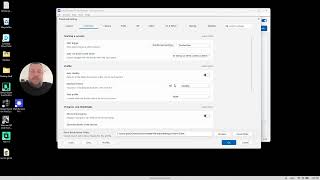
Capture
The Capture tab controls the basic photo session timing, including the number of photos, preview time, processing time, and countdown settings.
 9:44
Interface
The Interface settings control how users interact with the photo booth, what happens when Remote Pro starts, and how profiles, progress indicators…
 11:05
QR Codes and Contactless
QR codes can be displayed on prints and in the sharing screen to give guests a quick way to visit a website or online gallery.
 8:52
Camera
Camera settings control how DSLR Remote Pro uses the connected camera during photo booth sessions.
 7:30
Prints
Print settings control the photo layouts generated at the end of a session.
 9:15
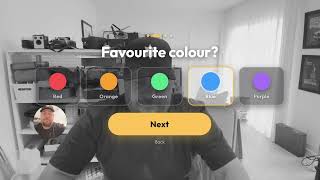
LUTs and Filters
Custom colour filters can be applied to photos, GIFs, and videos in Remote Pro.
 2:52
Widgets
Remote Pro can display interactive HTML inside a Web View Panel.
 16:32
Creating HTML
The easiest way to create the interactive HTML for Remote Pro – a survey, a game, a quiz – is to have an AI tool such as Claude or…
 4:46
Football Game Example
This example demonstrates how you can gamify the photo booth experience.
 2:05
Pose Guide Example
This example demonstrates an on screen pose guide that generates a random pose idea for guests to use.
 6:13
CSV Data Lookup Example
This example allows you to look up an an employee ID number from a CSV spreadsheet, and then use those details to generate an ID card.
 6:15
One time Code Example
This example demonstrates how to create a One Time Code for unlocking the photo booth, or allowing one time access to other parts of the UI (eg…
 1:09
Thumbprint Unlock Example
This example demonstrates a fun, simulated, thumbprint scan to unlock the photo.
 3:57
Live Gallery Example
This example demonstrates embedding a gallery from another event so guests can see whats happening at the other party.
Video lessons9
 12:03
Better Keyboards
Design custom touchscreen keyboards for Remote Pro in Canva, using our ready-made keyboard templates.
 3:30
UI Basics
How Breeze screens are built from JPEG, PNG, GIF and video files, with examples of custom photo booth interfaces.
 4:08
Breeze FX Face Swap for Remote Pro
Set up a Breeze FX face swap and use it to post-process photos in Remote Pro.
 11:46
Breeze FX Print Layout for Remote Pro
Combine Breeze FX output with original photos in the Remote Pro print layout editor, such as a before-and-after face swap print.
 3:42
Auto Open and Close Remote Pro
Open and close the booth automatically at set times with timed sessions, before and after screens and countdown tokens.
 1:39
Naming Events
Name an event with Event Info and use the event name token for file name prefixes and folders.
 3:17
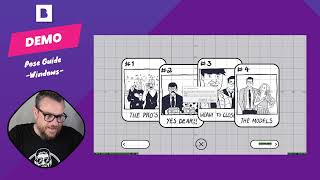
Pose Guide with Info Screens
Build an interactive pose guide from info screens and touch screen actions.
 8:54
Remote Pro Player Card
A sports player trading card theme for Remote Pro, with radio buttons, custom keyboards and Canva templates.
 12:46
Sports Themed Keypad
Create a sports-themed numeric keypad in Canva for trading card events.
Print Layout Effects9
 1:49
Random Print Layouts
Apply a random overlay to each session using numbered overlay files and a random number token.
 2:55
Double Exposure
Create a double exposure effect in the print layout editor with a black and white photo and the lighten blend mode.
 2:23
Color Shift Effect
Create a red and cyan colour shift effect in the print layout editor using offset copies, colour washes and blend modes.
 2:55
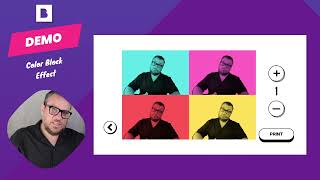
Color Block Effect
Create a colour blocking print with four colour washes and AI background removal.
 1:30
Water Droplet Effect
Create a water droplet effect with a transparent overlay and blur in the print layout editor.
 5:27
AI Image Segmentation
Place a graphic between the background and the person in a photo using AI background removal and a three-layer print layout.
 2:58
Print Compositing
Build a composite print effect with duplicated photos, opacity, saturation, mirroring and blend modes.
 2:55
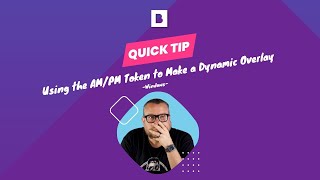
Adding Time to Print Layouts
Add the current time to a print layout using hour, minute and AM/PM tokens in a caption.
 1:16
Morning / Evening Print Layouts
Switch overlays between morning and afternoon with the %P token and a background/overlay filename suffix.
Legacy Tutorials3
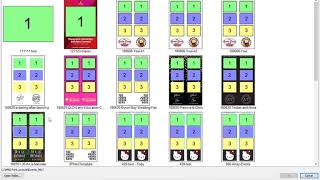 Breeze Tokens: Your New Best Friend
Legacy video tutorial (Remote Pro 3.11): Steve introduces Breeze tokens for folder naming, guest data and consent.
 AI Background Removal Tutorial
Legacy video tutorial (Remote Pro 3.15): use AI background removal for prints and slideshow GIFs, including animated backgrounds.
 How to Brand and Animate Welcome Screens
Legacy tutorial (Remote Pro 3.11): add a custom attraction or standby screen to the booth and replace the welcome screen with a movie.