

HTML Page Generation
Select Tools > HTML... to generate HTML gallery pages from the images in the current folder. If pages don't yet exist, the HTML generation dialog appears.
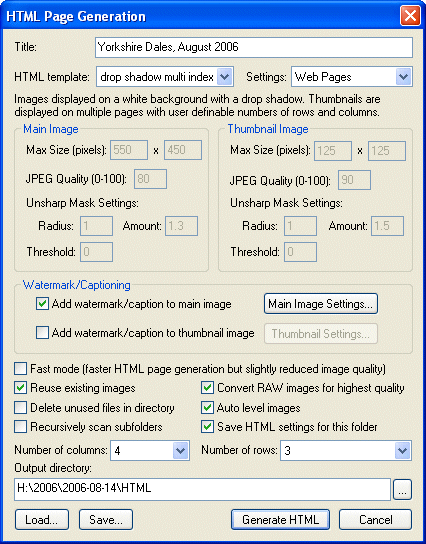
Enter a title, select a template, and press Generate HTML.
Included Templates#
BBP ships with templates including: black, simple, simple + settings window, proofs, frames, slideshow, non_english, thumbnails, icons, multi index, multi-view, drop shadow, drop shadow multi index, picture frame, picture frame multi index, order, paypal, web images only, and GPS (map-based index using Google Maps).
Watermarks#
Select Add watermark/caption to main image and configure via Main Image Settings... to overlay text or a GIF image on generated images. The same options are available for thumbnails. See Proofs for full watermark options.
Key Options#
- Fast mode — faster image generation using slightly lower quality algorithms (up to 6x faster for JPEG sources).
- Reuse existing images — reuses existing JPEG gallery images if the source file hasn't changed since they were generated. JPEG sources smaller than the main image size are copied unchanged.
- Delete unused files in directory — prompts to delete unused files after generation.
- Auto level images — applies auto levels (maps darkest to black, lightest to white).
- Recursively scan subfolders — generates pages for all subfolders containing images. Skips folders named
HTMLor starting with_. - Save HTML settings for this folder — saves settings to
breezebrowserHTML.datin the image folder for next time. Not available in read-only folders. - Lower case filenames — default; can be disabled in HTML Preferences.
- Remember last HTML output directory — enable in Preferences (use with care to avoid overwriting existing galleries).
Output Size and Quality#
Select from predefined settings or Custom:
| Setting | Main image | Thumbnail |
|---|---|---|
| Web Pages | 550×450 | 125×125 |
| CD-R Archive (small) | 650×550 | 160×160 |
| CD-R Archive (large) | 950×800 | 160×160 |
The output directory defaults to the image directory plus "HTML". Relative or absolute paths can be used.
Load / Save Settings#
Use Load... and Save... at the bottom of the dialog to save and reuse HTML generation settings. Settings files are stored in the HTML settings folder inside the templates folder.
Was this page helpful?
Thanks, that helps us improve the guides.