

Timestamps
On this page
File Timestamps#
Tools > Timestamp sets the modification date/time of all images in the directory to the date/time stored in their EXIF data. This option can also make files read-only to protect originals from accidental overwriting in an image editor.
BreezeBrowser Pro preserves file modification timestamps when rotating or adding comments. It can also rotate, delete, or comment read-only files — it temporarily makes them read/write, modifies the file, then restores the read-only flag and original timestamp.
Adjusting Image Capture Time#
Select Tools > Adjust Image Date/Time... to edit the capture time stored in JPEG, TIFF, Canon raw, or Nikon raw files. This is useful when the camera clock was set incorrectly, or when synchronizing images from two cameras.
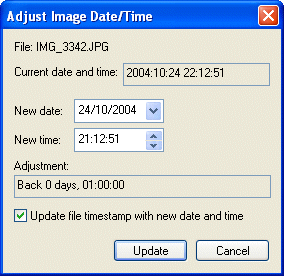
Enter the correct date/time and the dialog shows the adjustment amount. Click Update to correct the current image, or Update All to apply the same offset to all images in the folder (or selected images in thumbnail view).
Check Update file timestamp with new date/time to also update the file's creation and modification times.
Adjusting capture time cannot be undone. BreezeBrowser Pro only updates images that contain EXIF DateTime, DateTimeOriginal, or DateTimeDigitized tags.
Was this page helpful?
Thanks, that helps us improve the guides.