

BreezeBrowser Pro Utility App
The BreezeBrowser Pro utility app (BBUtil) lets you change less commonly used configuration settings and reset BreezeBrowser Pro to its defaults if you have problems running it.
Run it by double-clicking the BBUtil icon in the BreezeBrowser Pro installation folder:

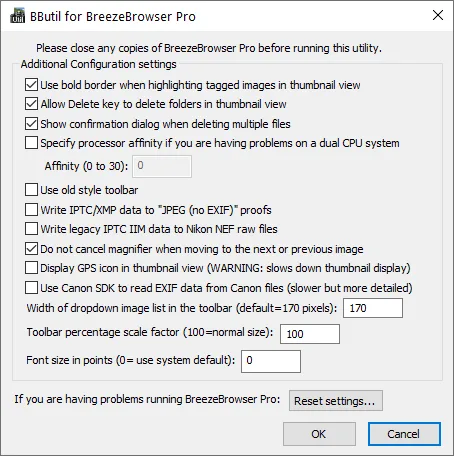
Available Settings#
Tagged image highlighting: "Use bolder border when highlighting tagged images in thumbnail view" draws a two-pixel border around tagged images.
Delete key for folders: By default the Delete key cannot delete folders to prevent accidental deletion. Enable with "Allow Delete key to delete folders in thumbnail view".
Delete confirmation: By default a confirmation dialog appears when deleting more than one image. Uncheck "Show confirmation dialog when deleting multiple files" to suppress it.
Processor affinity: On dual-processor or Hyper-Threading PCs, if you experience problems, set processor affinity so BreezeBrowser Pro runs on a single CPU (set to 0 or 1).
IPTC/XMP in JPEG (no EXIF) proofs: By default, IPTC/XMP data is not written to "JPEG (no EXIF)" proof images. Select 'Write IPTC/XMP data to "JPEG (no EXIF)" proofs' to copy IPTC/XMP from the source image.
Legacy IPTC in Nikon NEF: Select "Write legacy IPTC IIM data to Nikon NEF raw files" for compatibility with apps that don't support IPTC XMP. WARNING: Some raw converters may have problems with NEF files containing IPTC IIM data.
Canon SDK for EXIF: "Use Canon SDK to read EXIF data from Canon files" gives more accurate shooting data for some attributes but is slightly slower. Disable for maximum speed (e.g. during large batch renames).
Toolbar scale factor: On high-DPI displays, toolbar icons may appear too small. Set "Toolbar percentage scale factor" to a larger value (e.g. 200 to double icon size).
Old-style toolbar: Set "use old style toolbar" to revert to the smaller icons from previous versions.
Image magnifier persistence: By default the magnifier is cancelled when moving to the next/previous image. Select "Do not cancel magnifier when moving to the next or previous image" to keep it active.
Font size: By default the main window uses the Windows system font size. Change with "Font size in points".
Reset settings: If a corrupted image prevents startup (when set to load the last folder), click "Reset setting..." to reset the startup folder and other registry configuration values.
Was this page helpful?
Thanks, that helps us improve the guides.