

Using the Comparison Window
On this page
The image comparison window can display two, three, or four images together. To open it, switch to thumbnail or filmstrip view, select the images, then right-click one and select Compare images....
- Two images — split horizontally (one above the other) by default. Press
TABor right-click and select View side by side to switch to horizontal layout. - Three images — displayed side by side.
- Four or more images — displayed in a 2×2 grid.
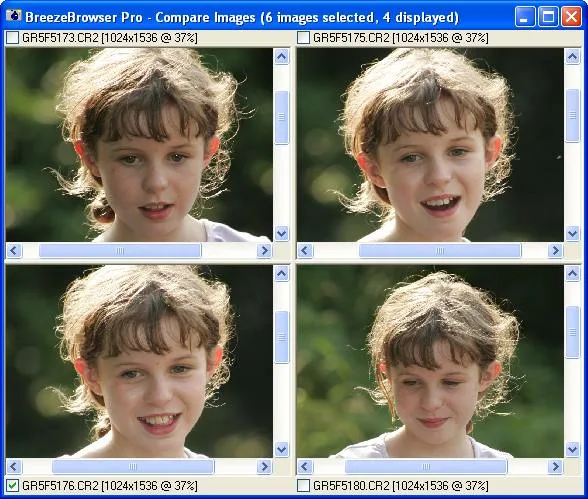
The filename, dimensions, and zoom percentage are displayed above or below each image. A checkbox shows whether the image is tagged — click it or press F1–F4 to tag/untag the corresponding pane.
Scrolling and Zooming#
- Scroll individual images using their scrollbars, or hold the left mouse button and drag to pan all images together.
- Zoom in/out with the mouse wheel or numpad
+/-keys. - Right-click for the full options menu.
More Than Four Images#
When more than four images are selected, only the first four are shown. Right-click and select Next or Previous to cycle through additional images — images two, three, and four shift to the previous pane and the next image fills the bottom-right pane.
Right-click an image and select Hold image to keep it visible while stepping through others. Use Arrange held images (Ctrl+A) to move all held images to the front for easy shortlisting.
Was this page helpful?
Thanks, that helps us improve the guides.