

General
On this page
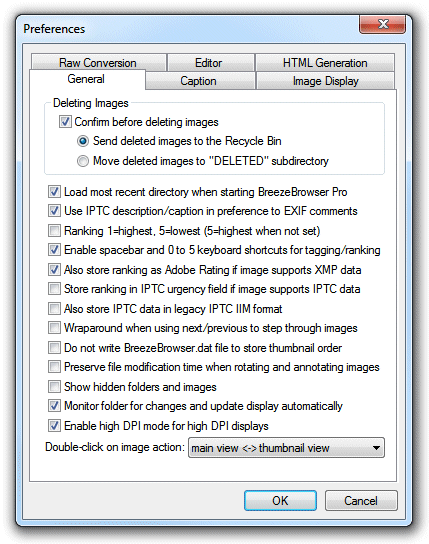
Image Deletion#
Deleted images can either be moved to a DELETED subdirectory or to the Windows Recycle Bin. Moving to DELETED is useful for setting aside "second-rate" shots without permanently deleting them.
Uncheck "Confirm before deleting images" to skip the confirmation prompt.
Startup#
Uncheck "Load most recent directory when starting BreezeBrowser Pro" to start without loading a directory.
IPTC Captions vs EXIF Comments#
Select "Use IPTC caption in preference to EXIF comments" to store comments as IPTC data, which allows longer comments in TIFF, JPEG, or Canon raw files. EXIF comments are limited to the length of the existing UserComment field. When enabled, BreezeBrowser Pro displays the IPTC caption (or falls back to the EXIF comment if empty). Comments are saved to both fields when editing.
Ranking Order#
By default, rank 5 = highest and rank 1 = lowest. Check "Rank 1=highest..." to reverse this.
Select "Also store ranking as Adobe rating if image supports XMP data" to sync rankings with Adobe Lightroom/Photoshop. This also enables writing Adobe labels to XMP-capable formats.
Select "Store ranking in IPTC urgency field if image supports IPTC data" to write rankings to the IPTC urgency field. Note: BreezeBrowser Pro only writes to this field — rankings are read from ranked_files.txt, not IPTC.
Ranking to IPTC urgency mapping:
| Ranking | IPTC Urgency |
|---|---|
| None | 0 |
| Highest | 1 |
| High | 2 |
| Medium | 3 |
| Low | 4 |
| Lowest | 5 |
IPTC Format#
BreezeBrowser Pro stores IPTC data in Adobe XMP format. Select "Also store IPTC data in legacy IPTC IIM format" to write both XMP and IIM for compatibility with older applications. See IPTC / XMP Metadata for details.
Wraparound#
Select "Wraparound" to loop from the last image back to the first (and vice versa) when pressing Next/Previous.
Other Settings#
- BreezeBrowser.dat: BreezeBrowser Pro writes a small
BreezeBrowser.datfile in each image folder to store thumbnail sort order. Check "Do not write BreezeBrowser.dat..." to disable this. - Preserve file modification time: Select to avoid updating the modification timestamp when rotating images or editing comments. Note: the archive bit is still set for backup software.
- Show hidden folders: By default hidden folders are not displayed. Enable here.
- Spacebar/0–5 shortcuts: Enable "Enable spacebar and 0 to 5 keyboard shortcuts for tagging/ranking" to tag with spacebar and rank with
0–5without needing Ctrl (not available if the image dropdown has focus in main view). - Monitor folder for changes: When enabled, BreezeBrowser Pro automatically updates the display when images are added, modified or deleted.
- High DPI mode: Select "Enable high DPI mode for high DPI displays" to use the full screen resolution. Changes take effect on next launch. Toolbar icon size can be adjusted with the BBUtil utility.
Double-Click Action#
Use the "Double-click on image action" dropdown to select what happens when double-clicking an image. Pressing Esc has the same effect.
| Option | Description |
|---|---|
| main view <-> thumbnail view | Switch between main and thumbnail view |
| View actual image | Open image full size in a separate window |
| Edit image | Open in the configured image editor |
| main view <-> filmstrip + EXIF | Switch to filmstrip view with EXIF data |
| main view <-> filmstrip + folders | Switch to filmstrip view with folder display |
| thumbnail view <-> filmstrip + EXIF | Switch thumbnail to filmstrip with EXIF |
| thumbnail view <-> filmstrip + folders | Switch thumbnail to filmstrip with folders |
| magnifier on/off | Toggle magnifier (switches to main view first if in thumbnail view) |
Was this page helpful?
Thanks, that helps us improve the guides.