

Shortcuts / Links to Files
On this page
BreezeBrowser Pro can display Windows shortcut files alongside images. Shortcuts are shown with a shortcut icon at the top of the thumbnail.
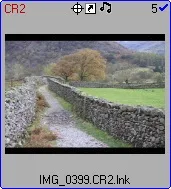
A red cross appears in the thumbnail if the target file is unavailable (renamed, moved, or deleted).
Operations on Shortcuts#
- Only affect the shortcut: copy, move, delete, rename, select, tag, rank.
- Applied to the actual image: rotate, add comments, edit IPTC data.
Creating Shortcuts#
In Windows Explorer: right-click and drag a file to its destination, then select Create Shortcuts Here.
In BreezeBrowser Pro: select images in thumbnail or filmstrip view, click and hold, start dragging, press Shift, then drop into the destination folder in the directory tree. Press Escape to cancel.
Copy to Folder copies the shortcut, not the original. Use Copy Actual Images to Folder... (right-click menu in thumbnail view) to copy the original files.
Was this page helpful?
Thanks, that helps us improve the guides.