

Display Options
On this page
Color / Black and White#
Press Ctrl+W or right-click and select Black and White to toggle between color and black and white display.
High Quality Mode#
High quality mode sharpens the image before display (the original is unaffected), giving a clear preview of how the image will look after editing.
View Actual Image#
Select View Actual Image... to display the full-size image in a separate window for zooming and panning.
Caption#
The caption can be displayed above or below the image, or disabled — right-click and select the appropriate option.
Slideshow Display Options#
Right-click in the slideshow and select Slideshow display options... to configure the caption and frame:
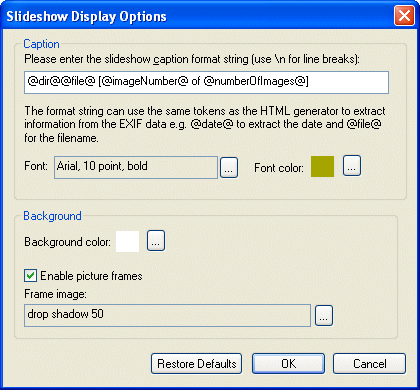
The caption is defined by a format string using HTML Tokens. The default is:
@dir@@file@ [@imageNumber@ of @numberOfImages@]
Example — filename, date, and camera settings on separate lines:
@file@ [@imageNumber@ of @numberOfImages@]
@date@
@model@, @shutter@sec @ f@aperture@, ISO @iso@
Font type, style, and color can be changed via the ... buttons.
Background and Frames#
Set the slideshow background color and picture frame image in the Background section. Frames are files in the frames folder of the BreezeBrowser Pro installation directory. See Guidelines for Creating Picture Frames for details.
Was this page helpful?
Thanks, that helps us improve the guides.