

Touchscreen Keyboard
On this page
An optional touchscreen keyboard can be displayed in Kiosk Mode to allow users to enter information such as their email address.
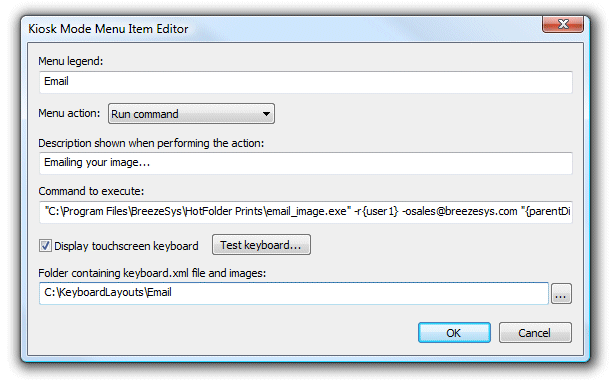
To enable it, check Display touchscreen keyboard in the kiosk mode menu item editor:
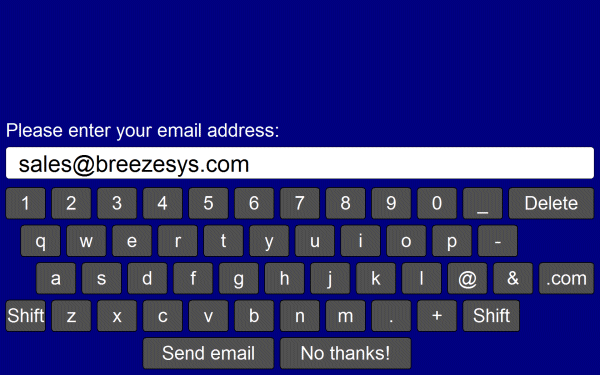
Press Test keyboard... to preview it. The default keyboard fills the screen:
Tokens#
{user1},{user2}— text entered by the user (up to 10 fields supported).{chkbox1},{chkbox2}etc. — checkbox states.
Example email command:
"C:\Program Files\BreezeSys\HotFolder Prints\email_image.exe" -r{user1} [email protected] -s"Event Photos" "{parentDir}\email\{file}"
Customizing the Keyboard#
Create a keyboard.xml file in the keyboard settings folder. Save the defaults first: display the keyboard via Test keyboard..., then hold Shift+Ctrl and click to save the current XML and TIFF files.
XML Settings#
Key settings in keyboard.xml:
<prompt1>— label above the input area (default: "Please enter your email address:"). Addpassword="1"attribute to mask input.<text1_x>,<text1_y>— position of input area in pixels from top-left.<text1_w>sets width.- Up to 10 prompts/input areas (
<prompt2>,<text2_x>etc.). Users tap to switch between them; the active field is highlighted red. <text_point_size>— font size in tenths of a point (default:480= 48pt).- Checkboxes:
<chkbox1_prompt>,<chkbox1_x>,<chkbox1_y>. Usevalue="0"orvalue="1"to set default state. <background_color>,<key_text_color>,<text_foreground_color>,<text_background_color>,<transparent_color>— all hexadecimal RGB (e.g.0xFFFFFF= white).<show_cursor>—1to show the cursor,0to hide.
Key Tags#
Each <key> defines size, position and behaviour:
<left>,<top>,<width>,<height>— position and size in pixels.<legend>/<shifted_legend>— key label text.<code>/<shifted_code>— character(s) typed. Special values:Shift— toggle shift/uppercase mode.OK— close keyboard if at least one field has text.OK all— close only if all fields have text.OK none— always close.Cancel— dismiss without returning input.
Keyboard Images#
For full visual control, place TIFF (or JPEG) screen-size images in the keyboard folder:
keyboard_uppercase.tif/keyboard_uppercase_pressed.tifkeyboard_lowercase.tif/keyboard_lowercase_pressed.tif
When images are present, <background_color>, <text_color>, <prompt> and <legend> tags are ignored. Key positions in the images must match the keyboard.xml coordinates.
Was this page helpful?
Thanks, that helps us improve the guides.