

Batch Editing IPTC Data
BreezeBrowser Pro can apply IPTC changes to multiple images at once.
- In main view — all images in the folder capable of holding IPTC data are loaded in the IPTC dialog.
- In thumbnail view — only the selected images capable of holding IPTC data are loaded.
When two or more images are loaded, the < Prev / Next > buttons are enabled, and an Apply to All (main view) or Apply to Selected (thumbnail view) button appears.
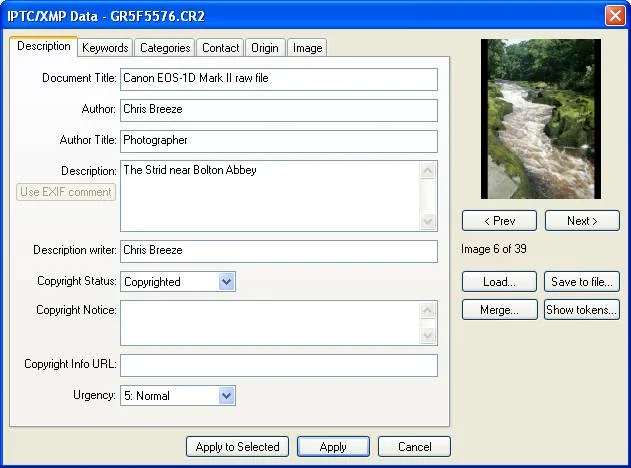
The current image filename is shown in the dialog title bar, with the image number and total count below the navigation buttons. Use the navigation buttons or mouse wheel to step through images. Changes are saved before moving to the next image. Press Apply to save the current image only.
Apply to Selected / Apply to All#
Click Apply to Selected to open the batch settings dialog:
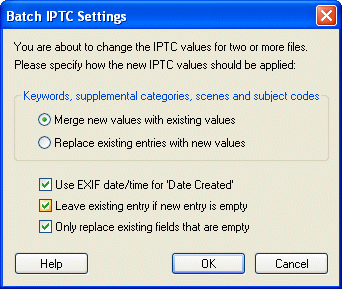
Options:
- Merge / Replace for keywords, supplemental categories, IPTC scene, and IPTC subject code lists. Example — existing: "one", "two"; new: "three", "four". Merge → "one, two, three, four". Replace → "three, four".
- Use EXIF date/time for "Date Created" — auto-populates Date Created and Time Created from the EXIF shooting data.
- Leave existing entry if new entry is empty — empty fields in the dialog do not delete existing IPTC values. Leave checked in most cases; uncheck only if you want to overwrite all images with identical data and discard existing IPTC.
- Do not replace existing fields unless they are empty — new data only fills blank fields; useful for applying a generic caption to images that don't already have one.
Was this page helpful?
Thanks, that helps us improve the guides.