

Image Display
On this page
Thumbnail Background#
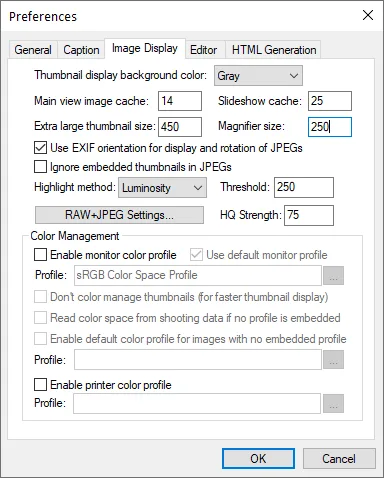
Set the thumbnail display background colour to white, black, or gray.
Image Cache#
BreezeBrowser Pro caches the last few images displayed in main view and slideshow to speed up viewing. Set the cache size according to available RAM.
Thumbnail Sizes#
Three sizes are available: small (max 80×80px), large (160×160px), and extra large (user-definable, 200×200 to 1000×1000px). Larger sizes are slower to generate and use more memory — avoid unless you have plenty of RAM (512MB or more).
Image Magnifier#
Set the image magnifier window size to any value between 100 and 500 pixels.
JPEG Rotation Methods#
Two lossless rotation methods are available:
- Rearrange image data — physically rotates the image. Slower and may wrap small strips if the image size is not an exact multiple of the JPEG tile size (not an issue for unedited camera images).
- Edit EXIF orientation — very fast, but many apps ignore this value and show the image in its original orientation (including Windows Explorer, Internet Explorer, Photoshop, Photoshop Elements, and Paint Shop Pro at time of writing).
Embedded Thumbnails#
Click "Ignore embedded thumbnails in JPEGs" to generate thumbnails from the main JPEG data rather than the embedded thumbnail. Slower, but avoids stale thumbnails (e.g. after editing in Photoshop 6.0, which writes back the original EXIF thumbnail). Use Tools > "Regenerate JPEG thumbnails" to update out-of-sync thumbnails.
Highlight Display#
The "Highlight method" dropdown specifies how highlight values are calculated for flashing highlights in main view. Options: "luminosity" (recommended for photos) or "Max RGB" (uses the highest channel value). The threshold sets the level above which highlights flash — 250 is a good starting point.
HQ Strength#
Specifies the sharpening amount applied in HQ display mode. Default: 75.
RAW+JPEG Settings#
Click "RAW+JPEG settings..." to configure how RAW and JPEG pairs are handled.
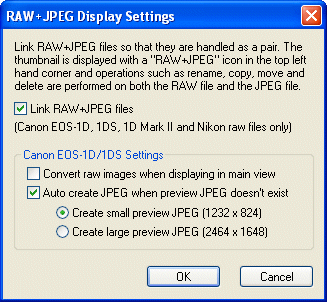
Select "Link RAW+JPEG files" to treat them as a pair — rename, copy, move, delete, and IPTC editing apply to both files. Select "Link JPEG to EOS 1D/1Ds raw image when available" to display and process the JPEG for much faster performance.
Colour Management#
BreezeBrowser Pro can use colour profiles for accurate display. Set a monitor profile and BreezeBrowser Pro will convert embedded JPEG/TIFF colour profiles for display. You may also specify a default profile for images without an embedded profile.
Select "Use default monitor profile" to use the profile set for your monitor (set via Windows desktop Properties > Settings > Advanced > Color Management).
Select "Read color space from shooting data if no profile is embedded" to automatically use sRGB or Adobe RGB 1998 for Canon EOS 10D, 1D, and 1DS images based on the shooting data (main view only).
A separate profile can be specified for printing and print preview.
Colour management can slow display. Toggle it on/off with Shift+Ctrl+K, then press F5 to refresh.
Was this page helpful?
Thanks, that helps us improve the guides.