

Keyword Editor
On this page
The keyword editor adds or removes keywords from the IPTC/XMP data without affecting other stored data. Right-click an image and select Edit keywords... or press Shift+Ctrl+K.
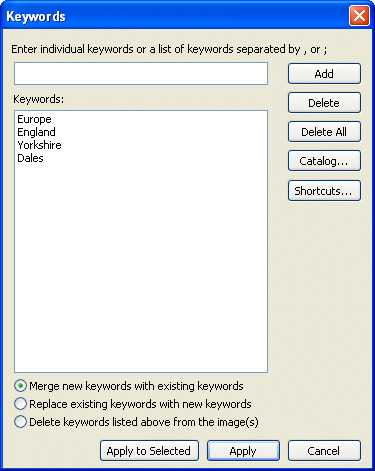
Existing XMP keywords for the selected image are shown in the keywords list. Add new keywords by typing in the text box and pressing Enter, or click Catalog... to browse the controlled vocabulary catalog.
Apply Mode#
Choose how keywords are applied using the radio buttons:
- Merge — keeps existing keywords and adds new ones.
- Replace — removes all existing keywords and replaces with those in the list.
- Delete — removes the listed keywords from the image.
Example with existing keywords "Ruins" and "Abbey" and new keywords "Europe" and "England":
| Existing | Merge result | Replace result | Delete result |
|---|---|---|---|
| Ruins, Abbey | Ruins, Abbey, Europe, England | Europe, England | Ruins, Abbey |
Apply Buttons#
- Apply — applies to the image you right-clicked on.
- Apply to Selected — appears when multiple images are selected in thumbnail/filmstrip view; applies to all selected images.
- Apply to All — appears when opened from main view; applies to all images in the folder.
Merge is disabled when only one image is selected. A warning is shown if any selected images do not support XMP data.
Keyword Shortcuts#
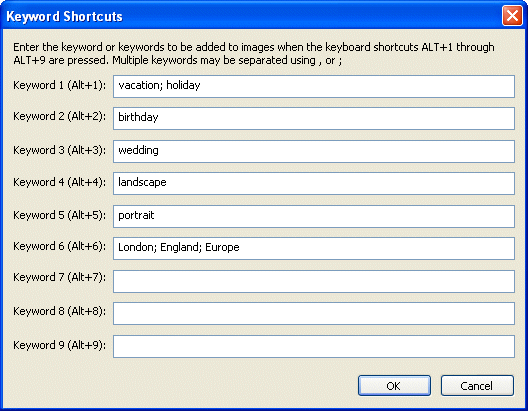
Up to 9 preset keyword combinations can be assigned to Alt+1 through Alt+9. Press Shortcuts... to configure them. Each shortcut can contain one or more keywords separated by commas. When triggered, the keywords are merged into the selected images.
Was this page helpful?
Thanks, that helps us improve the guides.