

Photo Booth Event Example
This example shows how kiosk mode works together with Hotfolder Prints to allow guests to select photos for reprinting or emailing at an event.
Folder Setup#
Assume the photobooth saves images to C:\Photos\2011-05-17.
Set the photobooth output mode to Print and save JPEG copy or JPEG copy only so JPEG copies of the printed layout are saved to C:\Photos\2011-05-17\Prints (e.g. 20110517-195032.JPG).
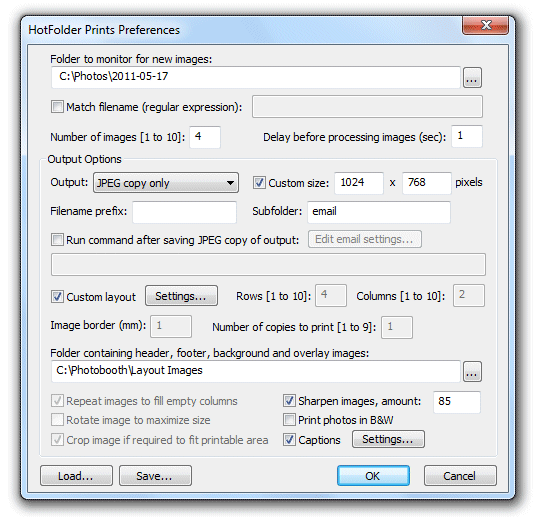
Configure Hotfolder Prints to monitor the photos folder and save email-sized layouts (2x2 grid, ~1024x768) to C:\Photos\2011-05-17\email using the same filename convention, output mode JPEG copy only, blank filename prefix, subfolder set to email.
| Folder | Contents |
|---|---|
C:\Photos\2011-05-17 |
Individual camera photos (e.g. IMG_0001.JPG) |
C:\Photos\2011-05-17\Prints |
JPEG copy of printed layout — BBP kiosk mode displays this |
C:\Photos\2011-05-17\email |
Email-sized JPEG copy — used by the email command |
BreezeBrowser Pro Setup#
Point BBP to the Prints folder. Create two kiosk menu items:
Print Menu Item#
Action: Print — prints the JPEG copy of the printed layout.
Email Menu Item#
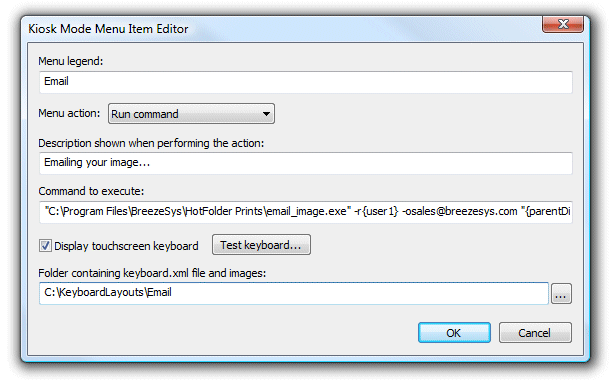
Action: Run command, with touchscreen keyboard enabled. Command:
"C:\Program Files\BreezeSys\HotFolder Prints\email_image.exe" -r{user1} [email protected] -s"Event Photos" "{parentDir}\email\{file}"
The token {parentDir} returns C:\Photos\2011-05-17 and {file} the filename, so {parentDir}\email\{file} points to the email-sized copy.
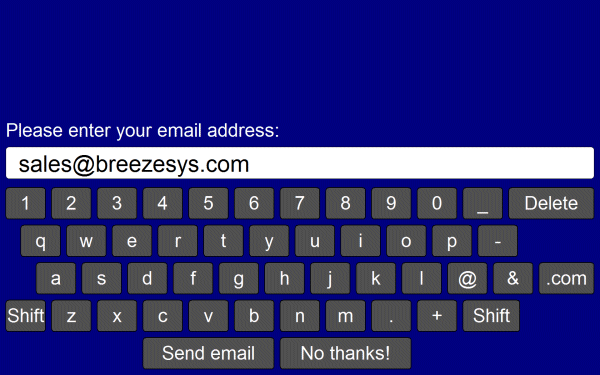
When a guest selects Email, the touchscreen keyboard appears. After they enter their address and press Send Email, {user1} is passed to the command.
email_image.exe is part of Hotfolder Prints and must be purchased separately.
Was this page helpful?
Thanks, that helps us improve the guides.