# HTML Page Generation
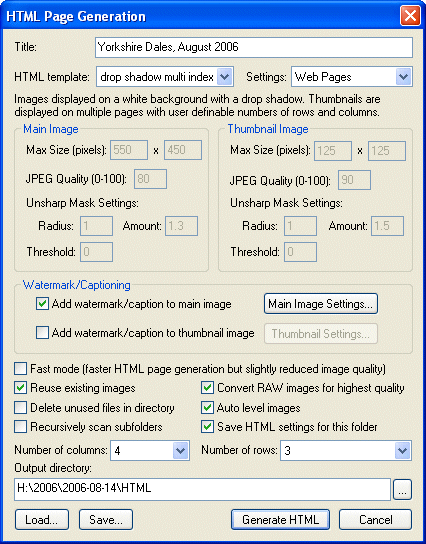
Select **Tools > HTML...** to generate HTML gallery pages from the images in the current folder. If pages don't yet exist, the HTML generation dialog appears.
---
Enter a title, select a template, and press **Generate HTML**.
## Included Templates
BBP ships with templates including: black, simple, simple + settings window, proofs, frames, slideshow, non_english, thumbnails, icons, multi index, multi-view, drop shadow, drop shadow multi index, picture frame, picture frame multi index, order, paypal, web images only, and **GPS** (map-based index using Google Maps).
## Watermarks
Select **Add watermark/caption to main image** and configure via **Main Image Settings...** to overlay text or a GIF image on generated images. The same options are available for thumbnails. See [Proofs](https://www.breezesoftware.com/help/browser-pro/proofs#proofs) for full watermark options.
## Key Options
- **Fast mode** — faster image generation using slightly lower quality algorithms (up to 6x faster for JPEG sources).
- **Reuse existing images** — reuses existing JPEG gallery images if the source file hasn't changed since they were generated. JPEG sources smaller than the main image size are copied unchanged.
- **Delete unused files in directory** — prompts to delete unused files after generation.
- **Auto level images** — applies auto levels (maps darkest to black, lightest to white).
- **Recursively scan subfolders** — generates pages for all subfolders containing images. Skips folders named `HTML` or starting with `_`.
- **Save HTML settings for this folder** — saves settings to `breezebrowserHTML.dat` in the image folder for next time. Not available in read-only folders.
- **Lower case filenames** — default; can be disabled in [HTML Preferences](https://www.breezesoftware.com/help/browser-pro/preference-settings#preference-settings).
- **Remember last HTML output directory** — enable in Preferences (use with care to avoid overwriting existing galleries).
## Output Size and Quality
Select from predefined settings or **Custom**:
| Setting | Main image | Thumbnail |
| --- | --- | --- |
| Web Pages | 550×450 | 125×125 |
| CD-R Archive (small) | 650×550 | 160×160 |
| CD-R Archive (large) | 950×800 | 160×160 |
The output directory defaults to the image directory plus "HTML". Relative or absolute paths can be used.
## Load / Save Settings
Use **Load...** and **Save...** at the bottom of the dialog to save and reuse HTML generation settings. Settings files are stored in the `HTML settings` folder inside the templates folder.
---
Source: https://www.breezesoftware.com/help/browser-pro/html-page-generation