

Touchscreen Keyboard
Touchscreen Keyboard#
The touchscreen keyboard appears automatically when users need to enter text — for email addresses, Twitter login, or a kiosk exit password. Default layouts are provided for each context.
Test the keyboard layout using the Test keyboard... buttons in General Preferences.
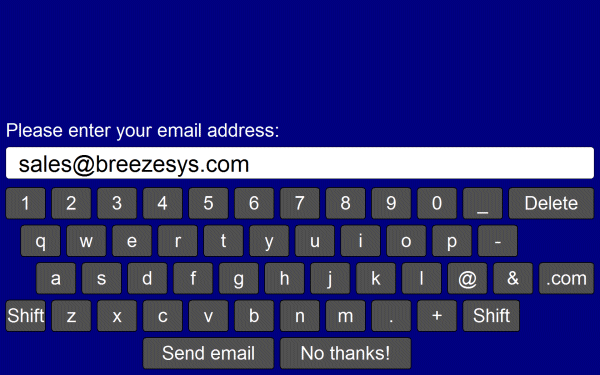
Customising the Keyboard#
Create an XML file named keyboard.xml in the screen images folder to customise layout, key positions, colors and prompts. Save it alongside optional TIFF keyboard images for full visual control.
To get a copy of the default keyboard XML and images: open the keyboard via Test keyboard..., then hold Shift+Ctrl and left-click. The file is saved to the screen images folder.
XML Structure#
<?xml version="1.0" ?>
<breeze_systems_photobooth version="2.2">
<photobooth_settings>
  <keyboard>
    <text_point_size>480</text_point_size>
    <prompt1>Please enter your email address:</prompt1>
    <text1_y>411</text1_y>
    <text1_x>50</text1_x>
    <text1_w>300</text1_w>
    <background_color>0x000080</background_color>
    <key>
      <left>58</left><top>630</top>
      <width>112</width><height>89</height>
      <legend>q</legend><shifted_legend>Q</shifted_legend>
      <code>q</code><shifted_code>Q</shifted_code>
    </key>
    <key>
      <left>400</left><top>945</top>
      <width>368</width><height>89</height>
      <legend>Send email</legend>
      <code>OK</code><shifted_code>OK</shifted_code>
    </key>
  </keyboard>
</photobooth_settings>
</breeze_systems_photobooth>
Text Input Tags#
<prompt1>— text displayed above the input area. Addpassword="1"to mask input;email_address="1"to validate email format.<text1_x>,<text1_y>— position of input area in pixels from top-left<text1_w>— width of input area- Add additional inputs using
<prompt2>,<text2_x>etc. (up to 10) <text_point_size>— font size in tenths of a point (480= 48pt)
Checkboxes#
Add checkboxes with <chkbox1_prompt>, <chkbox1_x>, <chkbox1_y> tags (up to 10). Options: value="0" or value="1" (default state), mandatory="1" (must check before OK), point-size="240" (font size).
Information Page#
Add an optional info page (e.g. privacy policy) as a JPEG or TIFF with the same name as the XML file (e.g. email_keyboard_info.jpg). Define a key with code "info" to show it, and "info close" to close it. It auto-closes after 30 secs.
Colors#
All colors are hexadecimal RGB (0x000000 = black, 0xFFFFFF = white):
<background_color>— window background<text_color>/<key_text_color>— prompt and key legend color<text_foreground_color>— user input text color (default:0x000000)<text_background_color>— user input area background (default:0xFFFFFF)<transparent_color>— color made transparent when keyboard is displayed<show_cursor>—1to show a gray cursor in input areas
Key Codes#
Each <key> defines position, size, legends and codes. Special codes:
Shift— toggles upper caseinfo/info close— show/close the info pageOK— submit if at least one input is filledOK all— submit only if all fields are filledOK none— submit even if all fields are emptyCancel— cancel and return
International Characters#
Use Unicode values in the XML, e.g. Euro symbol (U+20AC):
<shifted_legend>€</shifted_legend>
<shifted_code>€</shifted_code>
Minimal Customisation#
To add a checkbox without redefining all keys, omit the <key> tags — Breeze Kiosk uses its built-in layout:
<?xml version="1.0" ?>
<breeze_systems_photobooth version="2.3">
<photobooth_settings>
  <keyboard>
    <chkbox1_prompt value="0">I agree to my photos being posted on a web site</chkbox1_prompt>
    <chkbox1_x>38</chkbox1_x>
    <chkbox1_y>70</chkbox1_y>
  </keyboard>
</photobooth_settings>
</breeze_systems_photobooth>
Context-Specific Keyboard Files#
Breeze Kiosk looks for specific XML and image files depending on the action:
- Email:
email_keyboard.xml+email_keyboard_uppercase.tif,_lowercase.tif,_pressedvariants - SMS:
sms_keyboard.xml+ matching images - MMS:
mms_keyboard.xml+ matching images - Twitter:
twitter_keyboard.xml+ matching images - Password exit:
password_keyboard.xml+ matching images - Print email prompt:
print_keyboard.xml+ matching images - Privacy mode code:
privacy_keyboard.xml+ matching images
If you only need to change the layout (not the visual design), create only the .xml file and delete the TIFF images. If TIFF images are present, <prompt> tags in the XML are ignored.
Was this page helpful?
Thanks, that helps us improve the guides.