# Touchscreen Keyboard
## Touchscreen Keyboard
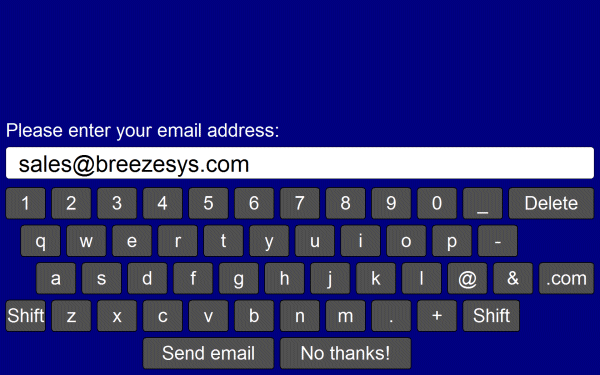
The touchscreen keyboard appears automatically when users need to enter text — for email addresses, Twitter login, or a kiosk exit password. Default layouts are provided for each context.
Test the keyboard layout using the **Test keyboard...** buttons in [General Preferences](https://www.breezesoftware.com/help/kiosk/general-preferences).
---
### Customising the Keyboard
Create an XML file named `keyboard.xml` in the screen images folder to customise layout, key positions, colors and prompts. Save it alongside optional TIFF keyboard images for full visual control.
To get a copy of the default keyboard XML and images: open the keyboard via **Test keyboard...**, then hold Shift+Ctrl and left-click. The file is saved to the screen images folder.
---
#### XML Structure
```xml
480
Please enter your email address:
411
50
300
0x000080
58630
11289
Q
qQ
400945
36889
OKOK
```
#### Text Input Tags
- `` — text displayed above the input area. Add `password="1"` to mask input; `email_address="1"` to validate email format.
- ``, `` — position of input area in pixels from top-left
- `` — width of input area
- Add additional inputs using ``, `` etc. (up to 10)
- `` — font size in tenths of a point (`480` = 48pt)
---
#### Checkboxes
Add checkboxes with ``, ``, `` tags (up to 10). Options: `value="0"` or `value="1"` (default state), `mandatory="1"` (must check before OK), `point-size="240"` (font size).
---
#### Information Page
Add an optional info page (e.g. privacy policy) as a JPEG or TIFF with the same name as the XML file (e.g. `email_keyboard_info.jpg`). Define a key with code `"info"` to show it, and `"info close"` to close it. It auto-closes after 30 secs.
---
#### Colors
All colors are hexadecimal RGB (`0x000000` = black, `0xFFFFFF` = white):
- `` — window background
- `` / `` — prompt and key legend color
- `` — user input text color (default: `0x000000`)
- `` — user input area background (default: `0xFFFFFF`)
- `` — color made transparent when keyboard is displayed
- `` — `1` to show a gray cursor in input areas
---
#### Key Codes
Each `` defines position, size, legends and codes. Special codes:
- `Shift` — toggles upper case
- `info` / `info close` — show/close the info page
- `OK` — submit if at least one input is filled
- `OK all` — submit only if all fields are filled
- `OK none` — submit even if all fields are empty
- `Cancel` — cancel and return
---
#### International Characters
Use Unicode values in the XML, e.g. Euro symbol (U+20AC):
```xml
€
€
```
#### Minimal Customisation
To add a checkbox without redefining all keys, omit the `` tags — Breeze Kiosk uses its built-in layout:
```xml
I agree to my photos being posted on a web site
38
70
```
### Context-Specific Keyboard Files
Breeze Kiosk looks for specific XML and image files depending on the action:
- **Email:** `email_keyboard.xml` + `email_keyboard_uppercase.tif`, `_lowercase.tif`, `_pressed` variants
- **SMS:** `sms_keyboard.xml` + matching images
- **MMS:** `mms_keyboard.xml` + matching images
- **Twitter:** `twitter_keyboard.xml` + matching images
- **Password exit:** `password_keyboard.xml` + matching images
- **Print email prompt:** `print_keyboard.xml` + matching images
- **Privacy mode code:** `privacy_keyboard.xml` + matching images
> **Info**
>
> If you only need to change the layout (not the visual design), create only the `.xml` file and delete the TIFF images. If TIFF images are present, `` tags in the XML are ignored.
---
Source: https://www.breezesoftware.com/help/kiosk/kiosk-touchscreen-keyboard