

General Preferences
On this page
General Preferences#
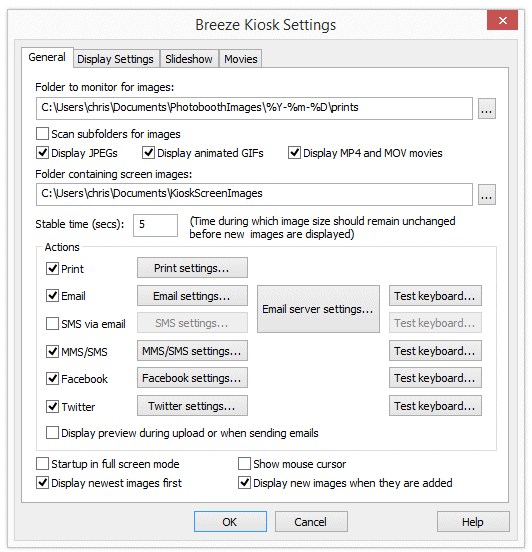
The General tab sets the folder to monitor for images and controls which actions (print, email, SMS, MMS, Twitter) are available to users.
Folder Settings#
Folder to monitor for images — where Breeze Kiosk looks for images. The path can include date tokens, e.g. %Y-%m-%D becomes 2016-01-21. See Tokens for a full list.
- Scan subfolders for images — includes all subfolders
- Display JPEGs / Display GIFs / Display MP4 and MOV movies — at least one type must be selected
- Stable time (secs) — how long a file must remain unchanged before it is displayed. Use 5-10 secs for local output; higher for network folders
- Startup in full screen mode — automatically enters full screen on launch
- Display newest images first — reverses alphabetical order
- Display new images when they are added — auto-selects new images as they appear
- Sort images by timestamp — sorts by file timestamp instead of filename
- Show mouse cursor — enables mouse control in full screen mode
Screen Images#
Folder containing screen images — where Breeze Kiosk looks for custom background and status JPEG images (match screen resolution, e.g. 1366x768 px).
Supported filenames:
background.jpg— main kiosk backgroundgrid_background.jpg— thumbnail grid backgroundmain_background.jpg— background when a photo is selected in grid viewslideshow_background.jpg— slideshow backgroundprint.jpg— print confirmation screenprint_payment.jpg— print payment screen (single copy)print_payment<n>.jpg— print payment screen for n copies (e.g.print_payment2.jpg)printing.jpg— printing in progress screendelete.jpg— delete confirmation screenno_images_background.jpg— displayed when no images are availableemail_photo.jpg,email_success.jpg,email_offline.jpg,email_error.jpg— email screenssms.jpg,sms_success.jpg,sms_offline.jpg,sms_error.jpg— SMS screensmms.jpg,mms_success.jpg,mms_as_sms.jpg,mms_offline.jpg,mms_error.jpg— MMS screensstartup.jpg— startup scanning screentwitter_login.jpg,twitter_upload.jpg,twitter_success.jpg,twitter_cancel.jpg,twitter_error.jpg— Twitter screens
Scrollbar and Thumbnail Checkbox Icons#
Scrollbar icons (PNG, in screen images folder):
scrollbar-jump-icon.png— used when "Jump to top/bottom in scrollbar" is enabledscrollbar-icon.png— used otherwise
Thumbnail checkbox icons (when clipboard is enabled):
thumbnail_checked.png,thumbnail_unchecked.png,clipboard_close_button.png
Default icons are in the installation folder and can be replaced with custom PNGs (with alpha channel).
Main Kiosk Screen Layout#
The default layout shows thumbnails on the left and the selected photo with action icons below in the main area.
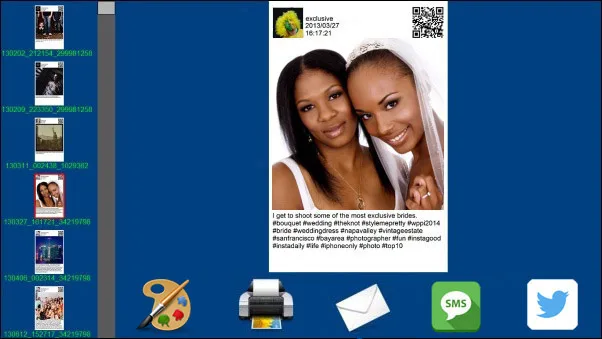
Custom PNG action icons: draw-icon.png, printer-icon.png, email-icon.png, sms-icon.png, mms-icon.png, twitter-icon.png. Place in the screen images folder alongside background.jpg.
Running Without a Touchscreen#
Enable Show mouse cursor to allow mouse control. Keyboard shortcuts in full screen mode:
- Left/Up/Page Up/Numpad 4 or 8 — previous image
- Right/Down/Page Down/Numpad 2 or 6 — next image
- Home / End — first / last image
- E — email, M — MMS, P — print, S — SMS, T — Twitter
- Ctrl+Delete — delete selected image
- Esc — exit full screen (password required if set)
If users have keyboard access, prevent Ctrl+Alt+Delete and Alt+Tab from breaking out of kiosk mode.
Drawing and Signing#
Select Drawing and signing of photos to allow guests to draw, add emojis, or apply frames. The edited image is saved as a new JPEG with _1 appended. See Signing or Drawing on Photos.
Printing#
Select Print to enable printing. Set up the printer via File > Printer Setup. Click Printer settings... to configure:
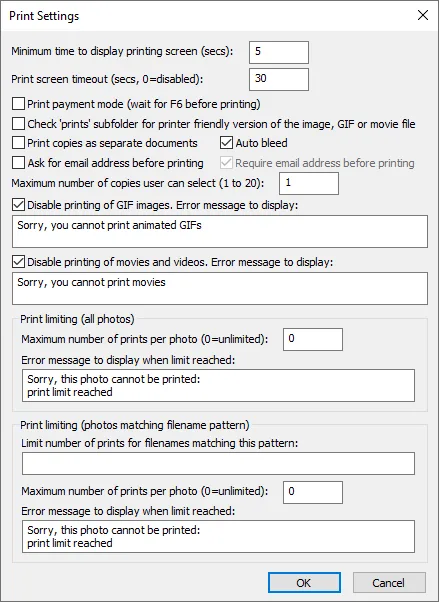
- Minimum time to display printing screen (secs) — minimum display time for
printing.jpg - Print screen timeout (secs, 0=disabled) — defaults to 30 secs
- Print payment mode — enables pay-per-print. See Payment Options.
Prints Subfolder#
When Check 'prints' subfolder for printer friendly version is selected, Breeze Kiosk looks for a JPEG of the same name in a prints subfolder. Useful for GIFs and videos which cannot be printed directly.
Example: source image C:\photos\20210721\GIF\203452.GIF — looks for 203452.JPG in C:\photos\20210721\GIF\prints, then in C:\photos\20210721\prints.
Multiple Copies#
Set Maximum number of copies user can select to more than 1 to let users choose how many prints. +/- controls appear on the print screen.
Print Limiting#
- Maximum number of prints per photo — set to 0 for unlimited
- Limit number of prints for filenames matching this pattern — e.g.
{field,2,{filename}}to limit by Instagram author ID
Multiple Printer Settings#
Up to three printer configurations can be defined via File > Printer Setup, with filename filters to select which printer is used.
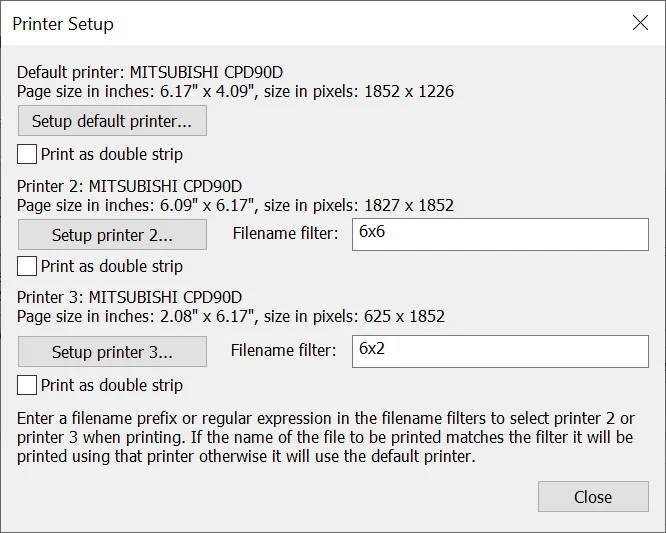
Filters can be simple text (e.g. 6x4) or regular expressions (e.g. 6x2.*DNP). Breeze Kiosk checks Printer 2 then Printer 3; if neither matches, the default printer is used.
Other Print Options#
- Print as double strip — for 6x2 strips on a dyesub printer requiring a 6x4 page
- Color Management — File > Color Management Settings enables optional ICC color profiles
- Ask for email address before printing — logs addresses; optionally make it mandatory
- Disable printing of GIF images / videos — shows error if user tries to print
- Print copies as separate documents — useful for printer pooling
- Auto bleed — extends image edges to fill the printer's full print extent
Emailing Photos#
Select Email and click Email settings... to configure:
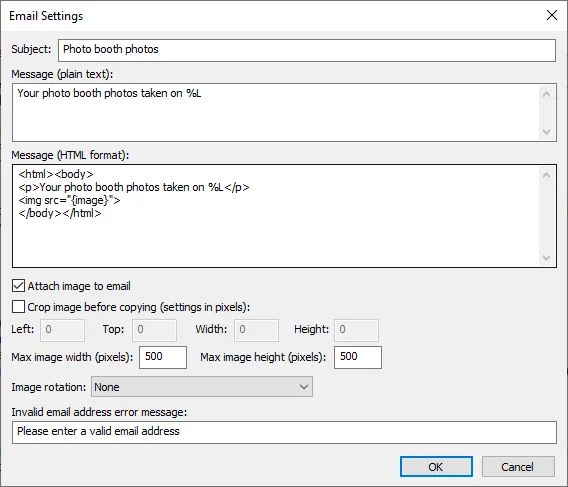
- Subject — supports tokens
- Message — plain text or HTML. Use
{image}to embed the image - Attach image to email — enabled by default
- Save XML copy of email — saves XML file alongside photo with message, subject, address and user inputs
Tokens such as %L (long date) can be used in subject and message. See Tokens.
XML email copies can be processed by Breeze Hub for background sending or more complex formatting.
Sending SMS#
Select SMS and click SMS settings... to configure your email-to-SMS provider. The {number} token is replaced by the number the user enters.
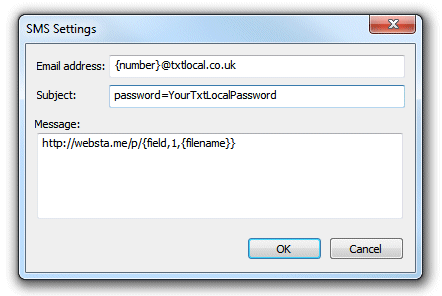
SMS messages are text only — no photo is attached. Include a URL to the image in the message.
Email Server Settings#
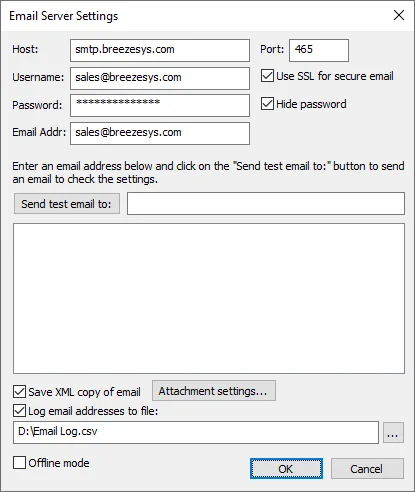
Configure via File > Email Server Settings. Specify your SMTP host, port, username and password. Use port 587 with SSL, or 25 without.
Using Gmail#
Breeze Kiosk v2.0+ supports Gmail's OAuth method. Set Host to Gmail and click GMail authenticate... to authorise via your Google account.
Gmail limits sending to 500 emails per 24 hours. For high-volume events, consider a dedicated service such as sendgrid.com.
Sending MMS#
Select MMS and configure via the MMS Settings dialog. Uses Twilio (www.twilio.com). MMS supported in US and Canada; other countries receive SMS with a link (valid 7 days).
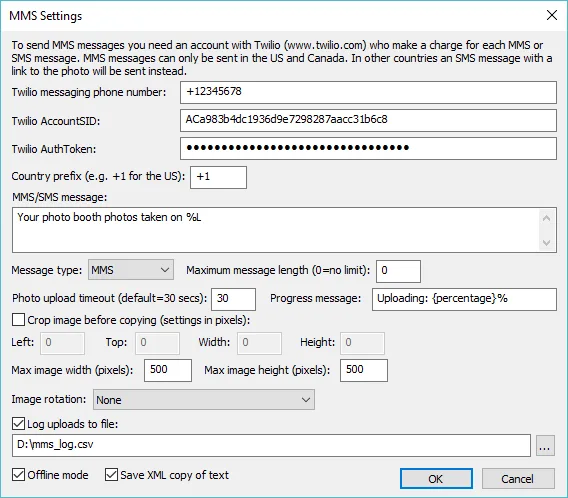
Enter your Twilio message phone number, AccountSID and AuthToken. Set your country prefix (e.g. +1 for US/Canada, +44 for UK).
Message type options: MMS (image attached, US/Canada only), SMS (text only), SMS + image (link to image using {url} token, valid 7 days). Maximum file size 1MB.
Posting to Twitter#
Select Twitter and click Twitter settings... to configure. Enter tweet text (max ~120 chars when including a photo).
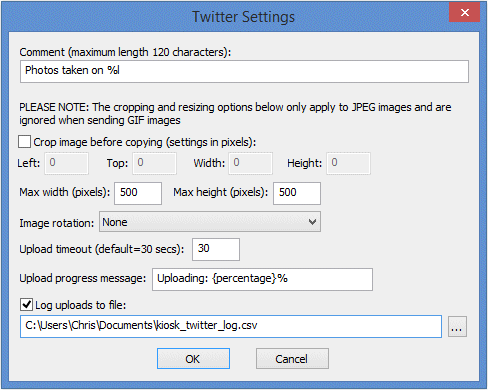
The user's Twitter password is never recorded by Breeze Kiosk.
Sending Messages After the Event#
If no internet connection is available, save details for later:
- For email: enable Offline mode in email server settings and select Log email addresses to file
- For MMS/SMS: enable Offline mode in MMS settings and select Log uploads to file
To send later: File > Send emails and MMS/SMS messages... and select the log file.
Was this page helpful?
Thanks, that helps us improve the guides.