

Slideshow Settings
Slideshow Settings#
An optional slideshow can run when Breeze Kiosk has been idle for a set time. Tap the screen to return to the main kiosk display.
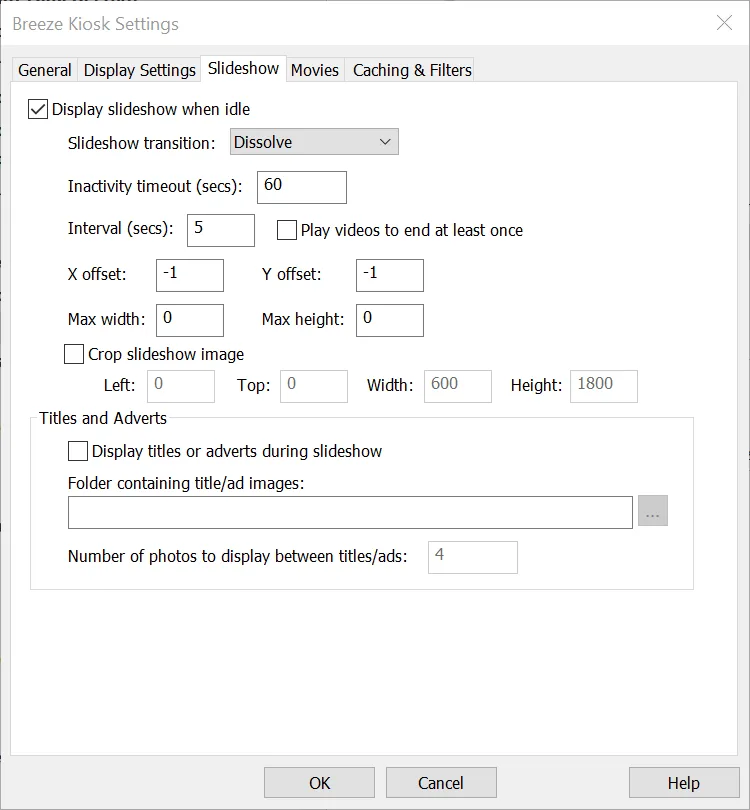
Options#
- Display slideshow when idle — enables the slideshow
- Inactivity timeout (secs) — how long before the slideshow starts
Transitions#
- Slide right to left — new image slides in from the right
- Dissolve — current image dissolves into the next
- Fade — current image fades to background, new image fades in
- Next image — advances through images in the normal kiosk view
Interval (secs) — how long each photo is displayed before advancing.
Background#
The default background is dark blue. Place slideshow_background.jpg in the screen images folder to use a custom background. See General Preferences.
Photo Positioning#
By default photos are resized to fill the screen. Use X/Y offset and max width/height to reserve space for a caption or logo:
- X offset — position from left edge (-1 = auto center horizontally)
- Y offset — position from top edge (-1 = auto center vertically)
- Max width / Max height — 0 = fit screen; negative value = screen size minus that value (e.g.
-100= 100px less than screen width)
Crop slideshow image — crops images before display (useful for Instagram hashtag layouts from Hotfolder Prints).
Title Screens and Adverts#
Select Display titles or adverts during slideshow to show advert or title images periodically. Specify the folder containing the images and how many slideshow images to show between adverts. Images can be JPEGs, animated GIFs or movies.
Was this page helpful?
Thanks, that helps us improve the guides.