

Privacy Mode
Privacy Mode#
Privacy mode restricts users to viewing and sharing only their own photos. Users must enter a code (e.g. the image filename) on the touchscreen keyboard before their photo is displayed. The kiosk returns to the code entry screen after a preset timeout or when the user taps the close icon.
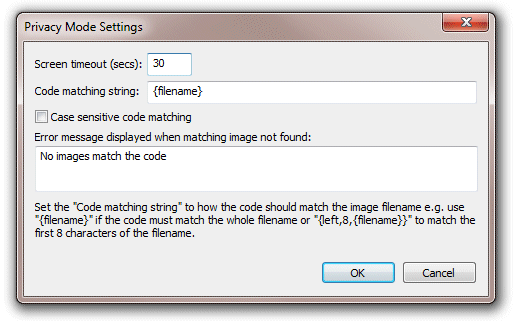
To enable, set the layout to Privacy mode in Display Settings, then click Privacy mode settings...:
Code Matching#
Code matching string — defines how the entered code must match the image filename. Set to {filename} to require the full filename (without extension), e.g. entering IMG_0001 displays IMG_0001.JPG.
By default, matching is case-insensitive. Check Case sensitive code matching to require an exact case match.
Error message — the message shown when an invalid code is entered.
To exit privacy mode while the kiosk is running, enter the exit password (if set in Display Settings) or press Esc.
Using Unique IDs with Breeze Systems Software#
When using Breeze Kiosk with Breeze Systems photo booth software, the {uid} token can generate a unique, hard-to-guess code per photo.
Setup in the photo booth software (e.g. DSLR Remote Pro)#
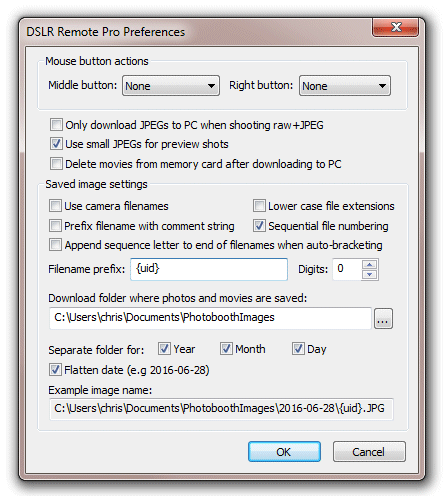
Step 1 — Set the filename prefix to {uid} with 0 digits:
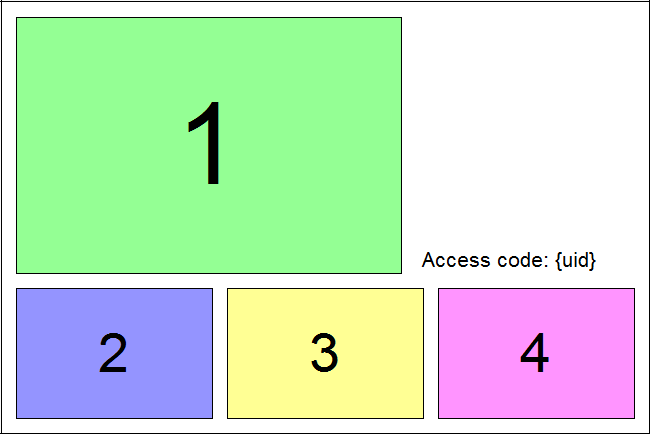
Step 2 — Add an access code caption to the print layout using {uid}:
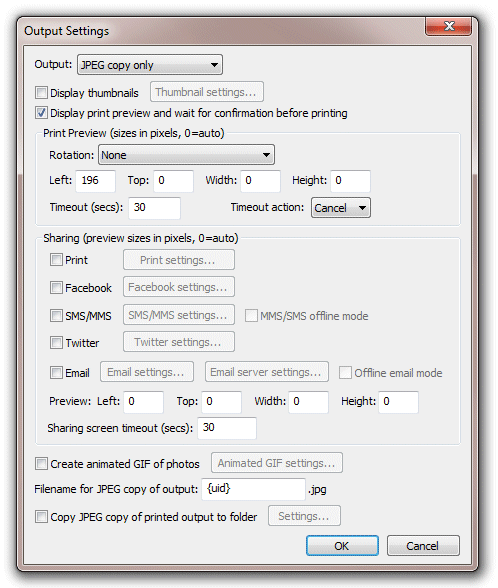
Step 3 — Set the JPEG copy filename in Output Settings to {uid}:
The software generates a unique 8-character code (e.g. PHU69450) per session, which appears on the print and is used as the JPEG filename. Set the Code matching string in Breeze Kiosk to {filename}.
To add date/time to filenames (e.g. {uid}_%d_%t), set the Code matching string to {left,8,{filename}} so only the first 8 characters need to match.
Was this page helpful?
Thanks, that helps us improve the guides.