

Signing or Drawing on Photos
Signing or Drawing on Photos#
Users can sign, draw on, add emojis/stickers or apply frames to photos by tapping the drawing icon. The edited image is saved as a new JPEG with _1 appended to the original filename.

Enable via Drawing and signing of photos in General Preferences.
Drawing Tools#
The photo is displayed full screen with a menubar on the left.
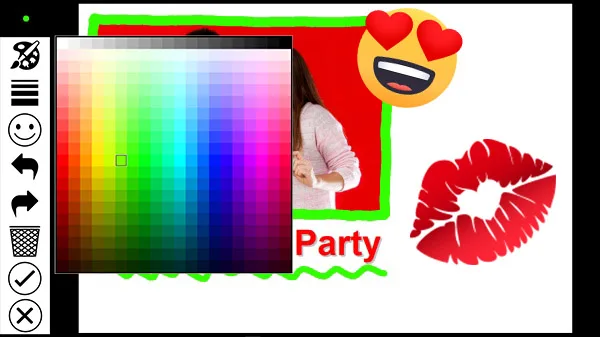
Color palette — tap to show a color panel. Tap a color to select; tap the menubar or draw to dismiss.
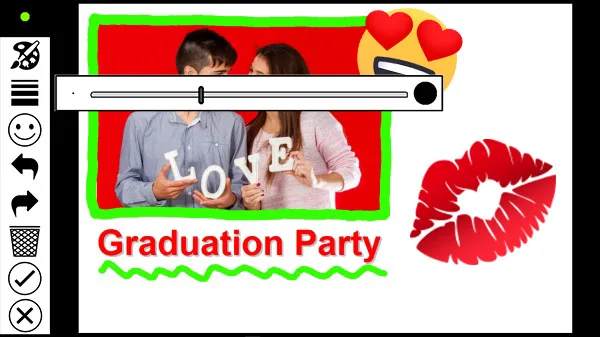
Line width — tap to show a slider to adjust width.
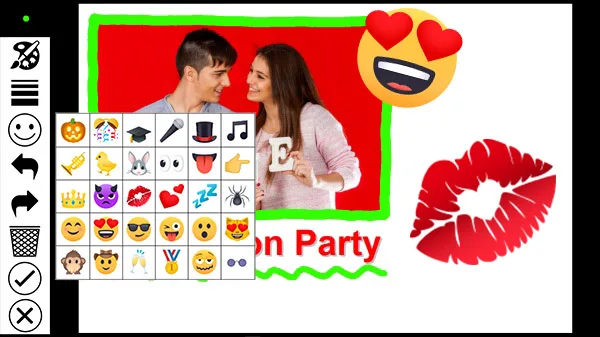
Emoji/stickers — places an emoji in the center. Drag to move; drag corners to resize or rotate. Tap outside to fix. Tap Undo to remove.
Undo (red arrow) — undoes last action. Redo (blue arrow) — redoes. Trashcan — clears all. Accept — saves edited photo. Cancel — discards edits.
Customising the Appearance#
Replace the default black background by placing usermodifyprint.jpg in the screen images folder. An optional PNG overlay (usermodifyprint_overlay.png) can be placed on top — appears on screen only, not in the saved image.
Action icons are PNGs in the icons subfolder of the installation folder: color.png, width.png, emoji.png, frames.png, redo.png, undo.png, clear.png, accept.png, cancel.png. Replace any icon by placing a new PNG of the same name in the screen images folder.
Settings#
Hold Shift+Ctrl and left-click to open the settings dialog:
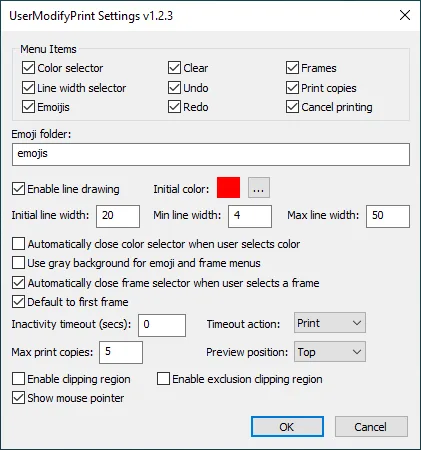
- Menu Items — choose which actions are available
- Enable line drawing — disable for emoji/frames only
- Initial color — default pen color
- Initial / Min / Max line width — starting and range of widths
- Default to first frame — adds the first frame automatically on opening
- Inactivity timeout (secs) — auto-closes if user is idle (0 = disabled)
- Show mouse cursor — allows mouse drawing
Select Emojis and specify the emoji folder. Images should be PNGs with optional alpha channel (128x128 to 1024x1024 px recommended).
Clipping Regions#
Use Clipping region (green rectangle) to restrict the drawing area, and Exclusion region (red rectangle) to protect an area within the drawing zone. Click rectangles to select and drag corners to resize.
Frames#
Frames are PNG overlay images in the screen images folder named frame_*.png (e.g. frame_1.png, frame_2.png), sorted alphabetically. They must match the photo size and use transparency where the photo shows through.
Frame overlays may obscure captions or logos added by photo booth software. Include any logos directly in the frame overlay images.
Was this page helpful?
Thanks, that helps us improve the guides.