

Installing & Registering
On this page
Installing, Registering and Activating#
Each license can be activated on up to two computers (one at a time). Activate at least 48 hours before an event. Deactivate before making any hardware changes, reinstalling Windows, or reformatting a drive.
Installing#
Download the latest version from breezesoftware.com and run the setup program.
Uninstalling#
Use Windows Control Panel > Programs > Uninstall a program.
Deactivate Breeze Kiosk before uninstalling, otherwise you may not be able to activate it on another computer. If you forget, reinstall, deactivate, then uninstall.
Evaluation Version#
The trial version is fully functional for 15 days. Each launch displays the registration dialog — click Evaluate to continue. Purchase a license at the end of the trial.
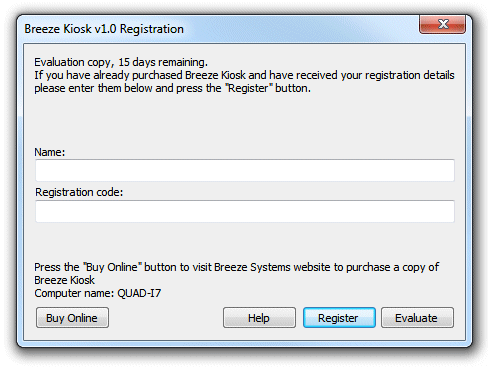
Registering#
Purchase a license at breezesoftware.com/purchase_kiosk.htm. You will receive a registration email with your name and code.
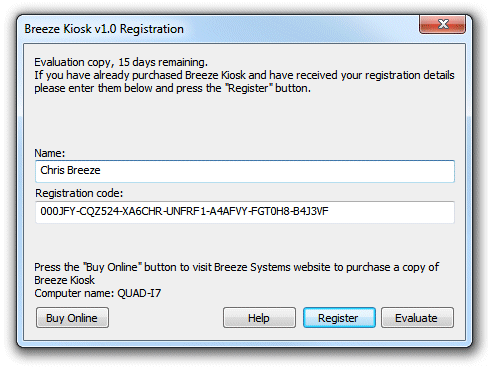
Run Breeze Kiosk and enter your registration name and code exactly as shown in the email (copy and paste to avoid errors). Click Register.
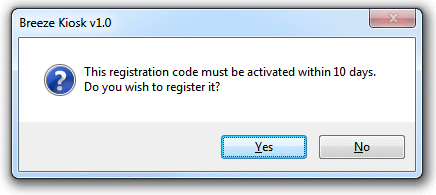
After confirming, click Yes to activate on this computer.
Activating#
The software must be activated within 10 days of the registration code being issued. Go to Help > Register and click Activate....
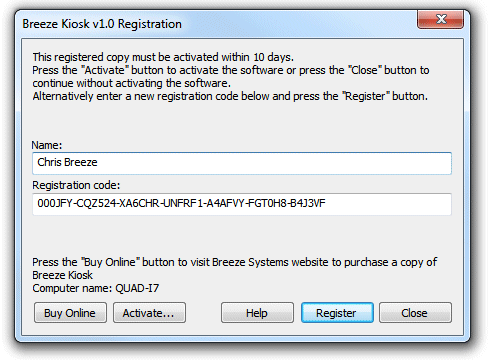
Online activation (recommended): Click Activate Online. Requires internet access. Allow up to 30 seconds.
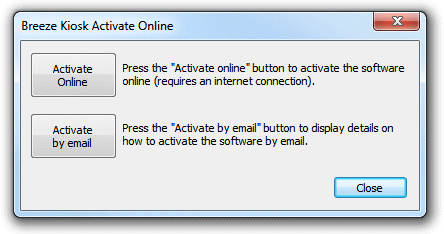
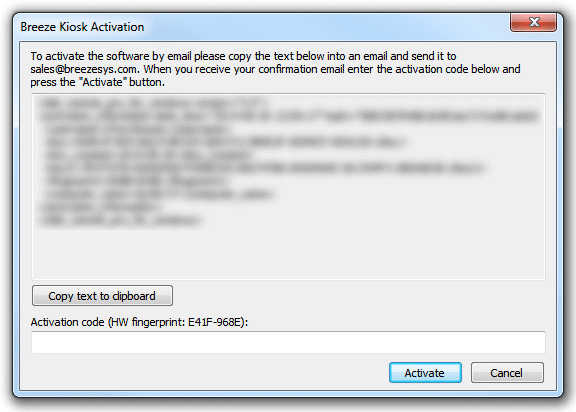
Email activation: Click Activate by email. Copy all text from the dialog and send it to us using the contact form without modification. Use Copy text to clipboard then paste it into the form with Ctrl+V. You should receive an activation code within 12 hours — paste it into the dialog and click Activate.
Deactivating#
Go to Help > Register, then click Deactivate.... Online deactivation is quickest. For email deactivation, follow the same process as email activation and send the text to us using the contact form.
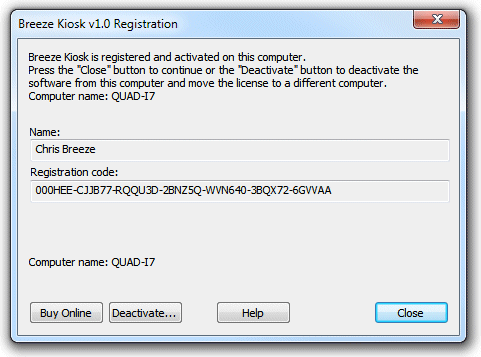
If you forget to email the deactivation text, you can display it again via Help > Register > Display — but only until a new registration code is entered.
Moving to a Different PC#
Deactivate on the old PC first, then install, register and activate on the new PC. For permanent moves, follow the decommissioning steps below.
Making Changes to Your PC#
Deactivate before upgrading hardware, reformatting, reinstalling Windows, or getting repairs done. Reactivate afterwards. Keep a copy of your registration name and code.
Decommissioning a PC#
Deactivate the software and remove your registration details by entering this special code:
Name: Uninstall
Code: 000JJ3-ECU7D3-QH1PYZ-XJQQPW-7YJ7KT-UTJ7FA-7AUPQX
This replaces your details with a code that causes an "Upgrade required" message if someone tries to use it.
Checking for Updates#
Select Help > Check for updates online, or visit breezesoftware.com/BreezeKiosk.
Activation Problems#
If "The server name or address could not be resolved" appears, the PC cannot reach the internet. Check your connection and firewall settings — BreezeKiosk.exe must be allowed to access the internet. If online activation still fails, use email activation instead.
For further help, contact our support team with your registration name, code and the error message. See also the activation support page.
Was this page helpful?
Thanks, that helps us improve the guides.