

QR Codes and Contactless Sharing
On this page
QR Codes and Contactless Sharing#
QR codes can be displayed on screen for guests to scan (see Display Settings), or scanned from guests' phones to send information to Breeze Kiosk — including email addresses for contactless sharing.
Combined with the Filtering option, QR codes also let users view only their own photos without needing to touch the kiosk.
QR codes are scanned using the Webcam QR Code Scanner utility included with Breeze Kiosk.
Contactless Sharing#
QR codes can be generated on a user's phone to trigger emailing from Breeze Kiosk — no touchscreen required.
Generate QR codes using contactlessbooth.com/qr, a Wordpress plugin, or a sample PHP script. Alternatively, print a QR code with a unique ID on the photo booth output so guests can scan it to view and share their photos.
Scanning QR Codes#
QR codes should be formatted as URLs with parameters:
Scanning strings#
Up to 10 strings can be passed using parameters s1, s2 etc.:
https://example.com?s1=John&s2=Doe
Access these in Breeze Kiosk using tokens {qr1}, {qr2}, etc. Use with the filter option to display only matching images.
Percent-encode special characters in parameter values (e.g. space as %20). Previously scanned QR tokens are cleared when a new code is scanned or when the slideshow starts after inactivity.
Scanning email addresses#
An email address in a QR code can trigger an automatic email when scanned:
emailorautoemail— sends an email to the address when a main image is displayed or slideshow is runningcc— adds a CC email address
Example: https://breezesoftware.com/qr.php?email=guest%40example.com&cc=backup%40example.com
Webcam QR Code Scanner#
The Webcam QR Code Scanner utility scans QR codes using a webcam and passes the data to Breeze Kiosk. It can display a live webcam feed on screen to help guests position their phone.
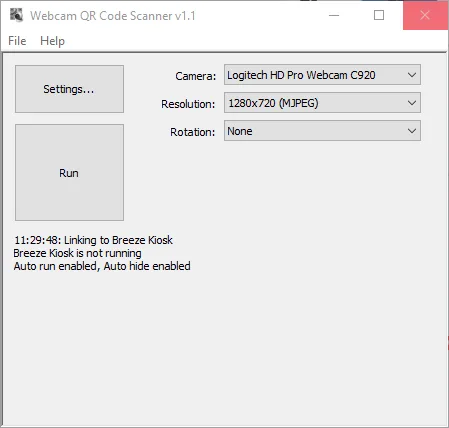
Select the camera and resolution from the dropdowns. Click Settings... to configure:
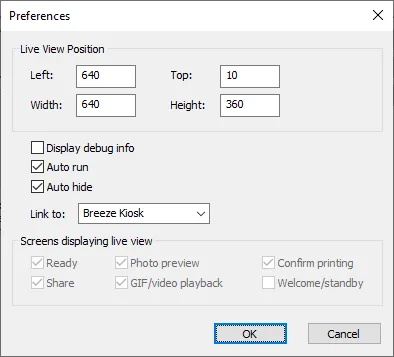
- Left, top, width, height — position and size of the live view window
- Display debug info — shows live view window dimensions and scanned text
- Auto run — starts the live view automatically when the kiosk enters full screen mode
- Auto hide — hides the live view when an email is being sent
- Link to — set to Breeze Kiosk
Sending Commands from Other Apps#
The Webcam QR Code Scanner passes scanned URLs to Breeze Kiosk using a WM_COPYDATA message with data type (dwData) set to 200. Other apps can use this same technique to send strings or email commands to Breeze Kiosk.
Was this page helpful?
Thanks, that helps us improve the guides.