

Caching and Filters
On this page
Caching and Filters#
Caching#
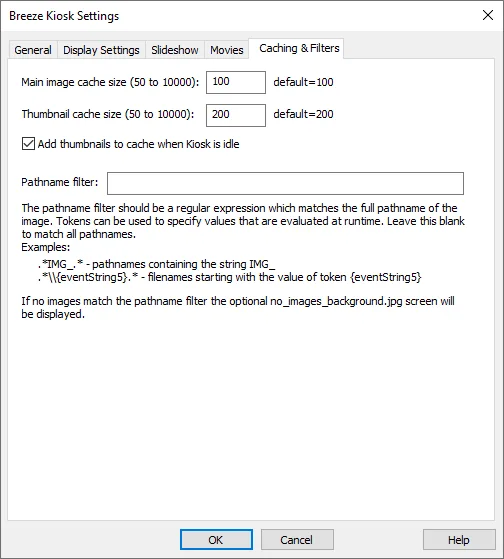
Photos are cached in RAM to improve performance. When the cache is full, older unused images are removed automatically. If Breeze Kiosk runs slowly, try reducing the cache sizes.
Add thumbnails to cache when Kiosk is idle — pre-caches thumbnails in the background to improve response when browsing.
Filtering#
The filter restricts which images are displayed using a regular expression matched against the full image pathname. Useful for privacy-sensitive setups where users should only see their own photos.
Example: QR Code-Based Filtering#
- Set up DSLR Remote Pro to use
{uid2}as the filename prefix. - Add a QR code to the print output containing the
{uid2}token, e.g.https://breezesoftware.com?s1={uid2} - Use the Webcam QR Code Scanner to scan the QR code. The unique ID becomes available via the
{qr1}token. - Set the pathname filter to
.*{qr1}.*to display only images matching the scanned ID.
Handling Timeouts#
The filter continues to show the last user's photos until the next QR scan. To prompt the next user, enable a slideshow after an inactivity timeout — when the slideshow starts, {qr1} is cleared.
Use the {if} token to handle the empty state: set the pathname filter to .*{if,{qr1},{qr1},NO MATCH}.*
When a QR code is scanned, the filter matches normally. When {qr1} is cleared by the slideshow, the filter becomes .*NO MATCH.* matching nothing.
If no_images_background.jpg exists in the screen images folder, it will be shown when no images match.
Test regular expressions at regex101.com
Was this page helpful?
Thanks, that helps us improve the guides.