

Running Breeze Kiosk
On this page
Running Breeze Kiosk#
Double-click the Breeze Kiosk desktop icon to launch. The main window shows the monitored folder, optional screen images folder, and current settings.
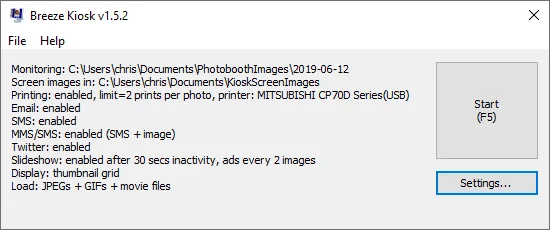
Click Start to enter full screen mode, or Settings... to adjust preferences.
In Operation#
The full screen display shows thumbnails on the left, the selected image in the main area, and action icons below.
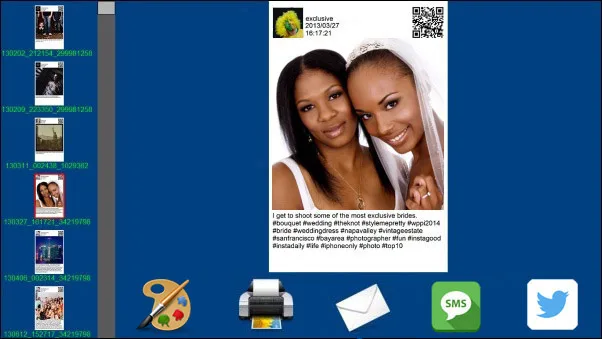
Select photos and videos by tapping a thumbnail, tapping left or right of the main photo, or flicking the main photo left or right. Scroll thumbnails by tapping above/below the scrollbar, dragging the scrollbar, or dragging the thumbnails.
Action Icons#
Print (printer icon) — displays a print preview. Tap Print to confirm or Cancel to return.
Email (email icon) — displays a touchscreen keyboard to enter an email address. Tap Send email to send, or Cancel to return.
SMS (SMS icon) — sends a text-only SMS via your email-to-SMS provider. The user enters their cellphone number.
MMS (MMS icon) — sends an MMS via Twilio (www.twilio.com). US and Canada only.
Twitter (Twitter icon) — opens a browser window for the user to log in to Twitter and authorise posting.
Thumbnail Grid Display#
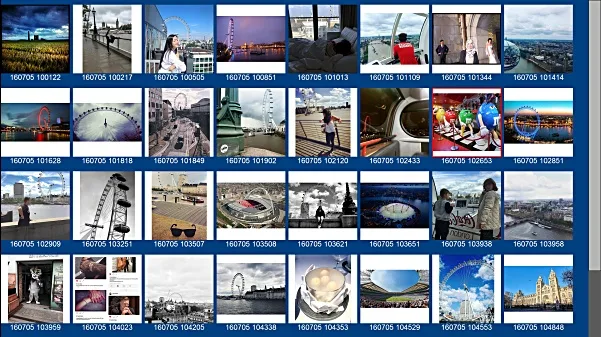
The grid layout displays thumbnails in a grid. Tapping a thumbnail shows a full screen preview with action icons.
Slideshow#
If the slideshow option is enabled, a slideshow starts after the preset inactivity period. Tap the screen to exit. To exit full screen mode, double-tap the bottom right corner (enter the password if set), or press Escape.
Running on High DPI Screens#
Breeze Kiosk v1.1+ runs as a high DPI aware application. If screen images from earlier versions no longer fill the screen, disable high DPI mode by setting registry DWORD HKEY_CURRENT_USER\Software\BreezeSystems\BreezeKiosk\100\DisableHighDPI to 1.
Saving Settings#
Save settings via File > Save settings... and load via File > Load settings... Settings files can also be loaded at startup by adding the file path to the desktop shortcut Target field, or by drag-and-dropping onto the shortcut.
Hiding the Windows Taskbar#
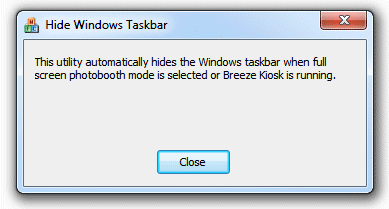
If the Windows taskbar appears over the kiosk display, run HideWindowsTaskBar.exe from the Breeze Kiosk installation folder (usually C:\Program Files (x86)\BreezeSys\BreezeKiosk). This automatically hides the taskbar when Kiosk is in full screen mode.
Disabling Right Click (Windows 7)#
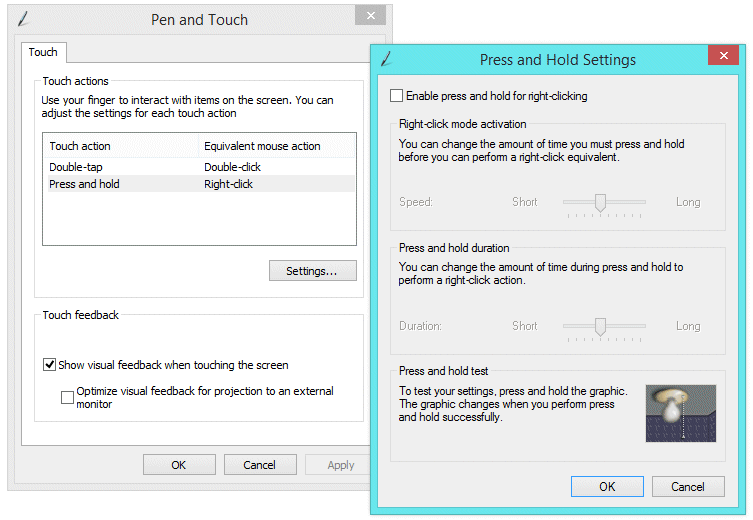
"Press and hold" can generate a right click on some touchscreens. To disable: Control Panel > Pen and Touch > Press and hold > Settings > uncheck Enable press and hold for right-clicking.
Was this page helpful?
Thanks, that helps us improve the guides.