

Sending Kiosk Emails in the Background
Use Breeze Hub to send Kiosk emails in the background, so guests don't wait for uploads, and see sharing statistics and logs.
On this page
Sending Kiosk Emails in the Background#
Running Breeze Kiosk (or Webcam Photobooth) with Breeze Hub in the background removes the pause while guests wait for emails to be sent.
Older version
This guide was written for Breeze Kiosk 2.0 and an earlier version of Breeze Hub. Some screens may look different in the current versions.
Use Breeze Hub to share in the background#
Breeze Hub is a sharing tool that is free for all Breeze customers. It can send emails and texts in the background for Kiosk, Webcam Photobooth, Remote Pro (DSLR Remote Pro) and Breeze Booth. Remote Pro and Breeze Booth can also send emails in the background directly from the app.
With background sharing there is no need to wait for images to upload before starting the next session. If the internet at the event is poor, Hub can send any remaining emails after the event.
This guide covers background sharing from Kiosk. Set up background sharing from Webcam Photobooth in the same way. To send emails through Hub instead of directly from Kiosk, check a few settings in both Kiosk and Hub.
In Kiosk#
- On the General tab, check Email and click Email server settings...
- Check Offline email mode, or each email will be sent from both Kiosk and Hub.
- Check Save XML copy of email. This stores the information Hub needs to send the emails.
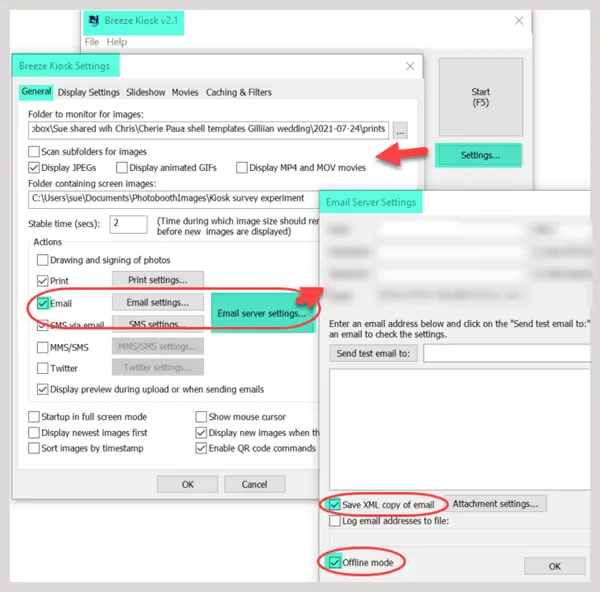
There is no need to check Log email addresses to file in Kiosk, because Hub logs them automatically.
Replace the "email will be sent later" message#
When emails are sent offline, Kiosk shows a message saying they will be sent later. To show your own message instead, create a file called email_offline.jpg, the same size as your screen in pixels, and place it in the Folder containing screen images.
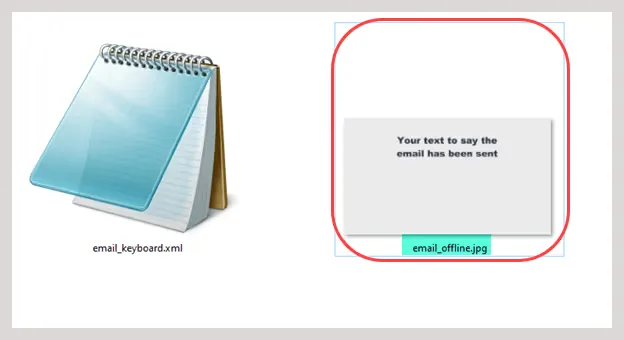
The folder containing screen images is similar to the PhotoboothImages folder in Remote Pro, but is almost empty unless you customise Kiosk. See General Preferences.
In Hub#
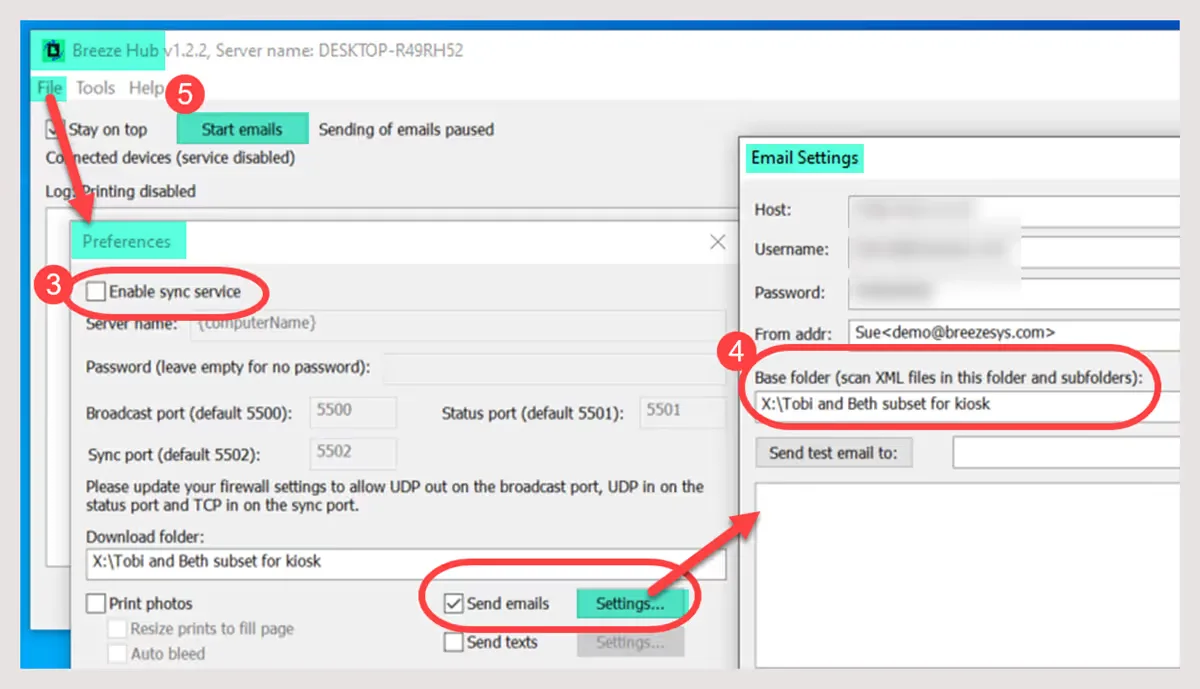
- Uncheck Enable sync service, unless Hub is also processing images from Breeze Booth for iPad.
- Set the Base folder. Hub searches it and its subfolders for the XML copies of emails sent by guests. For Kiosk, this is the Folder to monitor for images on the General tab. The Hub download folder is usually the same as the base folder.
- Click OK to save your settings as you leave this screen and the Preferences screen.
Emails sent by Hub use the email account details held in Hub, so add your email account details to Hub as well.
Close Hub to make sure the settings are saved. When you are ready to start sending emails, restart Hub and click Start emails.
Can I run Hub on the same PC as my booth or sharing station?
Yes. Hub uses very little power to send emails and texts, so you can run it in the background on the same Windows device. If you run several booths or sharing stations, you may prefer to sync all the images to one device, at the event or in your office, and send all emails and texts from the same copy of Hub.
Sharing data and event statistics#
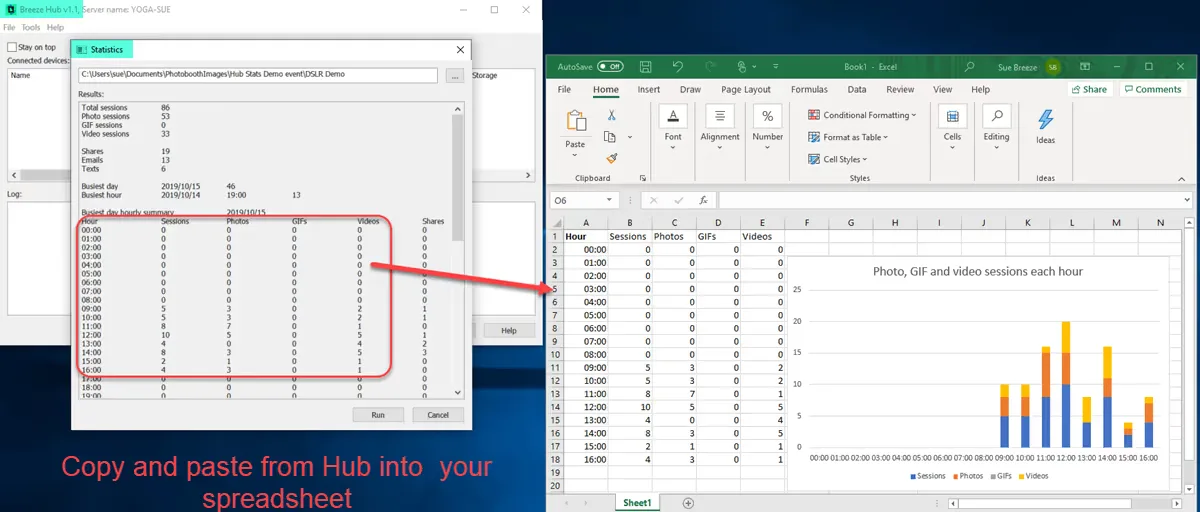
The Statistics tool in Hub shows sessions and shares from your booths, including:
- Total shares
- Shares by email and text
- Total number of photo booth sessions
- Sessions by photo, GIF and video
- Busiest hour and day
- A summary of the last 30 days
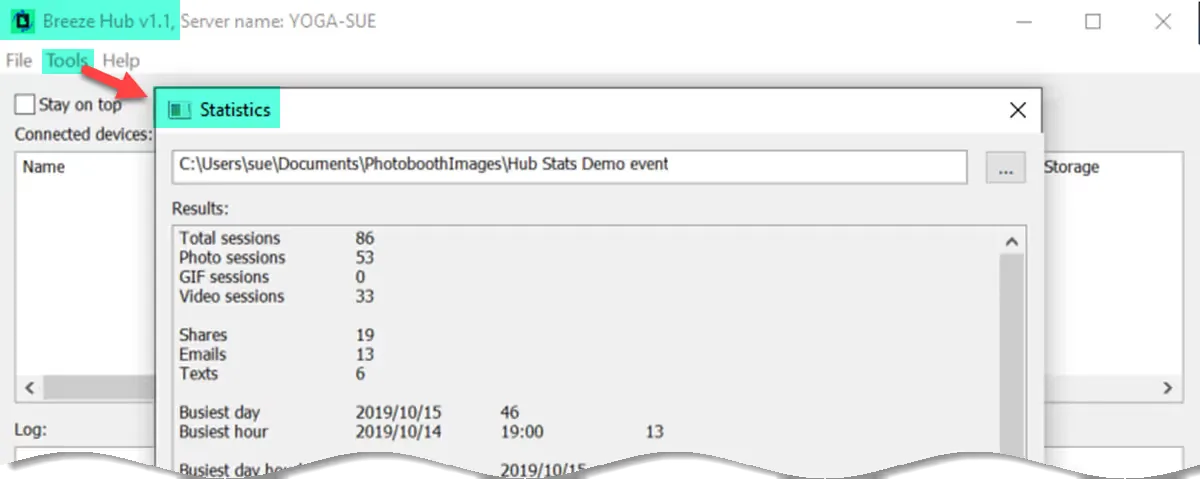
Copy and paste data from the statistics page into a spreadsheet such as Microsoft Excel to create graphs for corporate clients.
Hub sharing log#
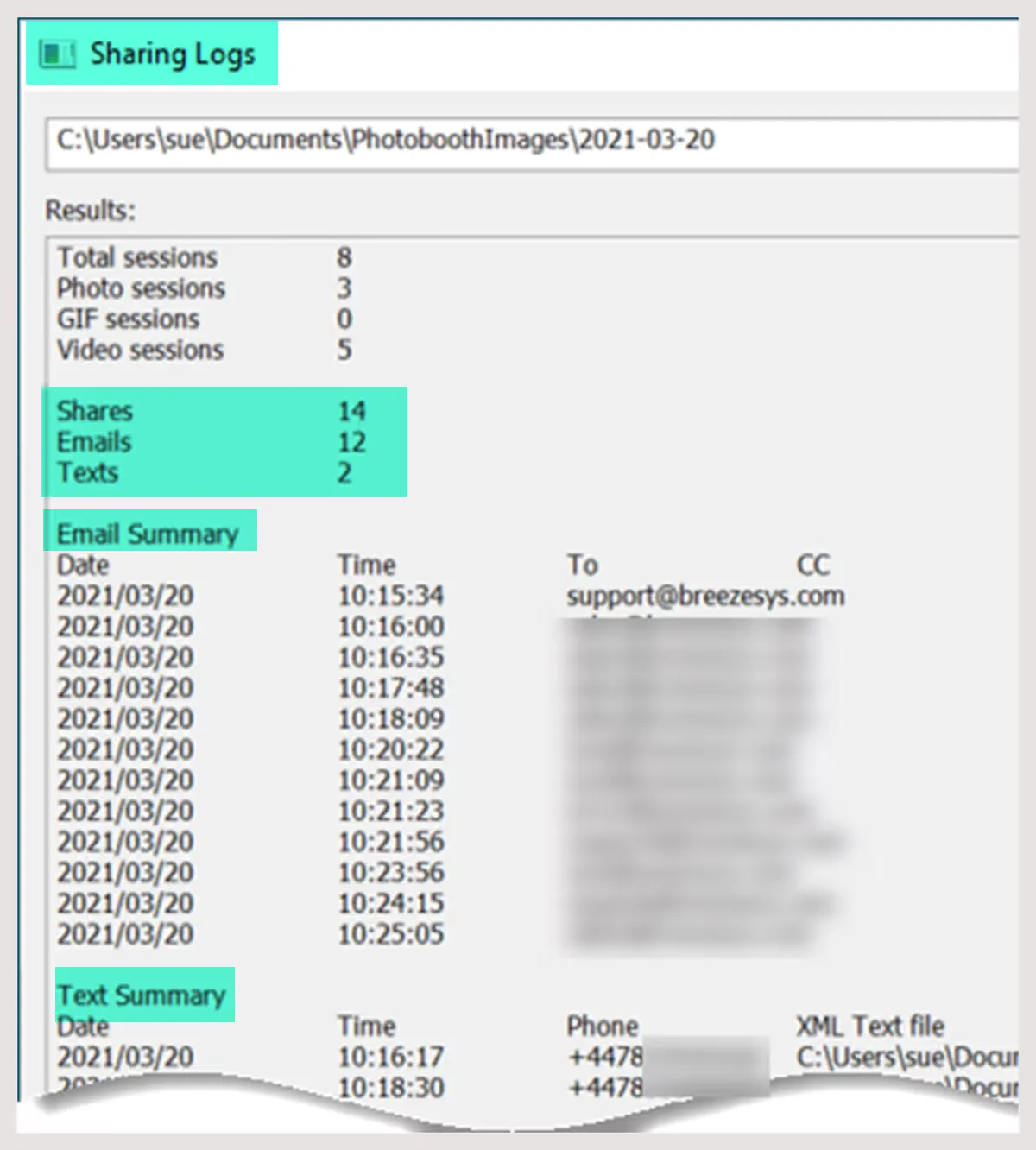
Hub automatically logs the email addresses and mobile numbers used for sharing. You can also copy this data into Excel and other spreadsheets.
Was this page helpful?
Thanks, that helps us improve the guides.