

Display Settings
On this page
Display Settings#
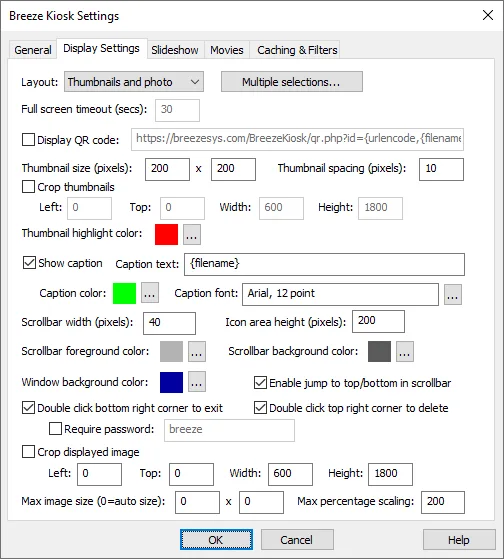
The Display tab controls the layout and appearance of the main kiosk screen.
Layout Options#
Use the Layout dropdown to choose:
- No thumbnails — full screen view of the current photo/video with action icons below
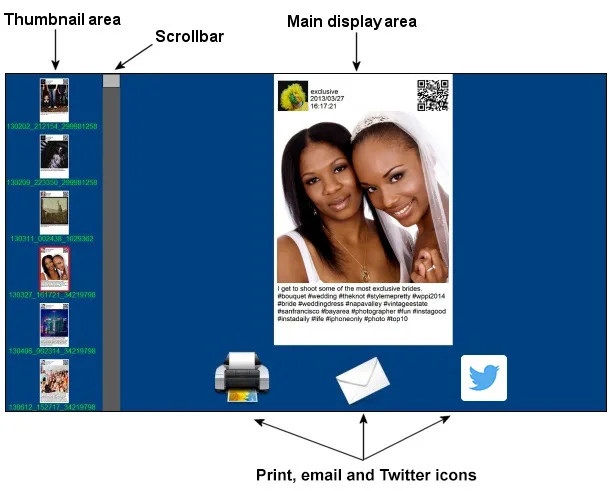
- Thumbnails and photo — adds a vertical thumbnail strip on the left
- Thumbnail grid — grid of thumbnails; tapping one shows a full screen preview
- Privacy mode — requires a code entry to view photos. See Privacy Mode
When using Thumbnails and photo, click Multiple selections... to enable the clipboard. See Clipboard and Selecting Multiple Images.
Thumbnail Settings#
- Thumbnail size (pixels) — width and height of each thumbnail display area
- Thumbnail spacing (pixels) — gap between thumbnails
- Crop thumbnails — crops before display
- Thumbnail highlight color — color of the outline around the selected thumbnail
- Thumbnail caption — text below thumbnails using tokens (e.g.
{filename},%H:%M:%S). Font and color are configurable.
Scrollbar Settings#
- Scrollbar width (pixels) — width of the thumbnail scrollbar
- Scrollbar slider and background colors are configurable
- Custom PNG images can be placed in the screen images folder (see General Preferences)
- Jump to top/bottom in scrollbar — tapping top/bottom jumps to first/last image
Background#
The default background is dark blue. Set a custom color using Window background color, or place a background.jpg in the screen images folder.
Icon Area#
Icon area height (pixels) — sets the height of the area below the main display for action icons. Ensure it is large enough so icons are not obscured by the photo.
Exit and Delete Controls#
- Double click in bottom right corner to exit full screen mode — allows touchscreen exit. If Require password is selected, the password keyboard is shown.
- Double click top right corner to delete — deletes unwanted images (moved to a
DELETEDsubfolder). The default delete screen can be replaced withdelete.jpg.
Image Sizing and Cropping#
- Crop displayed image / Crop thumbnails — crop before display (useful for double strip outputs)
- Max image size (0=auto) — limits display size; set to 0 to fit automatically
- Max percentage scaling — limits upscaling of small images/videos (normally 100%)
QR Code Display#
Select Display QR code to show a QR code in the bottom right corner. Enter the text to encode — tokens are supported, e.g. https://mysite.com/MyEvent/{filename}.
Thumbnail Grid Layout#
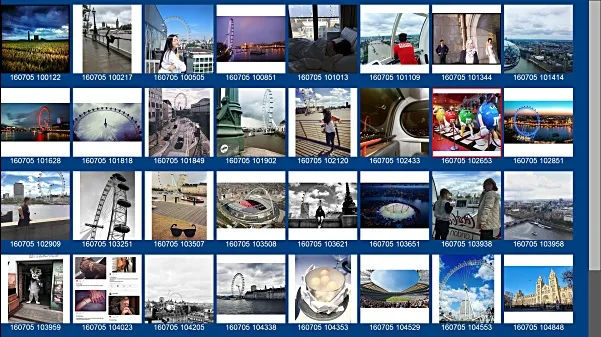
Screen timeout (secs) — how long to show the selected image before returning to the grid.
Was this page helpful?
Thanks, that helps us improve the guides.