

Payments
On this page
Payment Options#
Breeze Kiosk v2.1+ supports pay-per-print using standard MDB payment hardware (e.g. the Nayax VPOS Touch contactless credit card reader). This requires the free MDB Payment Utility software plus a Qibixx MDB-USB Interface, PSU, cables, and a compatible MDB payment device.
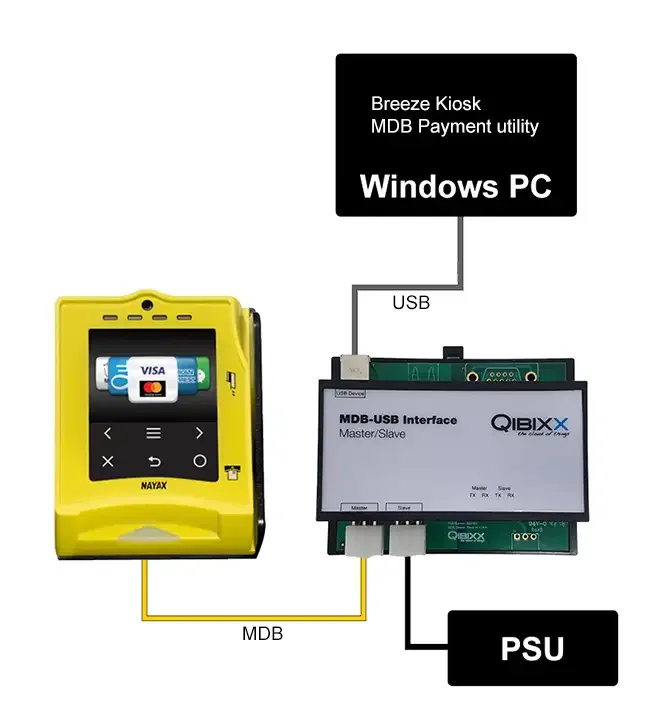
The MDB Payment Utility monitors the kiosk's current screen and communicates with the payment device via the Qibixx MDB-USB interface.
Download the MDB Payment Utility from the Downloads & Support page. For full configuration details see the MDB Payment Utility help file.
Alternative Payment Method#
Payments can also be accepted by sending an F6 key press to Breeze Kiosk when the print payment screen is displayed. This requires a payment system that monitors the current screen and sends F6 when payment is accepted.
Payment Workflow#
Multiple copies (max copies > 1)#
- User taps the printer icon —
print.jpgscreen is shown with +/- copy selector - User adjusts copies and taps Print —
print_payment<n>.jpgscreen is shown (e.g.print_payment2.jpg) - Payment is accepted (MDB command or F6 key press) — photos are printed
- If timeout or Cancel is tapped before payment — printing is cancelled
Single copy (max copies = 1)#
- User taps the printer icon —
print_payment.jpgscreen is shown immediately - Payment is accepted — photos are printed
- If timeout or Cancel is tapped before payment — printing is cancelled
Enable print payment mode via the Print payment mode checkbox in General Preferences.
Was this page helpful?
Thanks, that helps us improve the guides.