

User Profiles
User Profiles#
Different sets of Downloader Pro settings can be saved as user profiles — useful for photographers with multiple assignments requiring different file naming or IPTC data.
The currently selected profile is shown in the window title bar in square brackets after "Downloader Pro". The default profile is not displayed.
Downloader Pro can be configured to prompt for a profile at startup — see General Preferences.
Saving User Profiles#
- Click File > User Profiles > Save....
- Enter a name and optional description.
- Click OK.
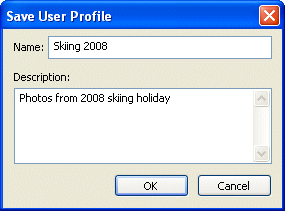
All current settings (download path, filenames, camera mappings, IPTC settings, plug-in settings) are saved. The profile name is displayed in the window title bar.
Profile names must not contain backslash (\) characters. Any changes to settings since Downloader Pro started will be saved under the new profile, not the previously selected one.
Loading User Profiles#
- Click File > User Profiles > Load....
- Select a profile from the list to view its description.
- Double-click or click OK to load.
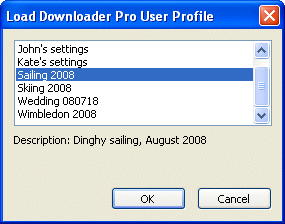
The current settings are saved under the current profile before the new profile loads.
The special profile name {default} is reserved for the default profile. When selected, no profile name is shown in the title bar.
Deleting User Profiles#
- Click File > User Profiles > Delete....
- Select a profile and click OK.
- Confirm deletion when prompted.
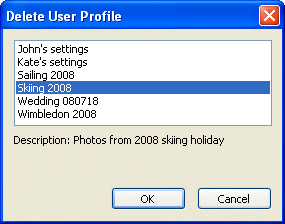
The currently active profile cannot be deleted. Load a different profile first. The default profile cannot be deleted.
Was this page helpful?
Thanks, that helps us improve the guides.