

The Main Screen
The Main Screen#
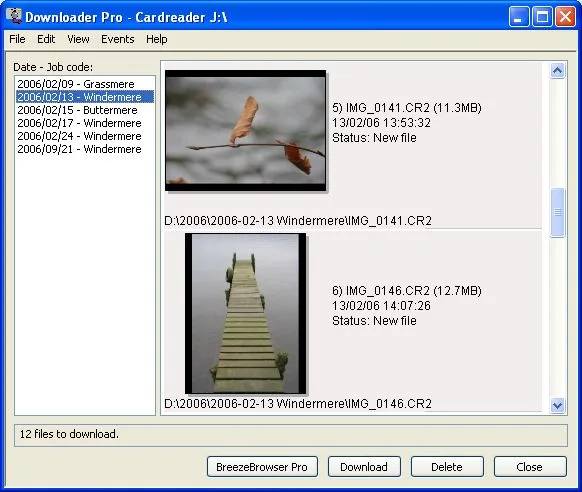
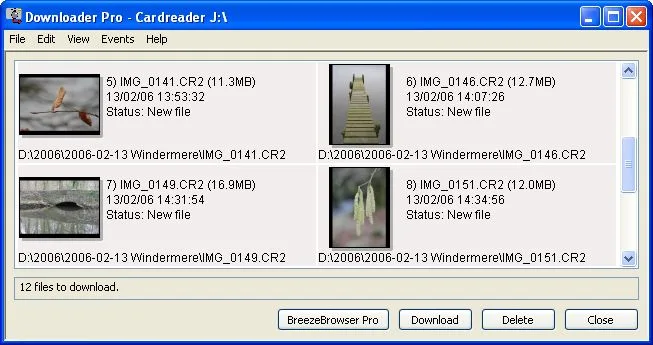
The main screen lists image files from the camera or card reader, showing their size, date, status, and download path. Files can be viewed as large thumbnails, small thumbnails, or a list — selectable from the View menu.
Thumbnail Captions#
Each thumbnail caption shows:
- Line 1: image number, filename and file size
- Line 2: date and time taken
- Line 3: download status
- Line 4: download path
A single thumbnail may represent multiple files (e.g. Canon CRW raw files with their THM thumbnail).
File Status#
| Status | Description |
|---|---|
| Downloaded | A file of the same name, size and timestamp exists in the download directory. Will not be overwritten. |
| New file | No file of that name exists in the download directory. Will be downloaded when Download is pressed. |
| Size different | A file of the same name but different size exists. Likely already downloaded and edited. Will not be overwritten. |
| Time different | A file of the same name and size but different timestamp exists. Likely already downloaded and modified. Will not be overwritten. |
| Duplicate | Two or more source files with the same name and download path appear to be identical copies. Only one copy will be downloaded. |
| Name clash | Two or more source files with the same name and download path differ in size, date or other attributes. These files will not be downloaded or deleted. |
Downloading and Deleting#
Press Download to download all files with status New file or Duplicate. To download selected files only, select them in the list before pressing Download — you will be prompted to choose between selected and all images.
Press Delete to delete downloaded files from the camera. Downloader Pro only deletes files that have been successfully downloaded and match the camera's date/time and file size.
A more detailed status description can be displayed by right-clicking a filename and selecting Download status.
Settings#
To change settings, click File > Preferences. All settings are saved on exit and restored next time Downloader Pro runs. The custom button (e.g. BreezeBrowser Pro) can be configured to launch any application — see Custom Button.
Was this page helpful?
Thanks, that helps us improve the guides.