

Camera Name Mapping
On this page
Camera Name Mapping#
Camera name mapping lets you define custom values for the {T8} and {T9} tokens for different camera models. Useful when camera model names are awkward, or when multiple photographers use the same camera type.
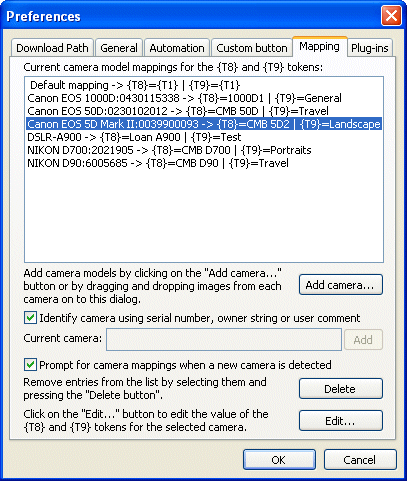
The list shows the currently defined mappings. {T8} and {T9} can then be used in download filenames or directories.
Adding Cameras#
- Drag and drop an image from that camera onto the dialog, or
- Click Add camera... and select an image file, or
- Press Add to add the currently connected card reader camera.
To remove a camera, select it and click Delete.
Identifying by Serial Number#
Select Identify camera using serial number, owner string or user comment to distinguish between multiple cameras of the same model. The serial number (Canon EOS and recent Nikon DSLRs), owner string (other Canon cameras), or user comment (some cameras, e.g. Nikon D200) is appended to the camera model name.
Editing Mappings#
Double-click a camera in the list (or select it and press Edit...) to edit the {T8} and {T9} values. Values can be any valid Windows filename characters, and may also contain tokens (e.g. {d}).
Prompting for New Cameras#
Select Prompt for camera mappings when a new camera is detected to be prompted when Downloader Pro detects a new camera model.
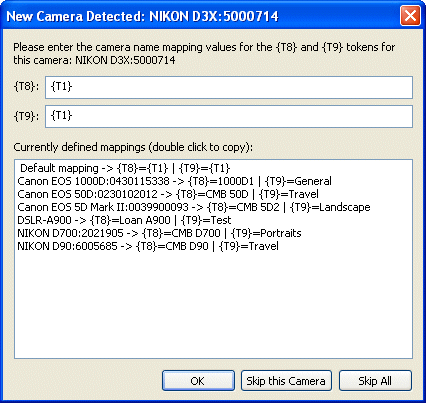
Enter values for {T8} and {T9} and press OK. Press Skip this Camera to skip without mapping (won't prompt again until the next session) or Skip All to skip all remaining prompts.
You will only be prompted for new cameras if {T8} or {T9} is used in the download filename or directory.
See Downloading from More Than One Camera for usage examples.
Was this page helpful?
Thanks, that helps us improve the guides.