

Robotic Arms
Start a video session automatically when an iPad mounted on a robotic arm, such as a Glambot-style rig, starts moving.
On this page
Breeze Booth can capture video from an iPad or iPhone mounted on a robotic arm, such as a Glambot-style camera rig. There are two ways to start recording in time with the arm's movement.
Breeze Booth for iPad on a Dobot Nova 5 robot arm.
| Option | How it works | Difficulty |
|---|---|---|
| Spinner auto start | Breeze Booth detects motion and starts the video when the arm moves | Easy, no wiring |
| Bluetooth controller | Breeze Booth tells a custom controller to start the arm's program | Advanced |
Option 1: Spinner auto start (recommended)#
Spinner auto start mode detects motion and starts the video as soon as the device begins to move. It was made for 360 spinners, but it works the same way on a robotic arm: when the arm starts its move, Breeze Booth starts recording.
Nothing needs to connect the arm to the booth. You run the arm's program as normal, and Breeze Booth follows it.
- Mount the device securely on the arm.
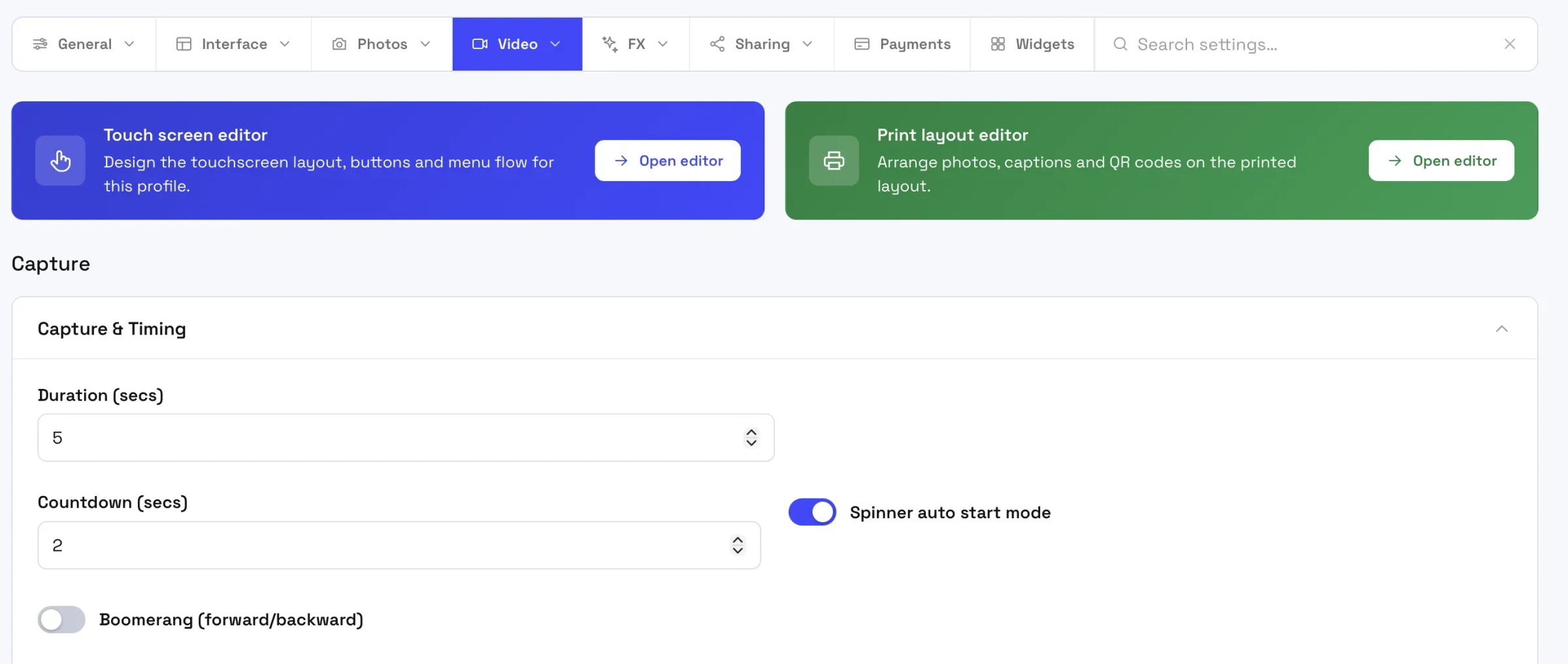
- In the profile settings, open the Video tab and, under Capture › Capture & Timing, turn on Spinner auto start mode. Set the Duration to cover the arm's move.
- On the device, go to Settings › Devices and, under Virtual Devices, open Motion Start to adjust how sensitive the motion detection is (see below).
- Go to Settings › Display & UI and set Orientation Lock to match how the device is mounted. Otherwise, the arm's movement can rotate the device and switch between the portrait and landscape profiles. See Display & UI.
- Start the event, then run the arm's program. The video starts when motion is detected.
Motion Start settings#
| Setting | What it does |
|---|---|
| Threshold, G | How much movement (in G) is needed to count as motion. Lower it if a slow arm start isn't detected; raise it if small bumps start the video. Default 0.500 |
| Threshold count | How many readings must pass the threshold before the video starts. Raise it to ignore brief knocks. Default 1 |
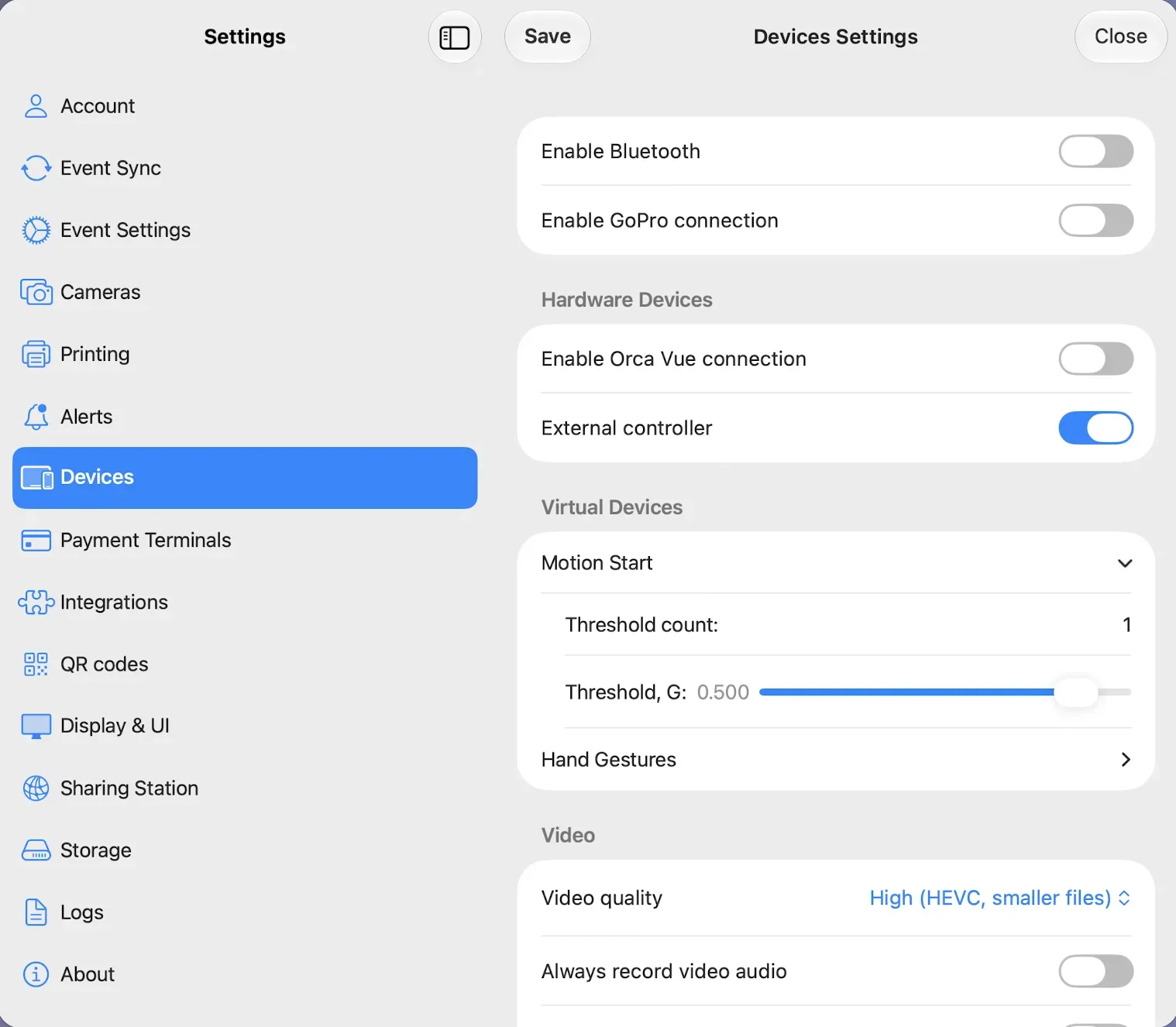
Do a few test runs with the arm's real move and adjust the threshold until the video starts where you want it.
Option 2: Bluetooth controller (advanced)#
For tighter control, you can build a Bluetooth LE controller that connects to Breeze Booth on one side and to the robot's controller board on the other. Breeze Booth then tells the arm when to move, rather than the arm telling Breeze Booth.
This is more complicated. It needs some microcontroller programming and wiring into the robot's controller, and is intended for integrators.
- Build a controller with an Adafruit nRF52840 board (ItsyBitsy or Feather) running CircuitPython or Arduino. See Bluetooth for setup and sample code.
- In the Event Editor, open General › Bluetooth commands…, pick the state where the arm should start moving, and enter a command string.
- Program the controller so that, when it receives that string, it closes a relay wired to an input on the robot's controller board that starts its program.
- On the device, go to Settings › Devices, turn on Enable Bluetooth and connect to the controller.
Check the robot manufacturer's documentation for wiring its inputs and for safety. Keep guests and staff clear of the arm's working area while it runs.
Related#
Was this page helpful?
Thanks, that helps us improve the guides.